Add Employee to Pay Event
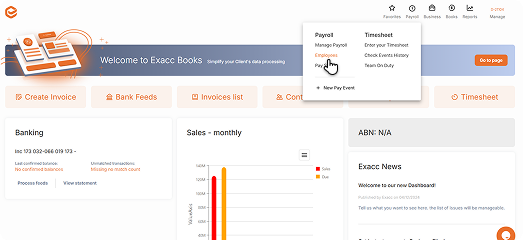
Log in and go to Business File. On Menu, select Payroll, then click on Employees. This section allows you to add and manage staff members included in payroll.
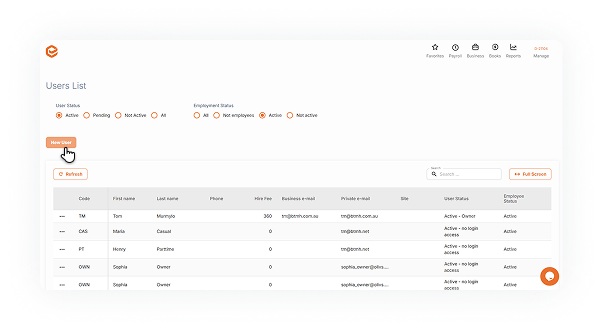
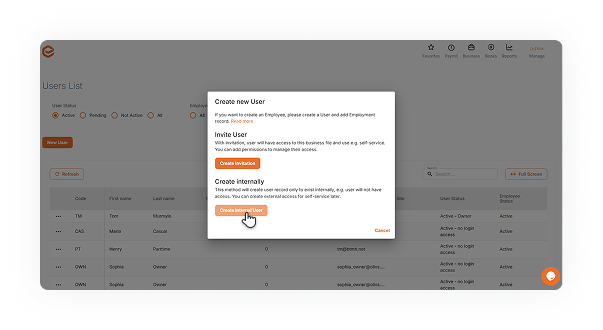
Click on New User to add a new employee. You will see two options for how to proceed:
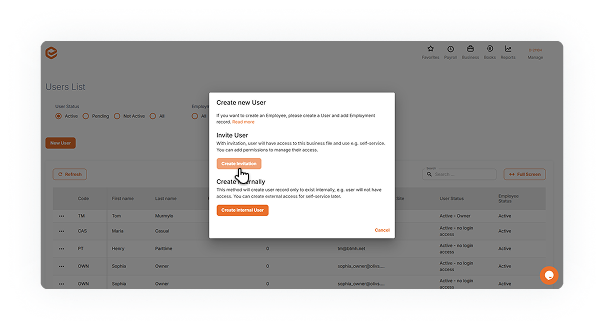
A. Invite User
- Send an invitation to the employee's email address
- Once accepted, the employee can log in, access the Business File, and use Self-Service to enter their personal details
- Employee can also use that login to submit timesheets, and you can assign specific permissions to control what they can access
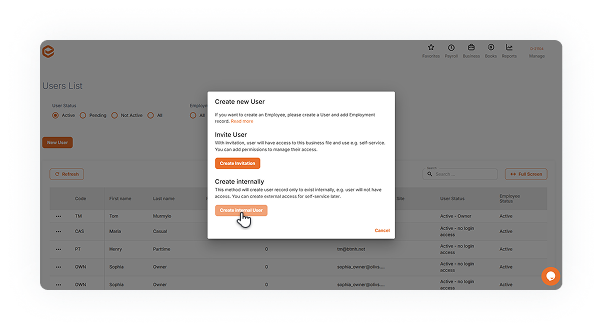
B. Create Internal User
- Add the employee without login access.
- Useful for team members who don't need to use Self-Service features.
- You can still include them in Pay Events and run payroll.
- Access can be granted later, if needed.
Employment data is linked to personal data of User. Users are created in the file, even if they don't have access to the Business File.
Manage Personal Details
Create new employee or update existing
- Add the employee without login access
- Useful for team members who don't need to use Self-Service features
- You can still include them in Pay Events and run payroll
- Access can be granted later, if needed
Employment data is linked to personal data of User. Users are created in the file, even if they don't have access to the Business File.
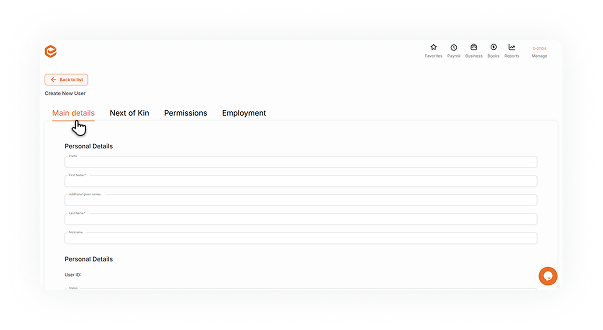
Start with Main Details
Enter at least first and last name, but other details may be required for STP and other reporting, especially date of birth and address will be required. Exacc will provide you with reports on what data is missing.
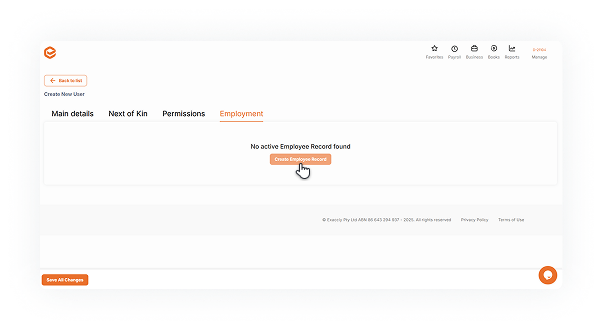
Go to Employment tab, click Create Employee Record and enter data:
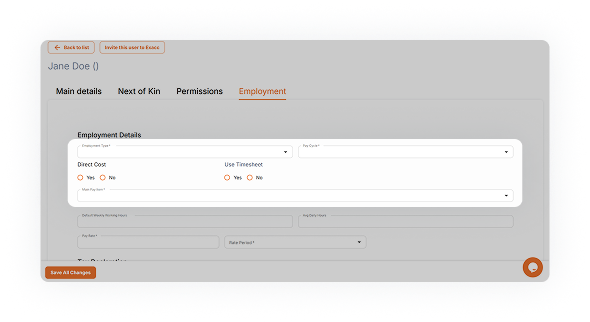
Employment Details
- Employment Type: Casual, Part-time or Full-time. This is required for STP reporting
- Pay Cycle - required, even if you only run one cycle
- Direct Cost - whether the Pay should use accounts in Cost of Sales (Yes) or Expenses (No)
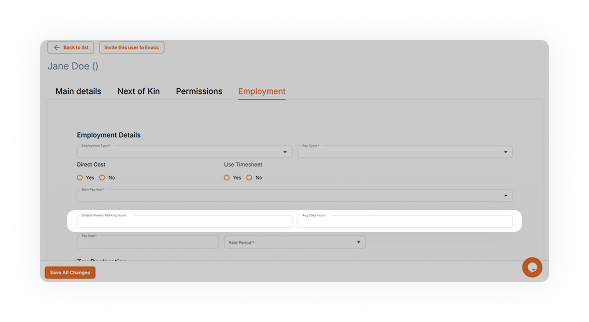
- Main Pay Item - calculation of default hours will be inserted into pay record as the selected Pay Item: Salary or Wages. You can add your own Pay Item.
- Default Weekly Working Hours - this will be added to the Pay Record as Hours, recalculated for the period of the Pay Event
- Avg Daily Hours - used in Leave Requests only
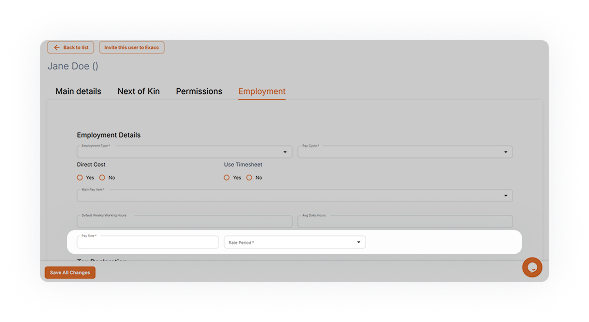
- Pay Rate - default pay rate for Ordinary Times earnings. This will be the base for calculation of any special rates etc.
- Rate period - Period of the Pay Rate, used to calculate hourly rate, e.g. if Pay Rate is 35 and Rate Period is "per hour" then this is your hourly rate; if Pay Rate is not "per hour" then hourly rate is calculated, based on Default Weekly Working Hours. Your Hourly Rate appears for review.
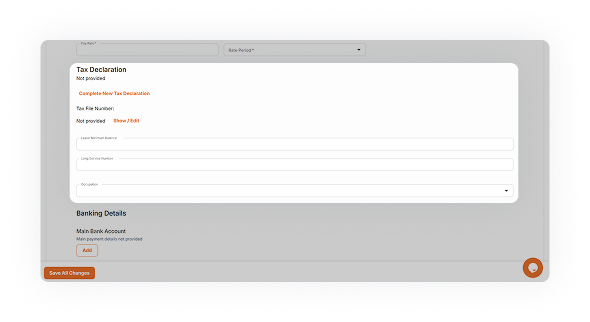
Tax Declaration
- It is used to determine Tax Rate and withholding amount for Employee. Please answer all questions and save entire record. Tax File Number - hidden for protection, use Show / Edit to look it up
- Leave Minimum Balance - if you allow the Payroll to pay Annual Leave / Personal Leave up to that balance (can be negative). If empty, 0 will be used
- Long Service Number - for your record keeping only
- Occupation - will appear on payslip
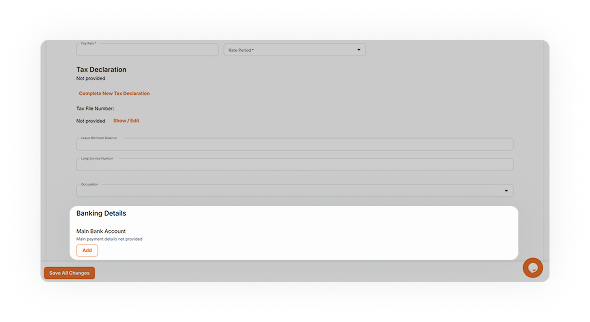
Banking details
- For payments using ABA. Main Bank Account will receive full net pay, unless you add Savings Bank Account - in which case, the amount you enter, if sufficient, will be paid out to Savings, and remainder to Main
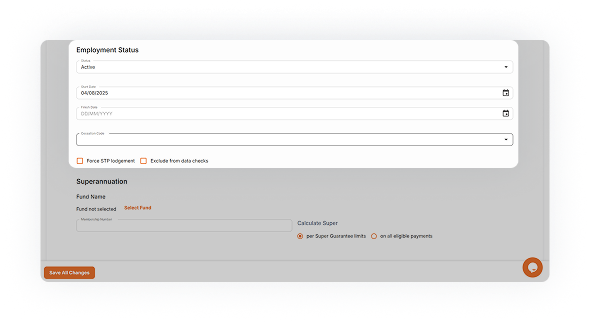
Employment Status
- Employment Status - only Active and "Termination in progress" employees will appear on your payroll.
- Start Date - employment start date - set to current date on new employees
- Finish Date - employment cessation date - required if Finished or Termination in Progress
- Cessation Code - required if finishing employment, will be sent with STP
- Force STP lodgement - this employee will be included in the next STP lodgement (including amendments). If there is no pay for this employee in financial year, it will be sent with all required amounts as zero.
- Exclude from data checks - checking this will stop prompts about missing data
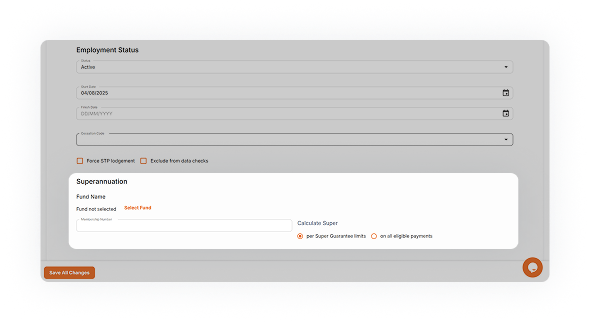
Superannuation
- Superannuation - select fund from Superfund Lookup, and enter Membership Number
- Calculate Super:
- per Super Guarantee limits will e.g. limit super for under 18, or stop calculating Super above upper threshold for high income earners
- on all eligible payments - will calculate super on all Pay Items that are subject to Superannuation