Open Business › Sales › Payment, choose the Client, enter the date, amount, method and account, then allocate the amount to their invoices with Pay, Allocate in Order or by typing amounts, and click Save. The whole amount must be allocated. Card payments through Stripe are recorded for you.
Before you start
- At least one payment method (Manage › Configuration › Payment methods), each with the account it usually goes to.
1. Open New Payment
Open Business › Sales › Payment. You can also start from an invoice (Create Payment for Invoice), from a row in Manage Invoices (New payment), or from Receivables (Add Payment); these fill in the client.
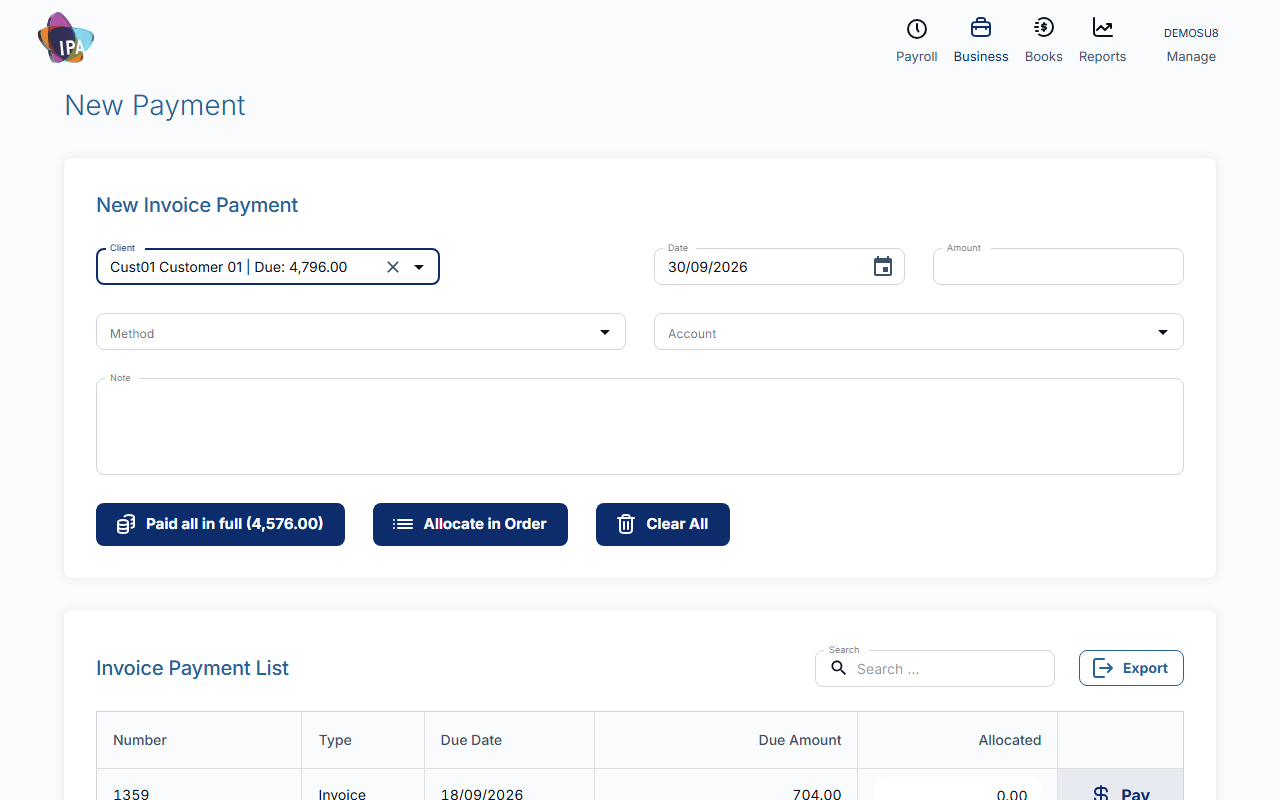
2. Enter the payment
- Client (required) - shows how much each client owes. Their open invoices and credit notes appear below.
- Date (required) - the day the money arrived. Must be after your Accounts Lock date.
- Amount (required) - what they paid.
- Method (required) - e.g. EFT or card; fills in the Account from the method.
- Account (required) - the bank or clearing account the money went into.
- Note - optional, e.g. the bank reference.
3. Allocate it to invoices
Paid all in full sets the amount to everything owed and pays every invoice. Allocate in Order pays invoices from the top of the list until the amount runs out. Pay on a row pays that invoice (up to what is left), or type an amount in Allocated to pay part of it.
The footer shows Amount to allocate; it must reach 0. A partly paid invoice stays open for the rest.
4. Save
Click Save (or Save & New to enter another). Exacc confirms "Payment saved successfully!" and opens the payment.
Paid more than they owe?
Exacc only saves a payment that is fully allocated to invoices, so it cannot hold money on account yet. Allocate what matches open invoices and talk to your accountant about recording the difference.
Changing or deleting a payment
Open the payment (from Payments History on the invoice). You can change Date, Method, Account and Note, then click Update. The amount and allocations cannot be changed: Delete the payment and enter it again.
Using a credit note
A customer's credit notes appear in the list with negative amounts. Allocate them together with the invoice; see Create and apply a credit note.
On the mobile app
Open the invoice and tap Payment: enter Amount Paid, Payment Date and Payment Method and tap Save Payment. It pays that one invoice; for several invoices at once use the web.
Related guides
- Split an invoice into instalments
- See payment history
- Create and apply a credit note
- Take card payments with Stripe
Checked against Exacc on 29 September 2026. Machine-readable version