Receipts, contracts and other documents you attach to invoices, bills, journals, contacts or projects are all listed in one place. Open Manage › Configuration › Attached Files (Your files) to search them, open the record each belongs to, download them or edit their description. Administrators only.
Before you start
- You must be an administrator of the business file.
1. Open Your files
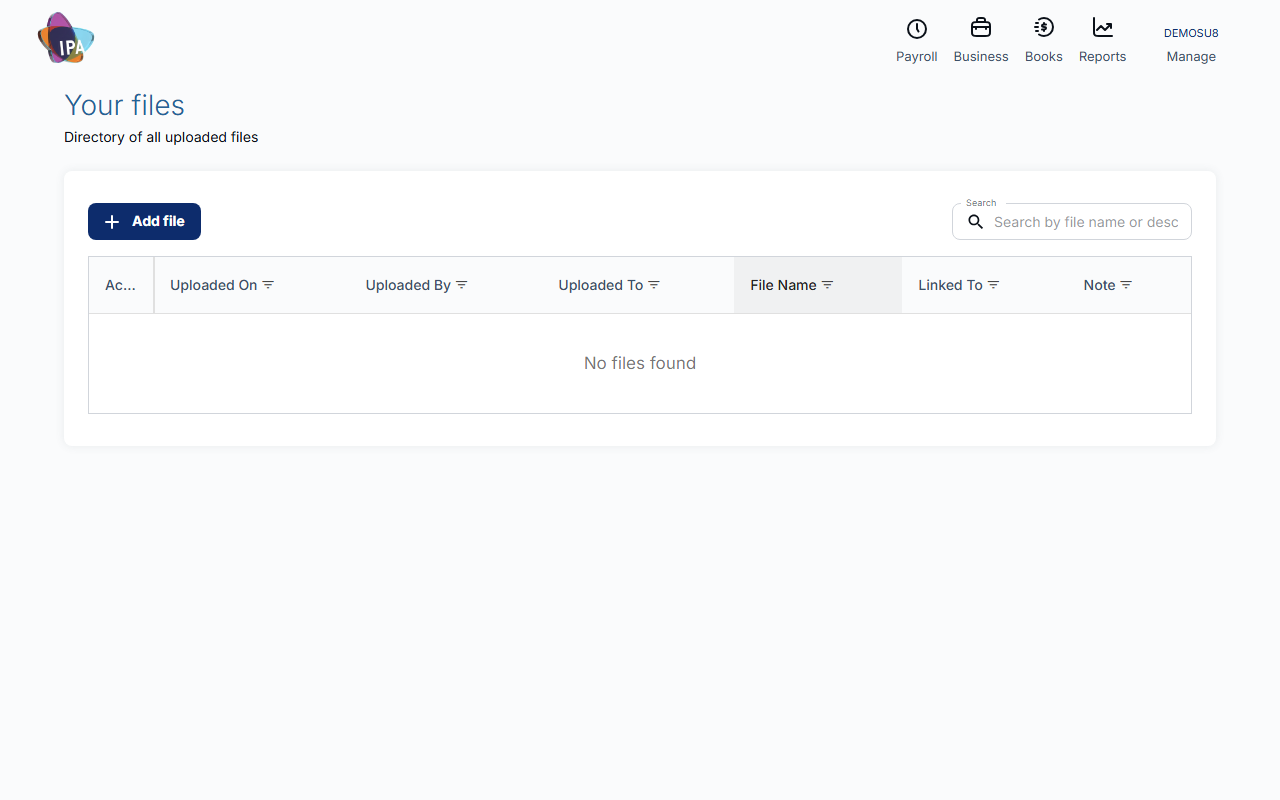
Open Manage › Configuration › Attached Files. Your files lists every upload with Uploaded On, Uploaded By, Uploaded To, File Name, Linked To and Note. Search by file name or description, or sort and filter any column.
2. Work with a file
Open the ⋮ menu on a row:
- View Source - opens the journal, bank transaction, invoice, bill or contact the file is attached to.
- Download - saves the file.
- Edit description - changes the note shown with the file; click Update.
3. Upload a file
Click Add file, drop or pick the file, add a Description and click Upload File. One file at a time, up to 3 MB: PDF, images, Word, Excel, CSV, text, and ABA files.
Files uploaded here are unassigned (not linked to a record). To attach a file to an invoice, bill or contact, upload it from that record instead.
Related guides
Checked against Exacc on 29 September 2026. Machine-readable version