Open Business › Sales › Invoice, pick the customer, add your lines, set payment terms and the sales person, then click Save & Post. On the invoice summary that opens, click Send As E-Mail: your customer gets the invoice as a PDF, with a Pay now with Stripe link if Stripe is connected.
Before you start
- The customer as a contact in Exacc. You can also add one from the invoice with New Customer.
- For emailing: the customer's email address on their contact, and your business name and email in the file's Business Details.
- For a pay-now link: Stripe connected to the business file.
1. Open a new invoice
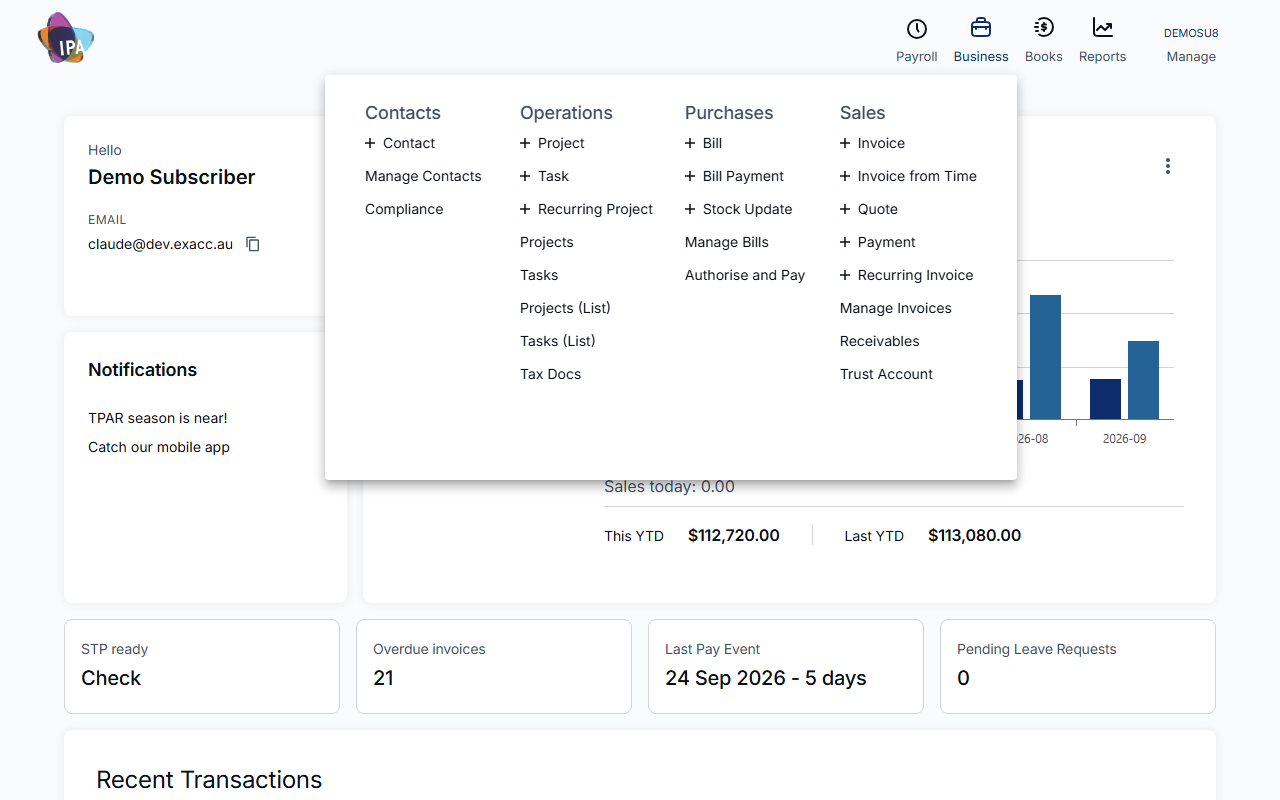
In the top menu choose Business, then under Sales click Invoice. The New Tax Invoice page opens. You can also start from Manage Invoices with the New Invoice button.
2. Choose the customer and date
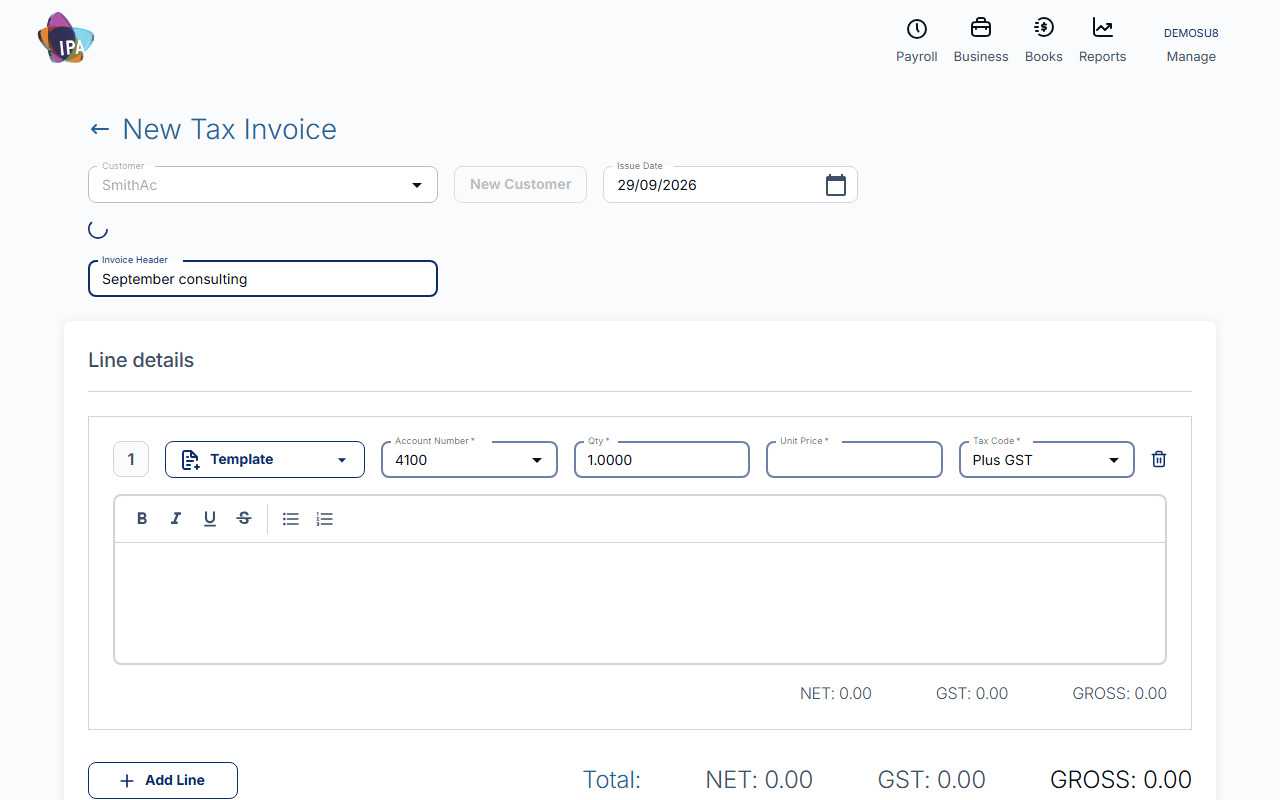
Pick the Customer. Only active customers are listed; New Customer adds one without leaving the page. Once chosen, a summary shows their uninvoiced time, drafts and anything overdue.
Issue Date is today unless you change it. A date inside a locked period is refused. Invoice Header is optional text shown at the top of the invoice.
3. Add the lines
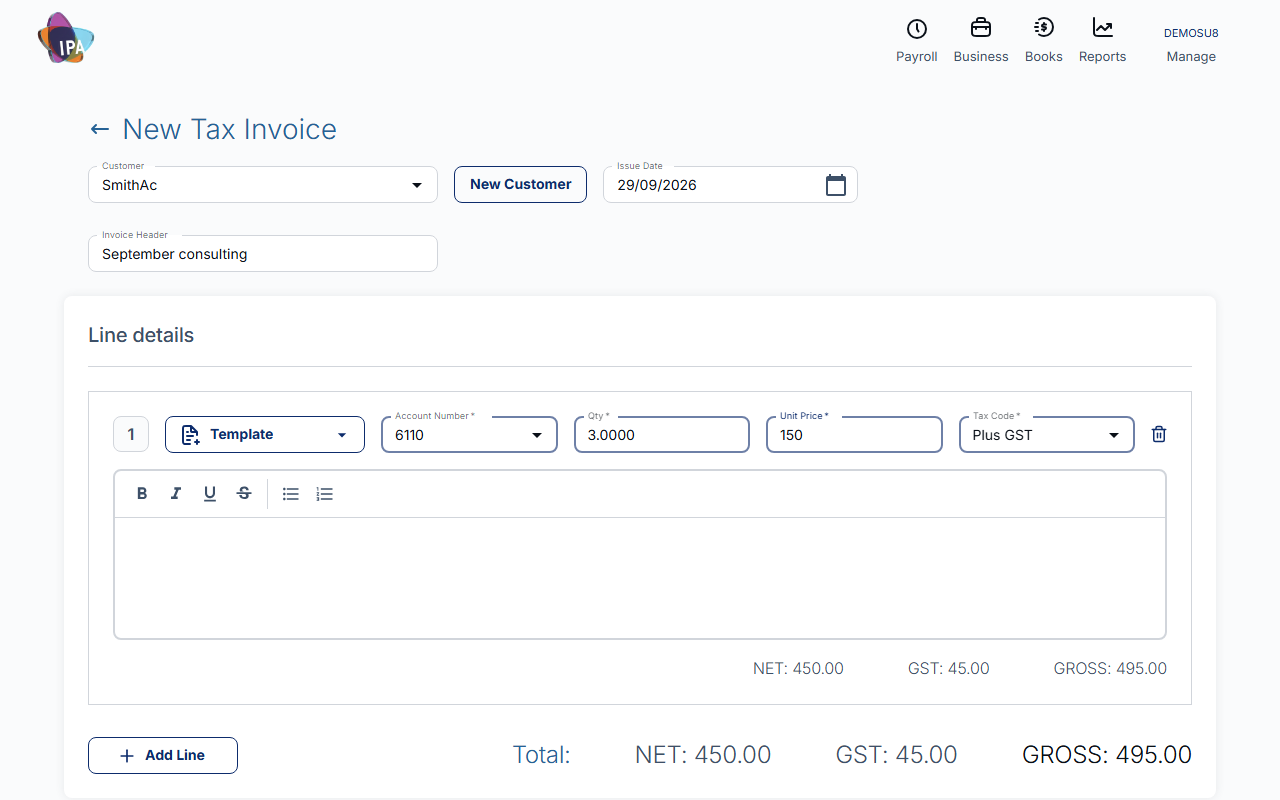
Under Line details, fill in each line. Template fills a line from your saved line items. Add Line adds another; the bin removes one (an invoice needs at least one).
- Account Number (required) - the income account this line posts to.
- Qty (required) - defaults to 1.
- Unit Price (required) - the price per unit.
- Tax Code (required) - Plus GST adds GST on top, GST Inc means the price already includes GST, GST Free or Export for no GST.
- Description - what the customer sees; you can format the text.
4. Payment terms and sales person
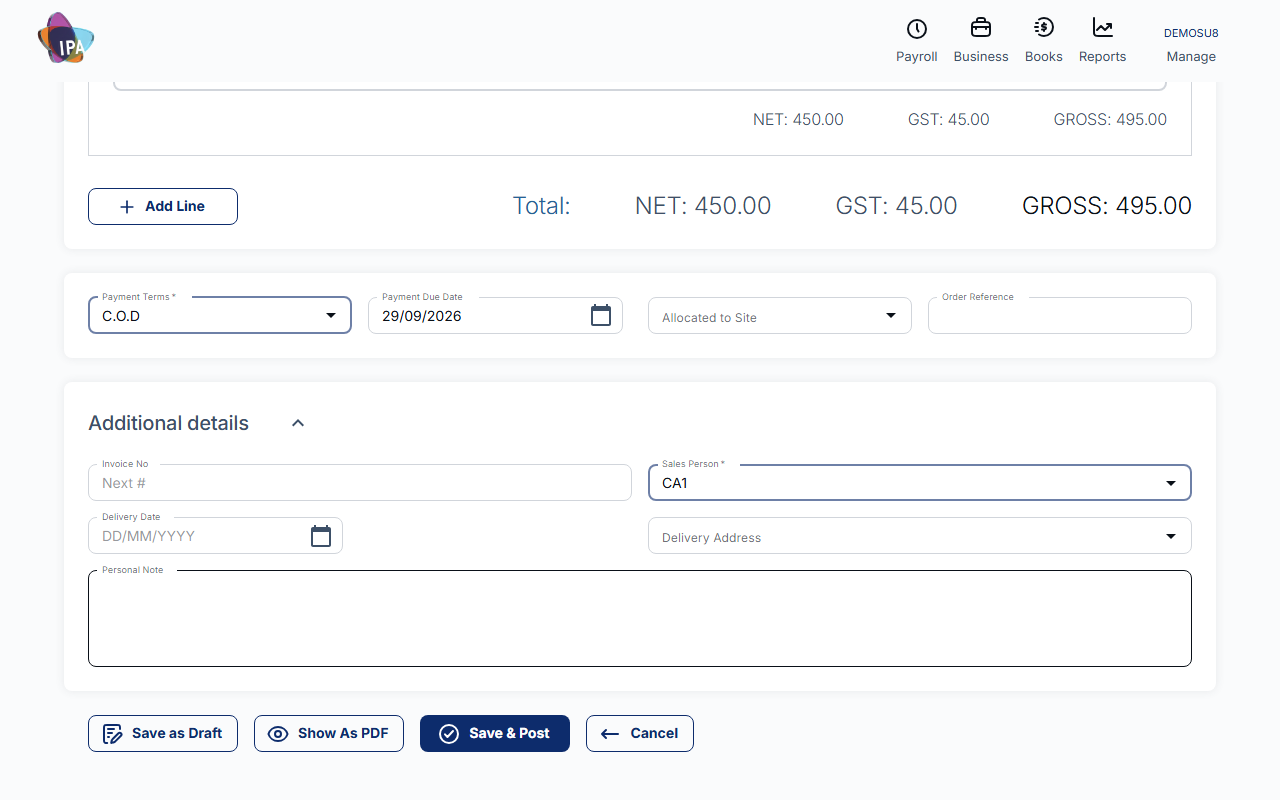
Check Payment Terms, which are required; the Payment Due Date is calculated from them. Allocated to Site and Order Reference are optional.
Open Additional details and check Sales Person, which is required and is normally you. Here you can also set the Invoice No (leave it for the next number), Delivery Date, Delivery Address and a Personal Note that the customer does not see.
5. Save & Post
Click Save & Post to finalise the invoice and post it to your books. Exacc confirms "Invoice No. … finalized successfully" and opens the invoice summary.
Not ready? Save as Draft keeps it for later (find it in Manage Invoices with status Draft). Show As PDF saves a draft and downloads the PDF so you can check it first.
6. Email it to the customer
On the summary, click Send As E-Mail. Exacc shows where it will go ("Invoice will be sent to …"); click Send in e-mail. The status beside the button changes from Not Sent Yet to Sent on and the date.
The email includes the invoice as a PDF, the issue date, total and due date, your bank details for transfer, and a Pay now with Stripe link when Stripe is connected.
If the customer has no email, Exacc asks for one: click Edit Contact, add it, and send again.
After sending
From the invoice summary you can:
- Create Payment for Invoice when the customer pays, or Create Payment Plan for Invoice to split it into instalments;
- Edit or Duplicate the invoice;
- under Other Actions: Download PDF, Show Customer, See Activities or Delete.
Checking invoice status
Business › Sales › Manage Invoices lists every invoice with its customer, dates, gross and amount still due, and Status (Draft or Finalised). Filter by status to find drafts.
On the Exacc mobile app
Open the Invoices tab, tap the create button and choose New Invoice. Pick the customer and issue date, tap Add Line and fill in each line (sales item, price, tax, quantity, account), tap the total to set Payment Terms, and open Additional details to check Sales Person. Tap Save & Post; Save as Draft and Show as PDF are in the menu beside it.
On the posted invoice, tap E-mail to send it straight away. Download lets you choose a PDF template first.
If the app says "Please complete all required invoice details", open Additional details: the Sales Person is probably empty.
If sending fails
A message about missing business details means the business file has no name or email of its own. Add them in Business Details, then send again.
Questions
Can I change an invoice after posting it?
Yes, use Edit on the invoice summary. If it has already been emailed, send the updated version again so your customer has the right copy.
Is there a way to void an invoice?
Exacc deletes an invoice rather than voiding it: Other Actions › Delete on the summary. To correct a sent invoice without deleting it, edit it or issue a credit note.
Can I invoice for time I have tracked?
Yes: Business › Sales › Invoice from Time builds the invoice from timesheet entries.
Related guides
- Find, edit, copy or delete invoices
- Record a customer payment
- Create and send a quote
- Take card payments with Stripe
- Invoicing on the Exacc mobile app
Checked against Exacc on 29 September 2026. Machine-readable version