Your business details appear on invoices, payslips and reports, including those sent to the ATO. Open Manage › Configuration › Business Details and work through the five tabs: Main Info, Contact, Banking, Online Payments and ATO. Click Save Changes when done.
Before you start
- Permission to update business details (administrators have it).
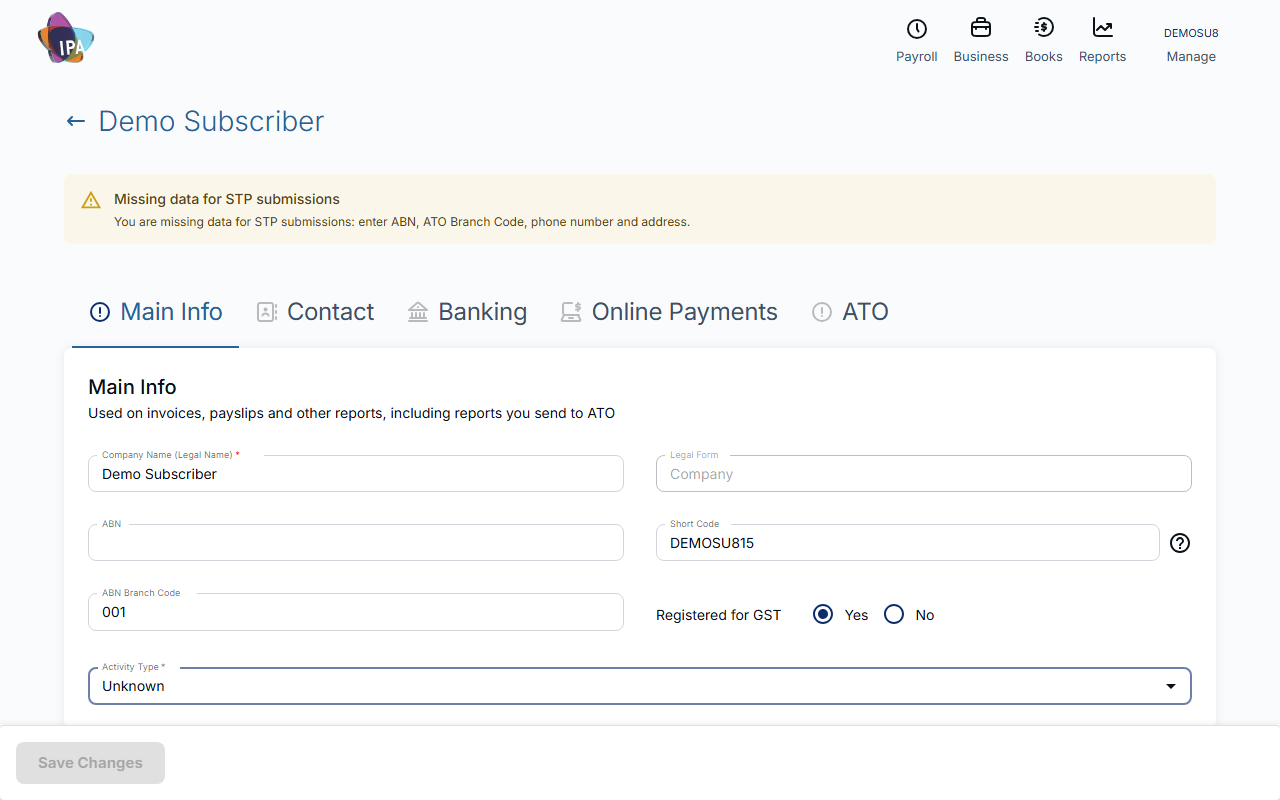
1. Main Info
Open Business Details. If Exacc shows Missing data for STP submissions, the fields it names (ABN, ATO Branch Code, phone and address) are needed before you can lodge STP.
- Company Name (Legal Name) (required) - your legal name, shown on invoices and as the sender of invoice emails.
- Legal Form - sole trader, partnership, company, SMSF, trust or other. Set when the file was created and shown here read-only.
- ABN - checked as you type.
- Short Code - up to 7 characters. Shown on the tile at the top right of Exacc and in browser tabs and reports.
- ABN Branch Code - your ATO branch number, usually 001.
- Registered for GST - Yes or No. The same setting as GST Registration details in General Settings.
- Activity Type - your main ATO business activity.
- Company Logo - Add Logo or Change Logo; it appears on invoices. Remove Previous Logo removes it immediately.
2. Contact
These details appear on your invoices and reports.
- E-mail (required) - your business email. Needed to email invoices to customers.
- Contact Person, Phone, Website - phone takes digits and + only.
- Address - street, suburb, state and post code.
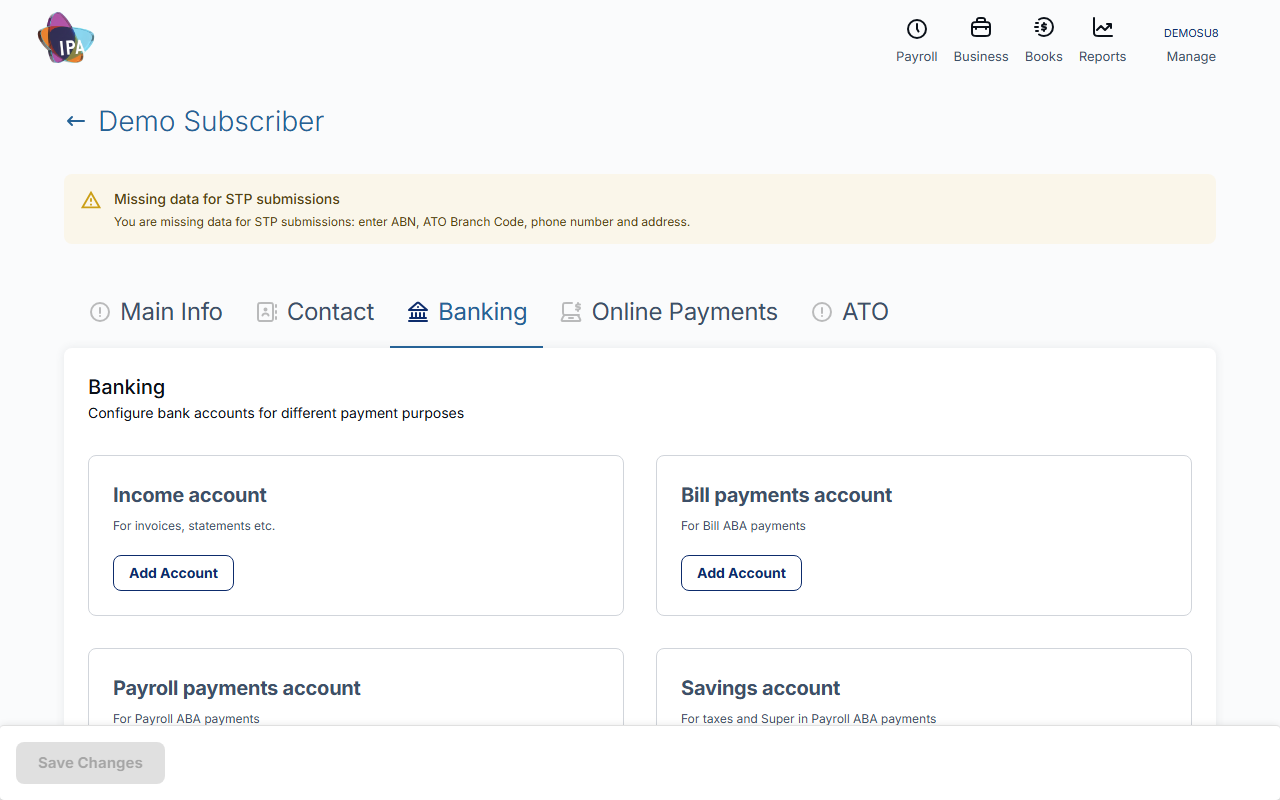
3. Banking
Choose the bank account Exacc uses for each purpose: Income account (invoices and statements), Bill payments account and Payroll payments account (the ABA payment files), and Savings account (tax and super in payroll ABA files).
Click Add Account (or Change), then pick one under Select existing account, or enter Name on account, BSB and Account number under Add account details. Click Select or Save, then Save Changes on the page to apply it.
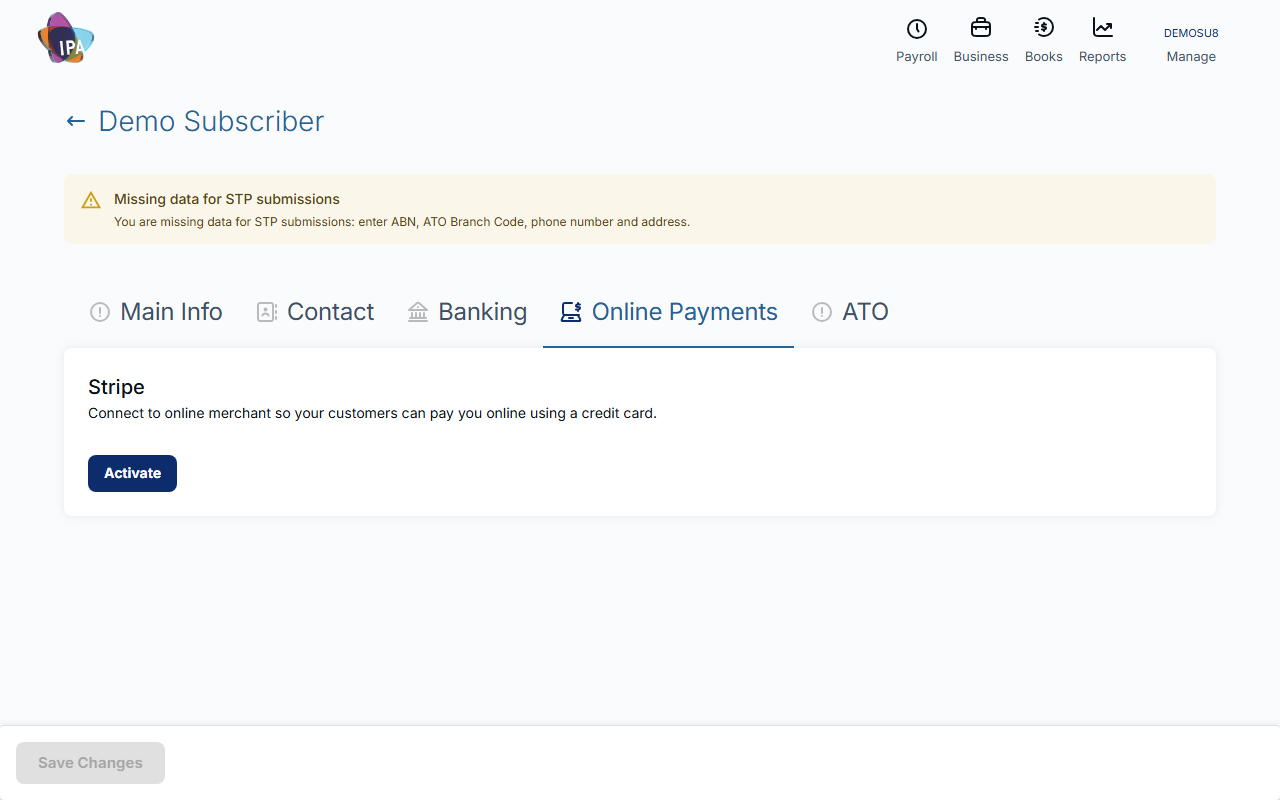
4. Online Payments (Stripe)
To let customers pay invoices by card, click Activate. Exacc sends you to Stripe to set up your account; when you come back, choose which account payments are recorded in, which account takes the merchant fees, and which payment method they are recorded as, then click Save Changes.
Once active, invoice emails include a Pay now with Stripe link. Didn't finish on Stripe? Come back and click Continue creation.
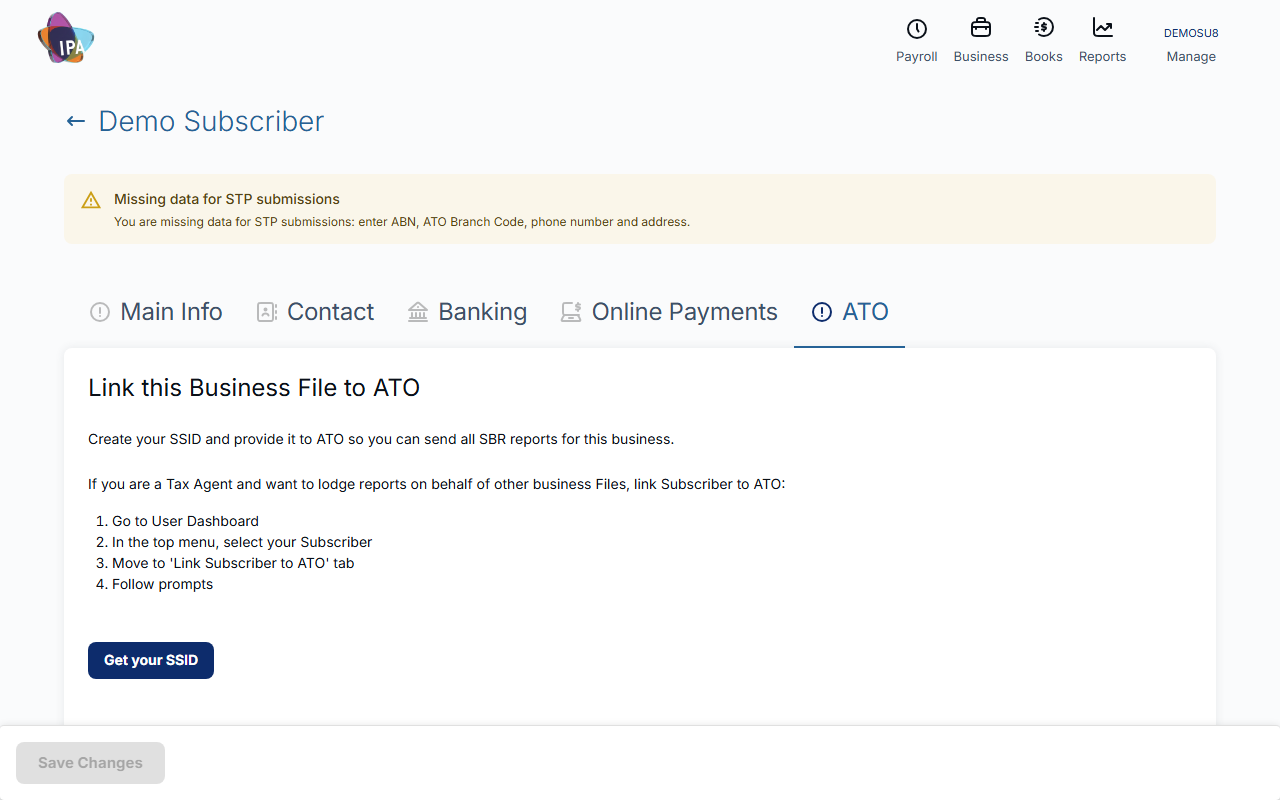
5. ATO
To lodge STP and other reports for this business from Exacc, link the file to the ATO. Click Get your SSID, then follow the steps shown: in the ATO's Access Manager, notify the ATO of your hosted service using Exacc's ABN (86 643 294 937) and your SSID. Click Yes I Did when finished.
Tax and BAS agents: you can link once for all your clients through your subscriber account instead (see Manage your subscriber account and team). If Exacc says you can already lodge through your subscriber, you only need a separate link if the business owner will lodge themselves.
6. Save Changes
Click Save Changes at the bottom. Exacc confirms "Business details saved successfully!". If something is missing, it lists the fields and takes you to the tab.
Questions
Why can I not email invoices?
Exacc needs a Company Name of at least two characters and a valid E-mail on the Contact tab. Add them and send again.
Does the ATO link check anything with the ATO?
Clicking Yes I Did records that you completed the steps. If a lodgement is later rejected, check in Access Manager that the ATO still has your SSID. The step-by-step guide is linked on the tab.
Related guides
Checked against Exacc on 29 September 2026. Machine-readable version