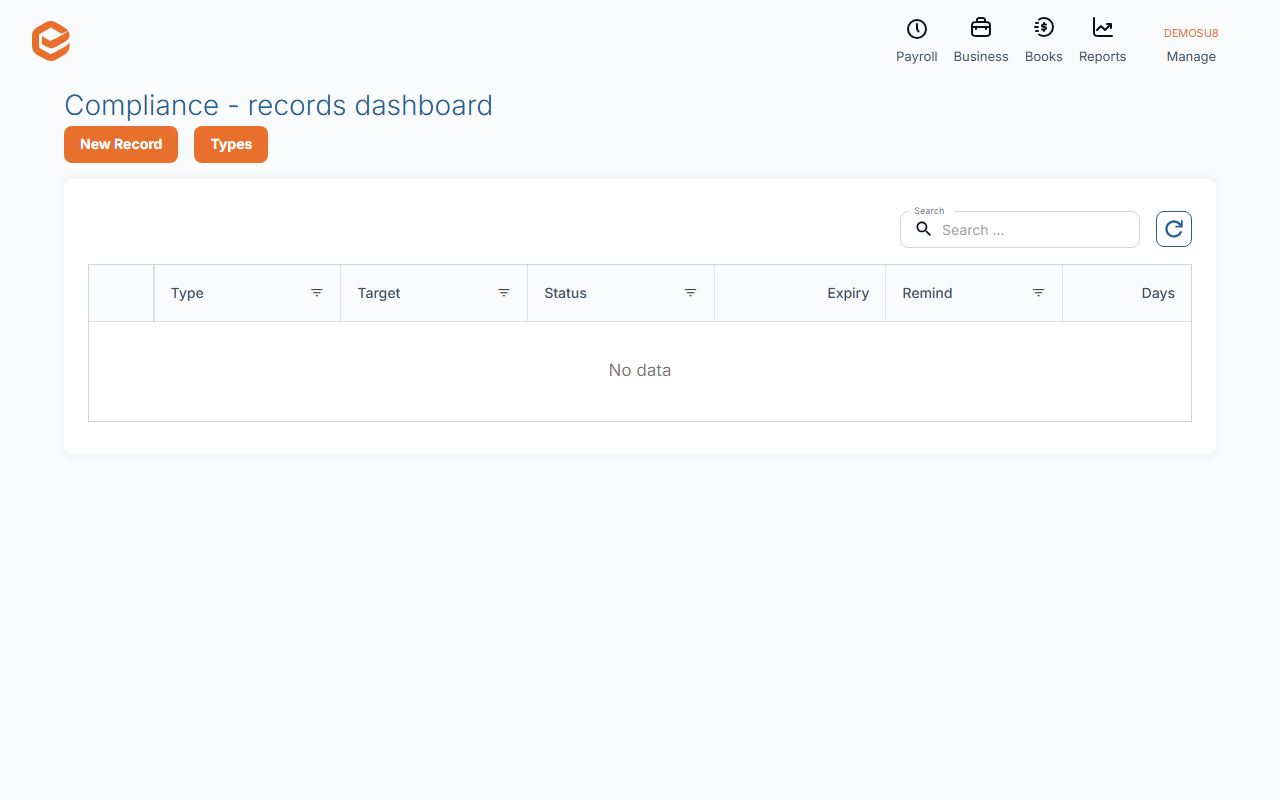
Open Business › Compliance and click New Record. Select Type, choose who it is for, set the Status, and log the check: Checked on, Checked by, Checked via and Compliant until (worked out from the type). The Compliance - records dashboard shows every record with its expiry and days left.
Before you start
- A compliance type (see Set up what to track).
1. Add a record
Open Business › Compliance (Compliance - records dashboard) and click New Record:
- Select Type and who it is for (required) - the item and the contact, user or employee.
- Status (required) - Permanently compliant, Compliant until expiration date or Not compliant.
- Checked on, Checked by, Checked via - when, by whom and how (by e-mail, video-link, in person) you checked the evidence. Required unless the status is Not compliant.
- Compliant until - worked out from the type's cycle; change it to the date on the certificate.
- Note - e.g. the policy number.
2. Keep it up to date
When a renewal arrives, open the record and add a new check: the status and expiry update. The dashboard shows each record's Expiry and the Days left; Go to Target opens the contact or user.
Records for your own business
Records for "This Business" cannot be saved yet. Track your own insurances as records against your business's contact for now.
Related guides
Checked against Exacc on 10 October 2026. Machine-readable version