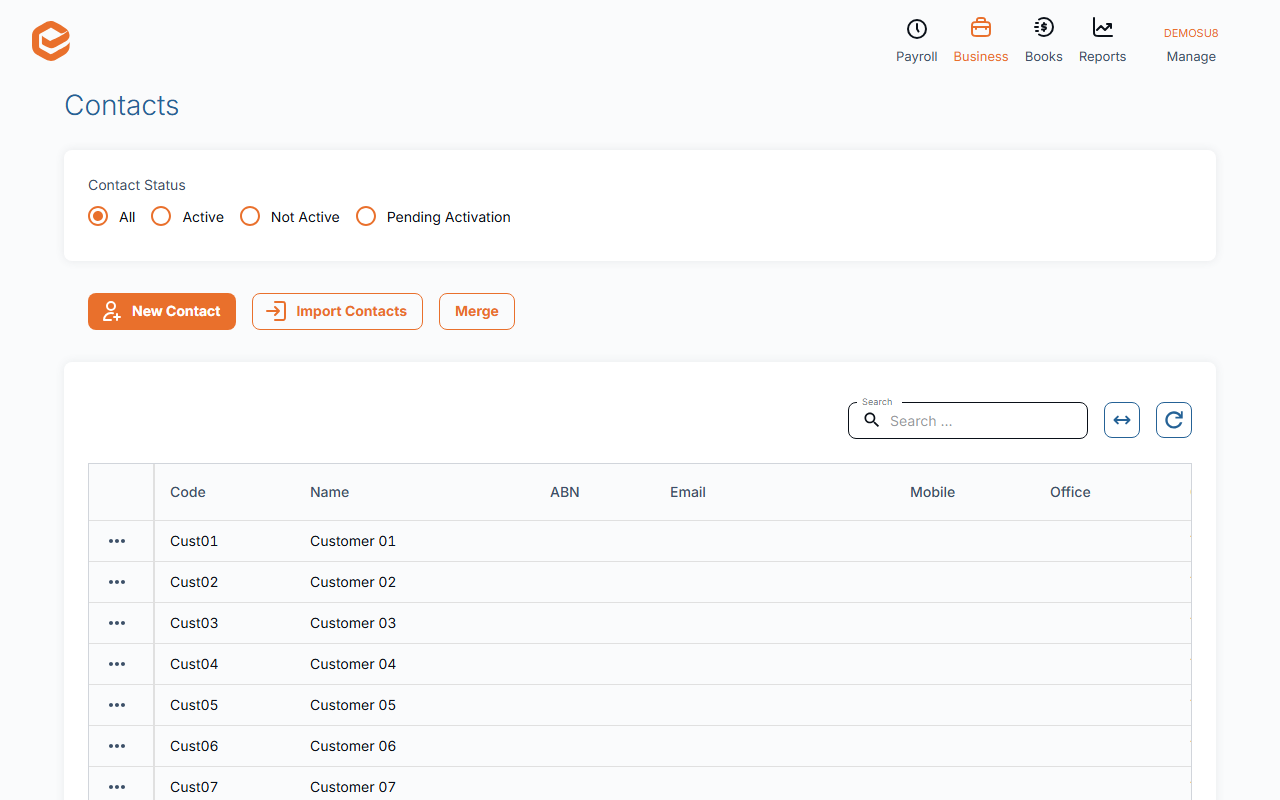
Open Business › Contacts. Search, or filter by Contact Status (All, Active, Not Active, Pending Activation). Each row's menu has Dashboard, E-mail Contact, Activate / Deactivate and Edit Contact. New contacts from your public form wait under Pending Activation until you activate them.
1. Find the contact
Open Business › Contacts. Type in Search (code, name, ABN, email or phone), or choose a Contact Status. The list shows code, name, ABN, email, phones, manager, Type (Customer, Supplier or Customer + Supplier), legal form, status and payment terms.
2. Approve new contacts from your public form
Contacts who sign up through your public form arrive as Pending Activation. Exacc does not email you about them, so check this filter now and then.
Open the row's menu and click Activate. If Exacc finds a contact with the same ABN, TFN or name it shows Activation Error with the matches: click Back and merge them instead (see Merge duplicate contacts), or Activate anyway.
3. Deactivate a contact you no longer deal with
Deactivate in the row's menu sets it to Not Active: it stays in your history and reports but is no longer offered on new invoices and bills. Activate brings it back.
4. Open their dashboard
Dashboard shows their details and balances (Debtor outstanding, Creditor outstanding, Oldest invoice owed, Oldest bill owed) and their files, with buttons for New Invoice, Customer History or Supplier History, Notes, Edit and Add File.
Emailing a contact
E-mail Contact opens a new message to them in your own email program. Exacc does not send or keep that email. Invoices, statements and remittances that Exacc sends itself are in their history.
Copying a contact to another business file
Copy to another Business File copies the contact into another file you have access to, so you do not type it twice.
On the mobile app
The Contacts tab searches the same way and filters by status. Tap a contact for Go to dashboard, Add note, Edit Contact, Call Mobile, Call Office, Send SMS and Email Contact. Activate and deactivate on the web.
Related guides
- Add or edit a contact
- Merge duplicate contacts
- Let new clients sign up with a public form
- Import contacts from your practice software
Checked against Exacc on 4 October 2026. Machine-readable version