Open Books › Bank Rules and click New Bank Rule (or New Bank Rule on a transaction in Process feeds). Enter the keywords to look for, whether they are credits or debits, the Account No and Tax Code, and click Create Bank Rule. Apply Rules in Process feeds then codes matching transactions.
1. Start a rule
Open Books › Bank Rules and click New Bank Rule. Starting from a transaction in Process feeds fills in its description for you.
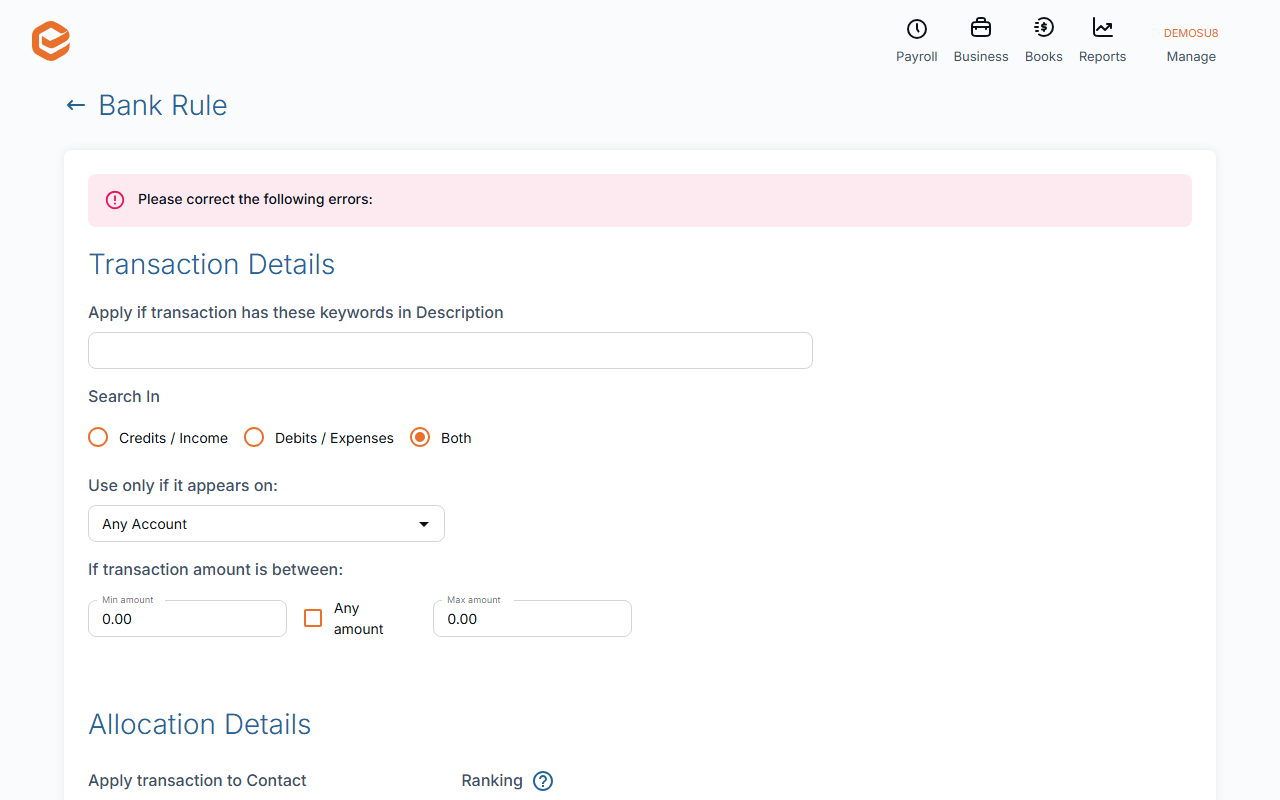
2. Which transactions it matches (Transaction Details)
- Apply if transaction has these keywords in Description (required) - words that appear in the bank's description, e.g. TELSTRA.
- Search In (required) - Credits / Income, Debits / Expenses or Both.
3. Where it posts (Allocation Details)
- Account No (required) - the account matching transactions are posted to.
- Tax Code (required) - or tick Take default from Account.
- Apply transaction to Contact - optional.
- Private Portion (required) - the private percentage, 0 if none.
- Site - optional.
- Ranking - when two rules match, the higher ranking wins.
4. Save and apply
Click Create Bank Rule. Rules apply when you click Apply Rules in Process feeds, across all your accounts.
Splitting a transaction
Build multi-line allocation splits each matching transaction over several lines, by Amount or Percentage (Add Journal Line for each).
Amount limits
The amount range and "Use only if it appears on" settings are saved but not used yet: a rule matches on its keywords and direction only. Make keywords specific.
Changing or deleting a rule
Click a rule in Bank Rules to change it, untick Active to pause it, or Delete it (after you confirm). Rules do not change transactions already posted.
Related guides
Checked against Exacc on 9 October 2026. Machine-readable version