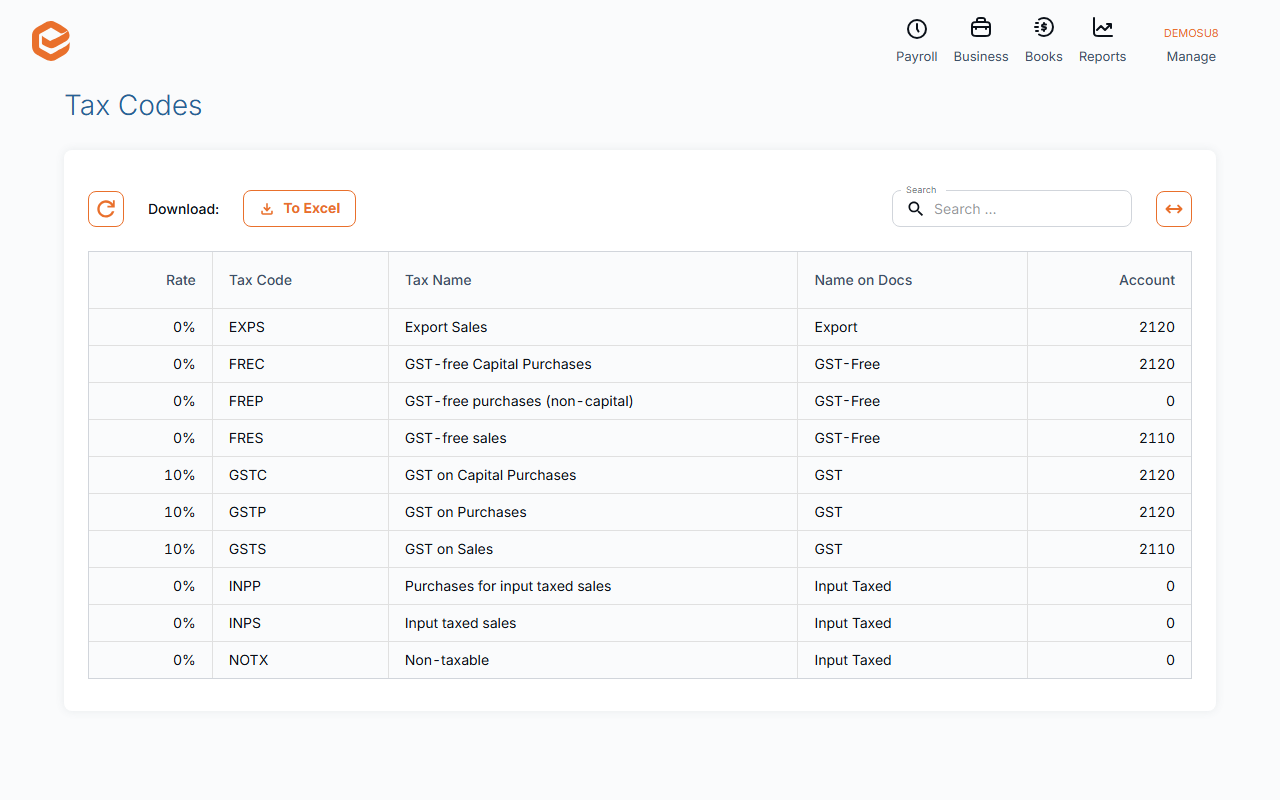
Set Registered for GST in Manage › Business Details, and the GST Accounting method (Cash or Accruals) and GST Cycle in General Settings. Every transaction line carries a tax code; Books › Chart of Accounts › GST Settings lists them with their rates and accounts.
1. Tell Exacc whether you are registered for GST
In Manage › Business Details set Registered for GST. In General Settings set the GST Accounting method (Cash or Accruals) and your GST Cycle.
If you are not registered, new lines get the no-GST tax code.
2. See your tax codes
Open Books › Chart of Accounts and click GST Settings. Each code shows its Rate, Tax Code, Tax Name, its Name on Docs (what invoices print) and the Account its GST goes to. To Excel exports the list.
3. Use the right code on each line
Exacc fills in the account's default tax code; change it on the line when needed. Amounts on journals and bank transactions include GST, and Exacc works out the GST part. Your BAS adds up the lines by tax code: sales with GST, GST-free and export sales, and purchases (capital and non-capital).
Changing a tax code
Click a code to change its Rate, Tax Code or Account. New codes cannot be added and codes cannot be deleted: your BAS relies on the standard set, so change rates or names only if your accountant tells you to.
Related guides
Checked against Exacc on 9 October 2026. Machine-readable version