Open Books › Chart of Accounts. New Account adds one (Account No, Account Name, Account Type, Default Tax Code); a row's menu has Edit, Clone and Delete. Untick Active to stop using an account without losing its history.
1. Open the chart of accounts
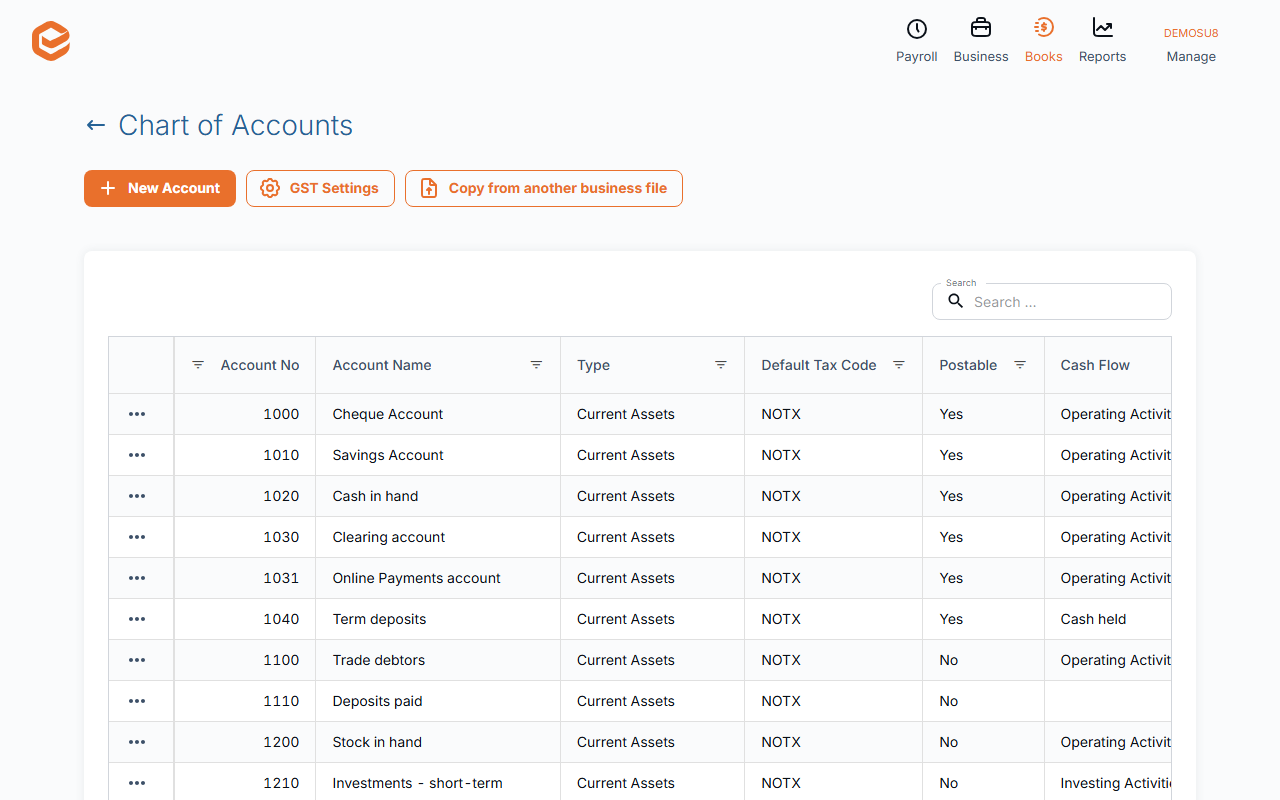
Open Books › Chart of Accounts. Each account shows its Account No, Account Name, Type, Default Tax Code, whether it is Postable, its Cash Flow group and Header. Search by number or name.
2. Add an account
Click New Account:
- Account No (required) - unique. If it is taken, Exacc suggests the nearest free numbers. It cannot be changed later.
- Account Name (required) - as it should appear on reports.
- Account Type (required) - e.g. Current Assets, Current Liabilities, Equity, Income, Cost of Sales, Expenses. Assets and liabilities appear on the Balance Sheet, the rest on Profit & Loss.
- Default Tax Code (required) - filled in when the account is chosen on a line.
- Postable - for asset and liability accounts: tick it for bank and card accounts you pay from, so they appear in payment screens.
- Default Private Portion % - 0–99, for accounts partly used privately.
- Account Header, Cash Flow and Notes - grouping on reports and your own notes.
3. Change, copy or retire an account
Edit changes everything but the number. Clone starts a new account from this one. To stop using an account, edit it and untick Active: its history stays on your reports.
Delete is for accounts you added by mistake. It is refused for accounts set as a default in General Settings or linked to a bank feed; do not delete an account that has transactions.
Copy a chart of accounts from another business file
Copy from another business file brings in the accounts of a file you administer: matching numbers are updated and missing accounts added.
GST
GST Settings opens your tax codes (see GST and tax codes).
Related guides
Checked against Exacc on 9 October 2026. Machine-readable version