An internal user is a person record without access to Exacc: typically an employee you pay, or a contact person you assign work to. Open Manage › Users › Users, click New, choose Create internal User / Employee, fill in Main details and click Save All Changes. You can add an employment record, and invite them to log in whenever you like.
Before you start
- You must be an administrator of the business file.
1. Start a new user
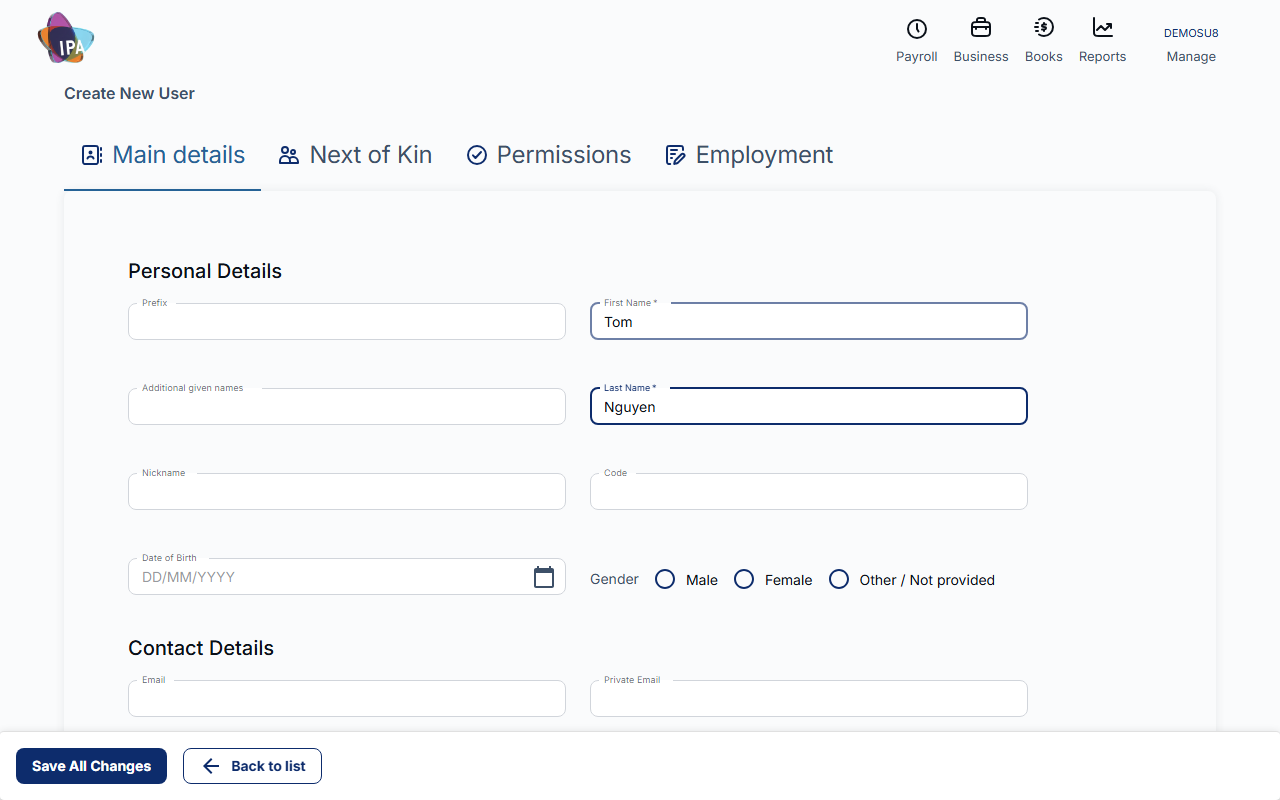
Open Manage › Users › Users (Users and Employees) and click New. In Create new User / Employee, choose Create internal User / Employee. The page Create New User opens.
2. Fill in Main details
Only the name is required; the rest helps with payroll, rosters and contact.
- First Name, Last Name (required) - plus Prefix, Additional given names, Nickname, Code, Date of Birth and Gender if you need them.
- Email, Private Email, Phone - Email is their business address. Add a Private Email if you may invite them later.
- Assigned to site, Supervisor - where they work and who they report to.
- Address - street, suburb, state, post code and country.
- Availability - PIN, visa expiry, hourly charge-out rate, and whether they work public holidays.
3. Save
Click Save All Changes. Exacc shows "User created successfully" and returns to the list.
To continue with next of kin, permissions or employment, click the person in the list to reopen them.
4. Next of kin (optional)
On the Next of Kin tab add an emergency contact: name, email, phone and address. Then Save All Changes.
5. Make them an employee (optional)
On the Employment tab click Create Employee Record and complete the employment details: status, start date, employment type, pay cycle, pay rate, weekly hours, super membership and tax settings. Add Individual Pay Items or Individual Pay Rates if they differ from the standard. Then Save All Changes.
They now appear under Payroll › Employees and can be included in pay events.
Giving them a login later
Open the person, make sure they have an email and a Private Email, save, then click Invite this user to Exacc at the bottom. Choose Administrator and Can Add Users if needed and click Continue. They get the same invitation email as any invited user.
Their login will be their business Email if one is set, otherwise their Private Email.
Permissions
Permissions matter only once someone can log in. See Invite a user to your business file for roles, admin access and linked contacts.
Related guides
Checked against Exacc on 29 September 2026. Machine-readable version