Open Manage › Users › Invite User, enter the person's name and email, and click Invite. They get an email, sign up or log in, and accept the invitation on their dashboard. Unless you made them an administrator, you then choose their roles, which decide what they can see and do.
Before you start
- You must be an administrator of the business file, or be allowed to add users.
- The person's email address.
1. Open Invite User
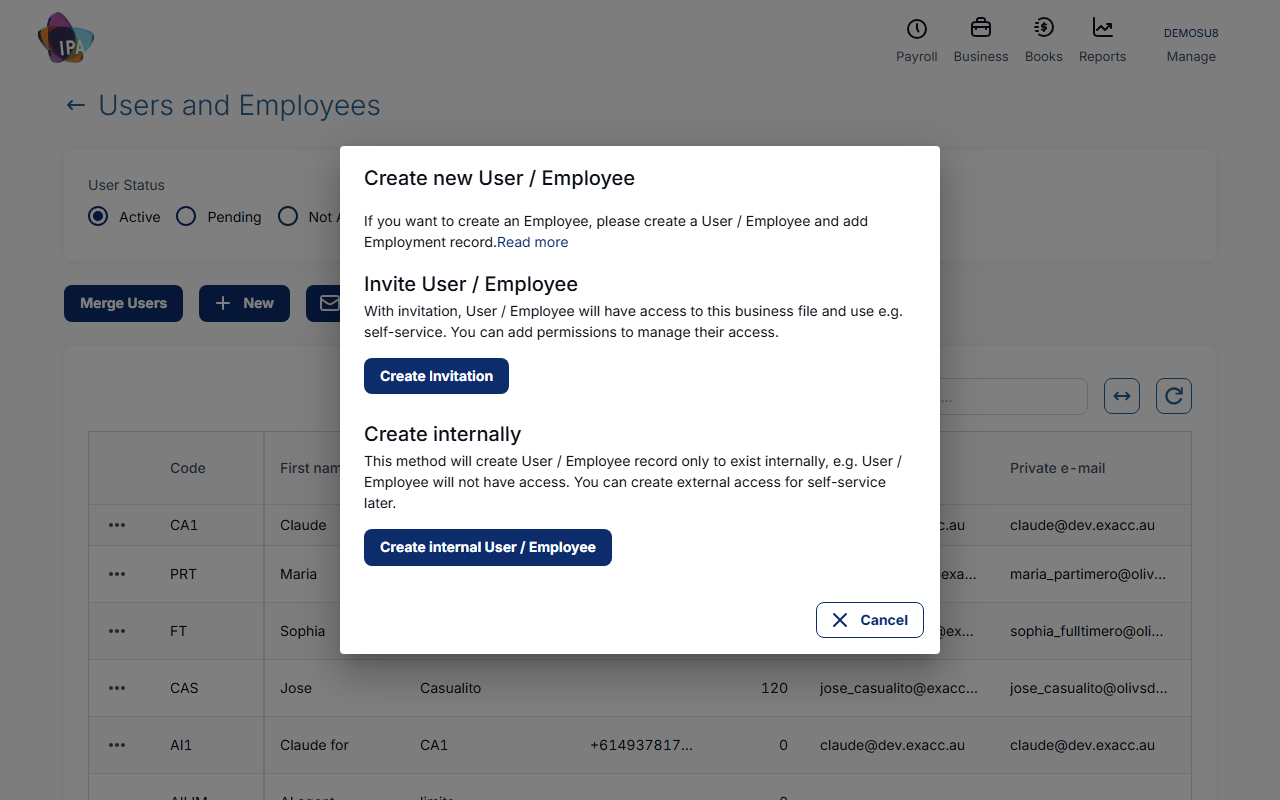
Click the tile at the top right showing your business code (Manage), then under Users choose Invite User.
Or open Manage › Users › Users, click New and choose Create Invitation.
2. Enter their details
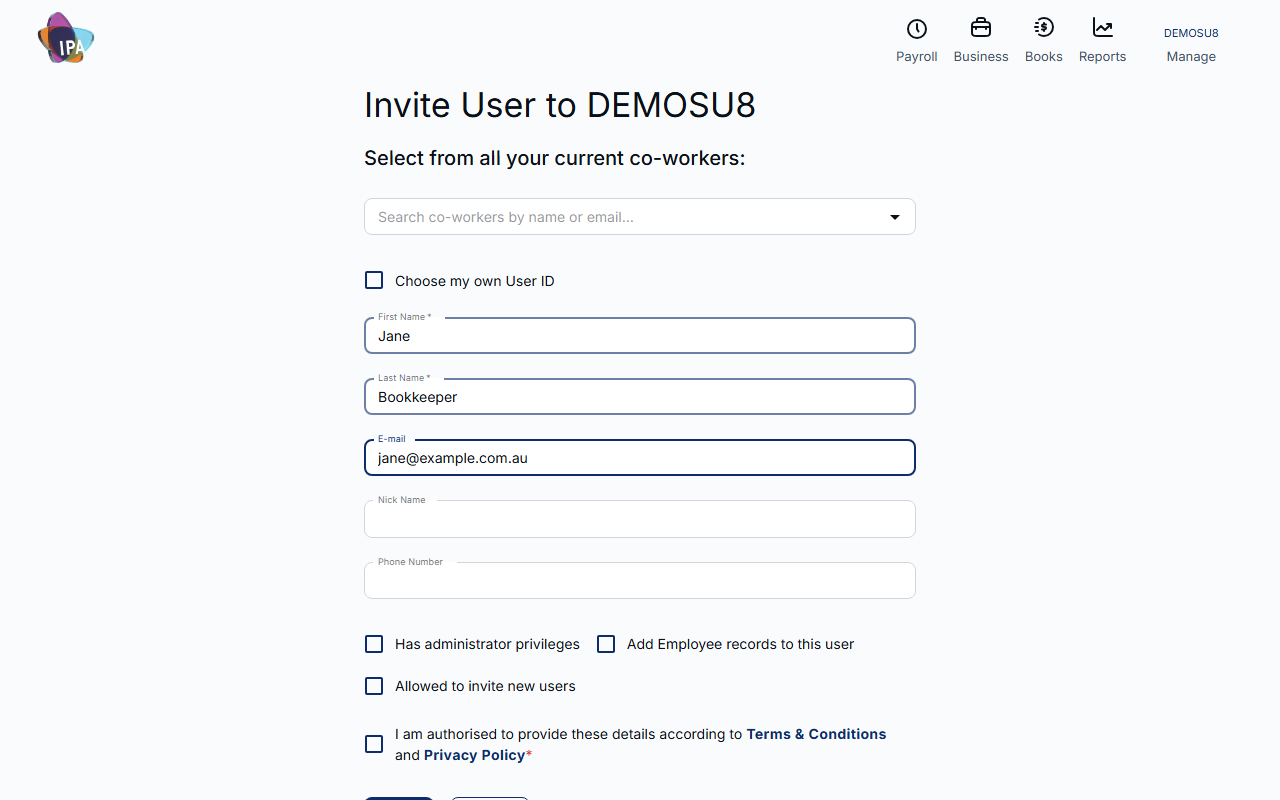
Already working with them in another business file? Search for them under Select from all your current co-workers and their details fill in.
- First Name, Last Name (required) - as they should appear in the file.
- E-mail (required) - where the invitation goes, and their login if they are new to Exacc. Needed for the invitation to send.
- Nick Name, Phone Number - optional.
3. Choose their access
Tick what applies:
- Has administrator privileges - full access to the business file. Only an administrator can give this.
- Add Employee records to this user - also creates an employee record so you can pay them through payroll.
- Allowed to invite new users - they can invite others too.
4. Confirm and click Invite
Tick I am authorised to provide these details according to Terms & Conditions and Privacy Policy and click Invite. Exacc shows "User invited successfully!".
If they are not an administrator, Exacc opens their Permissions so you can set their roles straight away (next step).
5. Set their roles
On the Permissions tab, switch on or choose a level for each role they need. Roles add up: if you select Customer Own and also Invoicing Manager, they can work with all customers. The ⓘ next to a role lists exactly what it unlocks.
To match someone else, use Copy permissions from another User. When done, click Save All Changes.
Some roles work only for particular customers; for those, pick them under Linked Contacts and click Save.
6. They accept
They receive an email with a link. New to Exacc? The link opens sign-up with their details already filled in (see Create your Exacc account). Already have an account? They just log in.
On their dashboard they see Business Account Invitation and click Accept. The business file then appears in their list.
Invitation not received?
Ask them to check spam first. To send it again, open Manage › Users › Users, click their name and use Resend Invitation at the top of their page (shown while they are still pending). Resending needs an administrator who can also add users.
Managing people later
Manage › Users › Users (Users and Employees) lists everyone, filtered by User Status and Employment Status. From a person's row you can:
- open them to change details and Permissions, or Grant Admin access / Remove Admin access (administrators only; the owner always stays administrator);
- Copy to another Business File, with their permissions and employee record;
- Delete User, which works only if nothing in the file refers to them; otherwise deactivate them or merge them.
Merging duplicates
Merge Users moves everything that refers to the Retired User onto the Remaining User, except payroll and employment data, and can delete the retired one. Administrators only.
Asking employees for missing details
Request Information checks all active employees for missing details, such as super fund or bank account, and emails each person what is missing.
Questions
What is the difference between inviting someone and creating them internally?
An invited person gets their own login to the business file. An internal user is a record only, for example an employee you pay who never logs in. You can invite an internal user later.
Does the person need to pay for Exacc?
No. Exacc charges per business file, not per user.
Related guides
- Add a user or employee without a login
- Manage your subscriber account and team
- Create your Exacc account
- connect-claude-chatgpt
Checked against Exacc on 29 September 2026. Machine-readable version