A business file holds one business's books, payroll and invoices. The first time, Exacc creates your subscriber account (your team and billing home) and your first business file together. After that you can add as many business files as you need. Both start from Add New Business on your dashboard.
Before you start
- An Exacc account you can sign in to (see Create your Exacc account).
- The business name, and its ABN if it has one.
- Whether the business is registered for GST.
1. Choose Add New Business
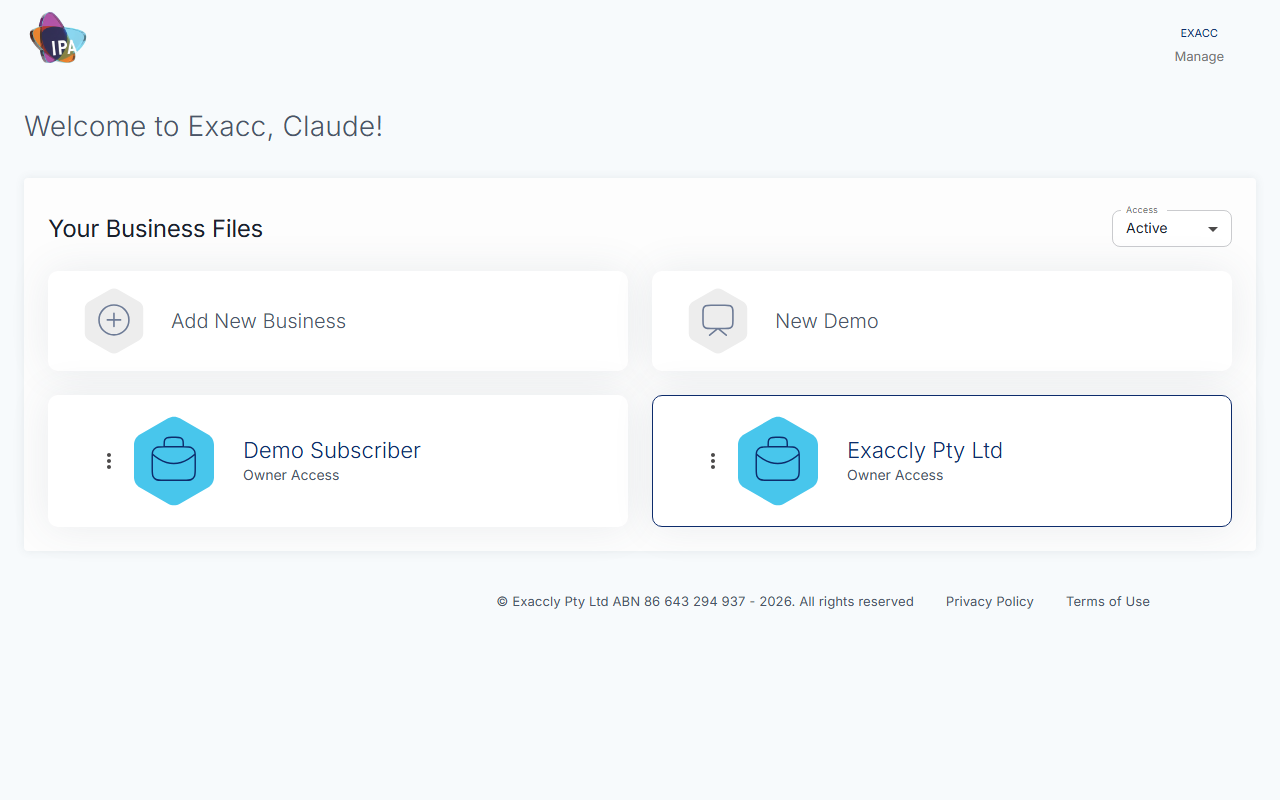
Sign in at my.exacc.au. Under Your Business Files, click Add New Business. (Once you have six or more files, use + Add New Business at the top of the list.)
If you do not have a subscriber account yet, Exacc opens Create Subscriber Account and your own Exacc File instead. That is expected: the subscriber account and your first file are created in one go.
2. Enter the business details
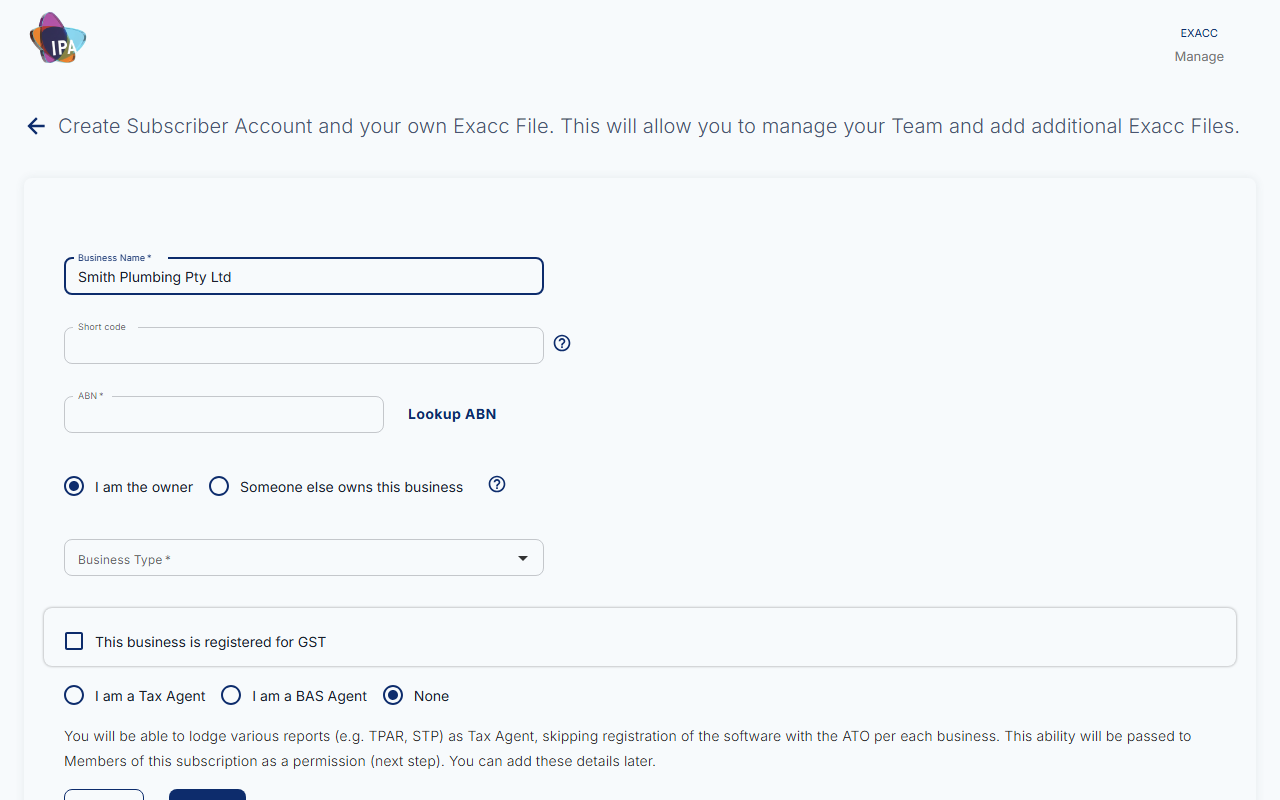
Fill in the form. Australia is the country for every file.
- Business Name (required) - the legal or trading name.
- Short code - up to 7 characters used to identify the file. Leave it empty to use the first 7 characters of the name.
- ABN - checked as you type. Click Lookup ABN to fill the name from the ABN register (choose upper or lower case). Asked for on the first file; optional on later ones.
- Business Type (required) - e.g. company, sole trader, partnership, trust.
- This business is registered for GST - tick if it is. Invoices and BAS use this.
3. Say who owns the business
Leave I am the owner selected if it is your business. If you are setting it up for someone else (for example as their accountant), choose Someone else owns this business and enter the owner's email, first and last name; their phone is optional.
4. Tax or BAS agent? (first file only)
If you will lodge for clients, choose I am a Tax Agent or I am a BAS Agent and add your registered agent number, email and phone. Otherwise leave None. You can add these details later.
5. Click Create
Click Create. Exacc shows "New subscriber created!" (or "New exacc file created!") and opens the new file's dashboard at app.exacc.au. Its address includes the file's number, e.g. app.exacc.au/25815/dashboard.
Changed your mind? Cancel asks you to confirm, because what you typed will be lost.
Adding more business files later
With a subscriber account in place, Add New Business opens Create new Exacc Business File. It has the same fields plus:
- Subscriber account (required): which of your subscriber accounts the file belongs to.
- Business activity (optional).
- Allow {subscriber} Team members to access this Business File automatically: tick to give your whole team access; otherwise they request access.
Try a demo file first
Choose New Demo on your dashboard and click Get Demo. Exacc builds a file with over two years of sample journals, bills, invoices, timesheets and payroll, and waiting bank feeds (Books › Process Feeds). Emails from a demo file come to you, and ATO lodging is switched off. Demo files may be deleted without notice after 14 days, so do not enter real data in one.
Paying for Exacc
Creating a file asks for no payment details. To add a card for charges, open your subscriber account on my.exacc.au, go to the Details tab and click Set up payment for charges.
What to set up next
In the new file, the usual first steps are:
- your business details and logo (Update business details);
- bank feeds, so transactions flow in (Set up bank feeds);
- inviting your team or accountant (Invite users);
- your first invoice (Create and send an invoice).
Questions
What is the difference between a subscriber account and a business file?
The subscriber account is you or your firm: your team, your billing, and the business files you manage. Each business file is one set of books. An accountant usually has one subscriber account and many client files.
Can I change the business details later?
Yes, in the file's Business Details.
Related guides
- Create your Exacc account
- how-to-update-business-details
- set-up-bank-feeds
- how-to-invite-user-permissions
- Create and send an invoice
Checked against Exacc on 29 September 2026. Machine-readable version