Open Business › Sales › Quote, fill it in like an invoice, click Finalise, then Send quote by e-mail from the quote summary. When the customer says yes, click Convert to Invoice: Exacc creates a draft invoice from the quote for you to post.
1. Fill in the quote
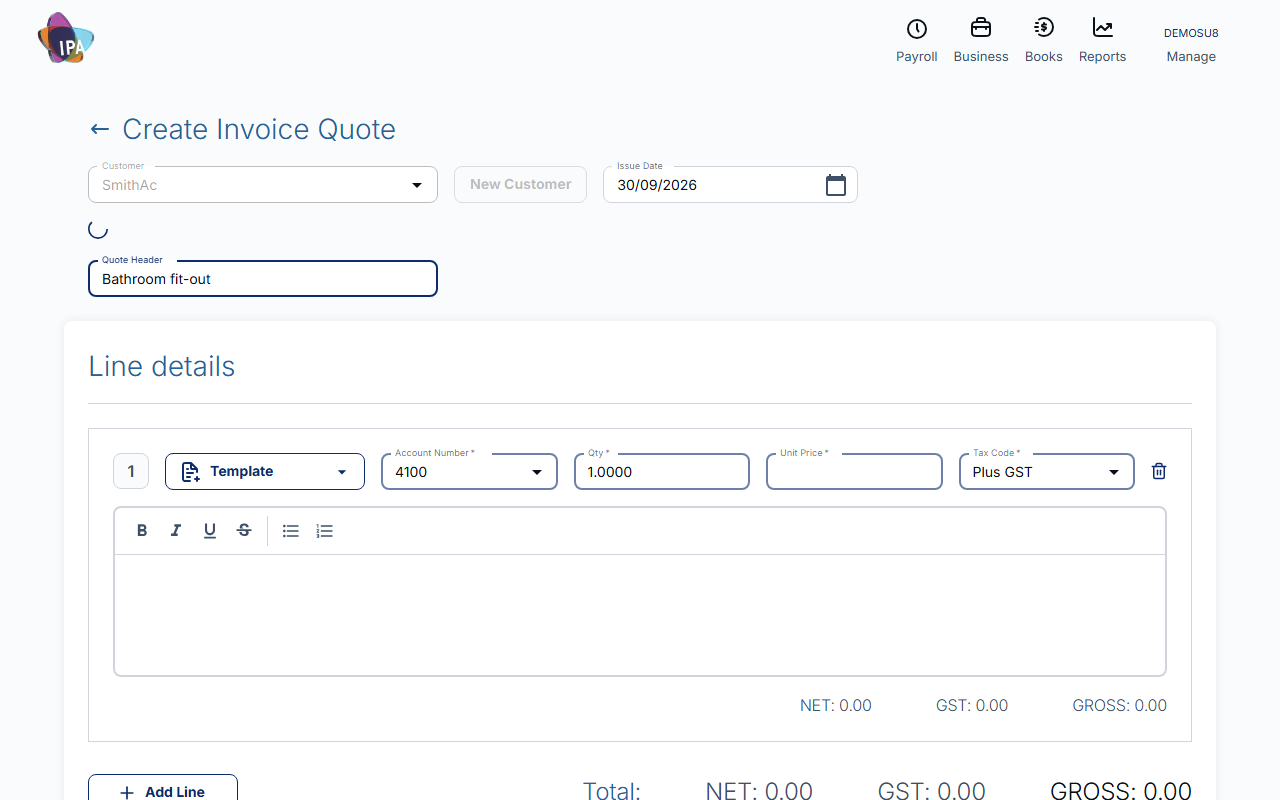
Open Business › Sales › Quote (Create Invoice Quote). Choose the Customer, add the lines (account, qty, unit price and tax code on each) and set Payment Terms and Sales Person, just as on an invoice. Quote Header is optional text at the top.
2. Save or finalise
Save draft keeps it to finish later. Finalise makes it ready to send ("Finalised / Not Sent") and opens the quote summary.
3. Send it
On the summary click Send quote by e-mail. The customer gets the quote as a PDF and its status becomes Sent. Other Actions › Download PDF gives you the PDF to send another way.
4. Record the answer
Use the Quote status dropdown on the summary to record where it stands. A draft has to be finalised before its status can change.
5. Convert to an invoice
Click Convert to Invoice and OK. Exacc creates a draft invoice with the quote's lines, amounts, header and sales person, with Order Ref "Quote" and the quote number, and opens it. Check the dates, then Update & Finalize and send it.
Convert each quote once: converting again makes a second invoice.
Finding quotes
In Manage Invoices open More Filters and set Type to Quotes. Draft quotes open in the editor, others open their summary.
On the mobile app
In the Invoices tab tap the create button, choose New Quote, fill it in and tap Finalise. On the quote tap E-mail to send it, change its Status, or use More › Convert to Invoice.
Questions
Can I take a deposit on a quote?
Not from the quote itself. Once converted, you can split the invoice into instalments with a payment plan.
How do I copy a quote?
Create a new quote for now: Duplicate quote currently produces a draft invoice instead of a quote.
Related guides
Checked against Exacc on 29 September 2026. Machine-readable version