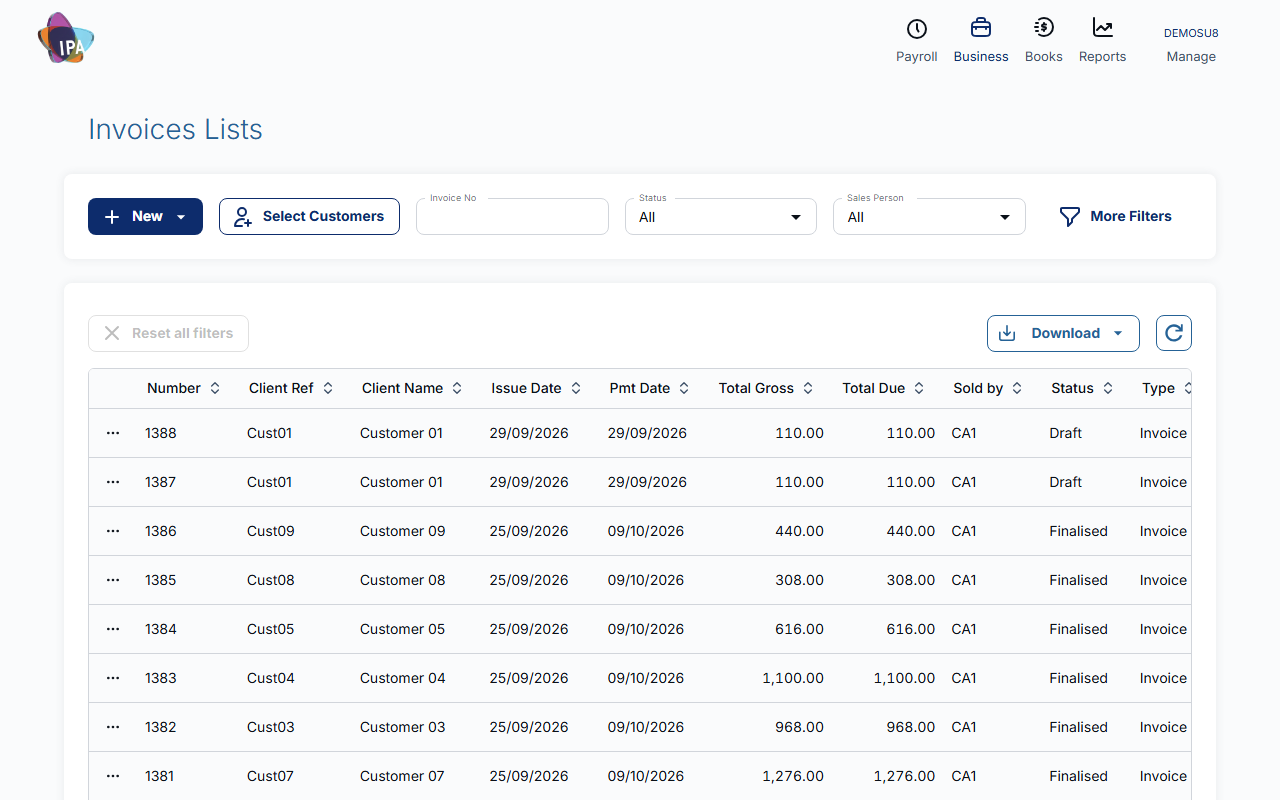
Business › Sales › Manage Invoices lists every invoice and credit note, with filters for customer, number, status, sales person, dates and amount. Click a row to open it. From an invoice you can Edit, Duplicate or Delete it. An invoice is either Draft or Finalised; what is still owed shows as Total Due.
1. Open Manage Invoices
Open Business › Sales › Manage Invoices. The list shows Number, Client Ref, Client Name, Issue Date, Pmt Date, Total Gross, Total Due, Sold by, Status, Type and Order Ref. More rows load as you scroll.
2. Filter the list
Use Select Customers, Invoice No (press Enter), Status (Draft or Finalised) and Sales Person. More Filters adds an issue-date range, Minimum payable, and Type: Invoices and Credit Notes (the default), Quotes, or Templates.
Filters are kept in the page address, so you can bookmark a view. Reset all filters clears them; the download button saves the list as a CSV file.
3. Open an invoice
Click a row. A finalised invoice opens its summary; a draft opens straight in the editor. The … menu on a row also offers Go to contact, Create Credit Note, New payment, Download PDF and Email to client.
4. Edit it
On the summary click Edit. Change what you need, then click Update & Finalize to keep it finalised.
Careful: Save as Draft on a finalised invoice turns it back into a draft. If the invoice was already emailed, send the corrected version again.
5. Duplicate it
Click Duplicate. Exacc makes a new draft for the same customer, dated today, with the same lines, header and delivery details and with you as the sales person. It opens so you can adjust and post it.
6. Delete it
Choose Other Actions › Delete and confirm. Draft and finalised invoices can both be deleted; there is no "void".
An invoice with payments cannot be deleted until the payments are deleted, and one created from a quote cannot be deleted. Deleting an invoice made from timesheets frees those entries so they can be invoiced again.
To reverse an invoice but keep a record, create a credit note instead.
Is it paid? Has it been sent?
Invoices have only two statuses, Draft and Finalised. On the summary, the Due badge shows what is still owed and the chip beside Send As E-Mail shows Not Sent Yet or Sent on a date. In the list, Total Due of 0.00 means paid.
Other actions on the summary
- Other Actions › Download PDF: pick a PDF Template (it is remembered for that invoice) and download.
- Show Customer, See Activities (who changed what).
- Payments History, Create Payment for Invoice, Create Payment Plan for Invoice.
Locked periods
If the invoice date is on or before your Accounts Lock date (General Settings), editing, duplicating, deleting and adding payments are refused.
Related guides
- Create and send an invoice
- Create and apply a credit note
- Record a customer payment
- Create and send a quote
Checked against Exacc on 29 September 2026. Machine-readable version