Open Books › Import transactions, choose the CSV file and the bank account, click Show records, match each column to Date, an amount and anything else in the file, and import. Rows with an Account and Tax Code are posted; the rest wait for you in Process bank feeds.
Before you start
- A CSV export from your bank (no header row needed). Dates must be day first (31/01/2026, 31-Jan-26 and the like).
1. Choose the file and the account
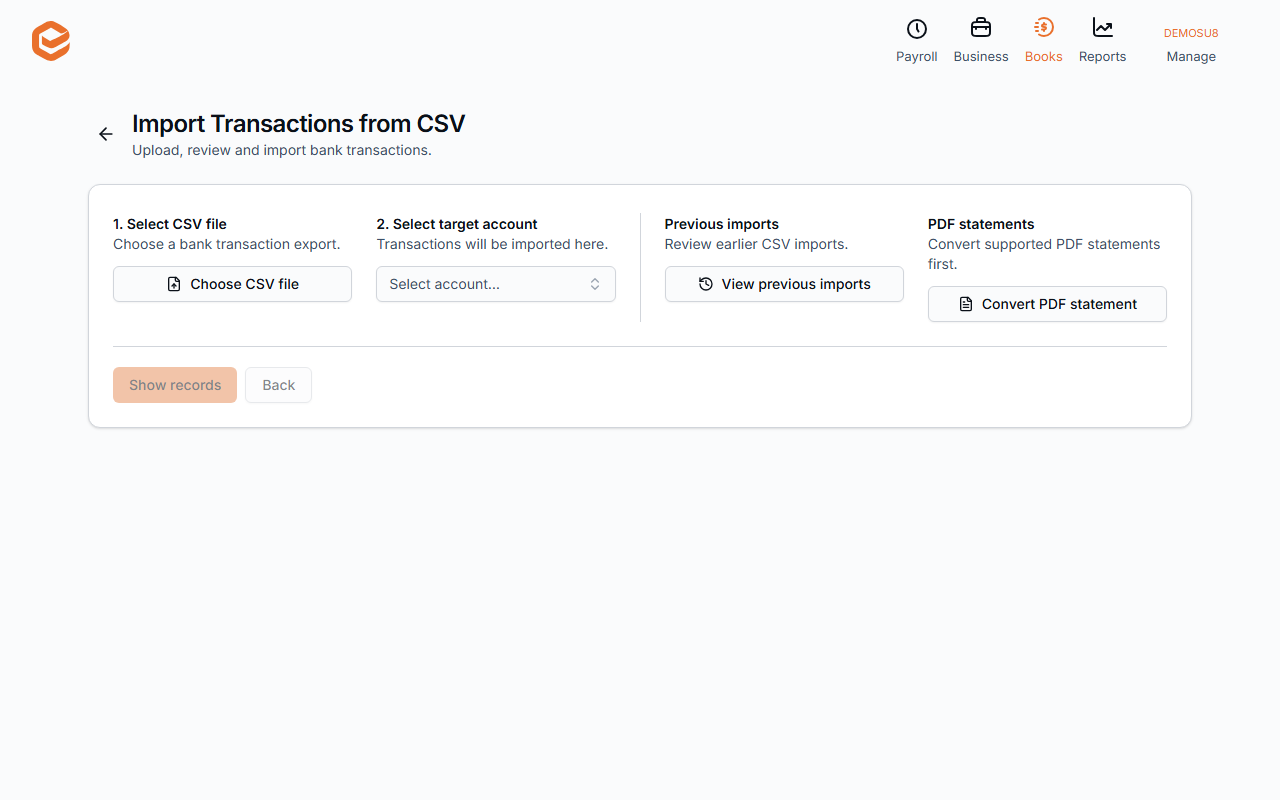
Open Books › Import transactions. Choose CSV file (.csv only), choose the bank account the transactions belong to, and click Show records.
2. Match the columns
Exacc recognises the date, account, tax code and description columns. Set the amount column yourself: + Withdrawal / - Deposit or - Withdrawal / + Deposit for one signed column, or Debit / Withdrawal and Credit / Deposit for two. Date and an amount are required.
Optional columns: Account, Tax Code, Description, Reference, Contact Code, Site Code / Name, Balance. Mark anything else n/a.
3. Import
Rows with both an account and a tax code are posted as bank transactions; the others are saved for coding. Import successful shows how many were imported, posted and still need information. Continue opens them in Process bank feeds.
If some rows have problems, choose Import valid transactions only, Import eligible transactions for manual processing, or Generate CSV report to see what is wrong.
Do not import the same file twice
Exacc does not yet warn about rows you have already imported. Check the date range before importing, or undo a whole import (below).
Previous imports
CSV Imports lists each import (account, date, user, number of records). Show Transactions lists what it created; Remove imported transactions (administrators only) deletes the import's transactions and payments straight away, without asking.
Related guides
- Turn a PDF bank statement into a CSV file
- Code your bank transactions (process feeds)
- Create bank rules
- Record money spent or received
Checked against Exacc on 9 October 2026. Machine-readable version