Open Business › Contacts and click New Contact. Choose the Legal Form, enter the name, pick the Type (Customer, Supplier or Customer + Supplier), add ABN, email, phones and address, and for suppliers you pay by ABA file the BSB and Account Number. Click Save.
1. Open New Contact
Open Business › Contacts and click New Contact. You can also add a customer or supplier without leaving an invoice or bill (New Supplier next to the supplier, for example); that short form has Lookup ABN.
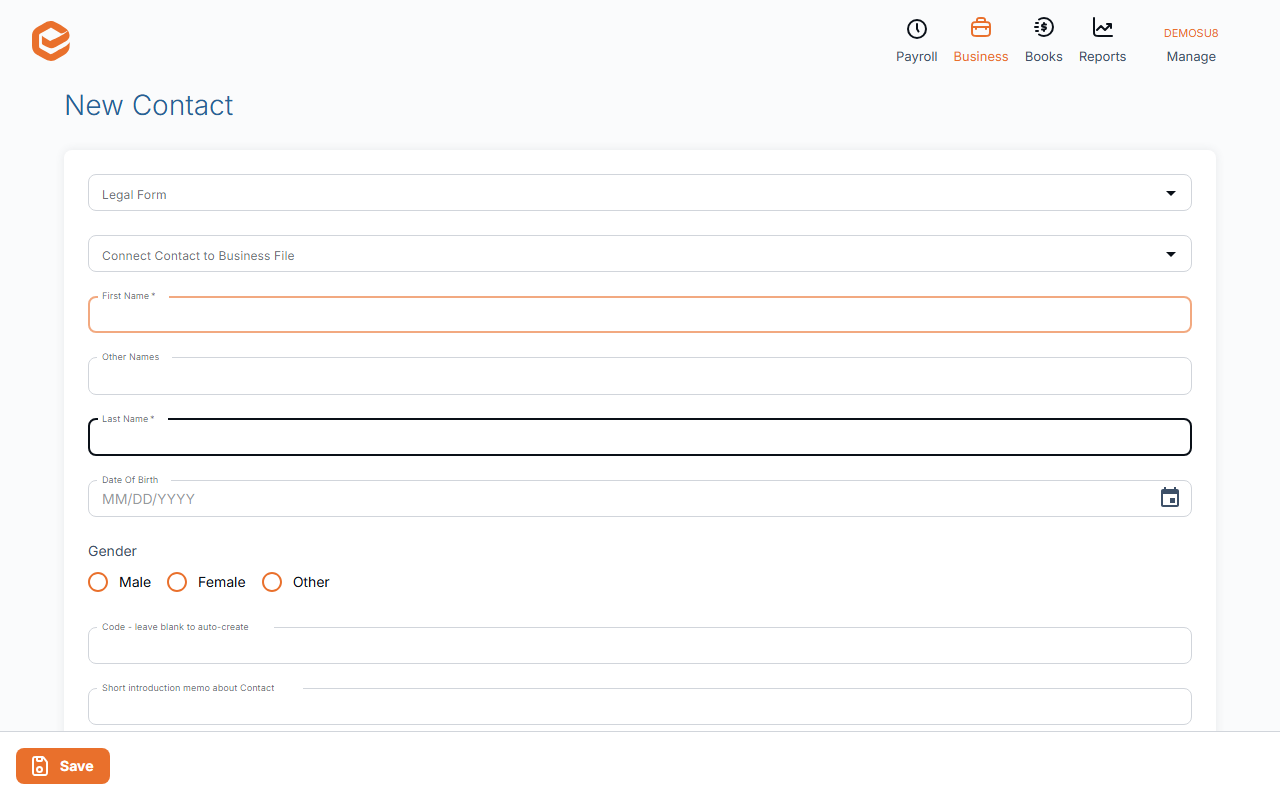
2. Who they are
The form changes with the Legal Form: an individual has first and last names, a company or trust has a legal name.
- Legal Form (required) - individual / sole trader, company, trust and so on.
- First Name and Last Name (required) - for individuals; also Other Names, Date Of Birth and Gender.
- Legal Name (required) - for companies, trusts and partnerships.
- Code - leave blank to auto-create - a short code shown in lists and pickers, e.g. SMITHJ.
- Type (required) - Customer, Supplier or Customer + Supplier: decides where they can be picked (invoices, bills or both).
- Status - Active for a normal contact.
3. Business and contact details
- ABN - checked as a valid 11-digit ABN. Add the ABN Branch Code if they use one.
- Registered for GST / VAT - tick if they charge GST.
- Business Name - trading name, if different.
- E-mail - where invoices, statements and remittances go.
- Mobile phone and Office or home phone - for calls and texts from the mobile app.
- Address - Country, Street 1 and 2, Town / Suburb, State / Region, Post Code. One address per contact.
- Manager and Default Site - who looks after them and their usual department or location.
4. Bank details (suppliers you pay by ABA file)
Fill in all three of Account Holder Name, BSB and Account Number, or none: Exacc rejects a partial set. These are what Pay bills with an ABA file pays into.
5. Save
Click Save. Exacc confirms "Contact saved successfully!" and opens the contact for editing. A required field left empty shows "This field is required".
Editing or deleting a contact
In Contacts, open the row's menu and choose Edit Contact, change what you need and click Update.
Delete on the edit page is for administrators only and works straight away, without asking. A contact used on any invoice, bill or journal cannot be deleted; deactivate it instead (see Find and manage contacts).
One person, one address
Each contact has one contact person (Contact Person Name), one address and one bank account. There are no contact groups. For a second address or person, use the intro memo or a custom field.
On the mobile app
In the Contacts tab tap + for New Contact: Legal Name, ABN (with Lookup ABN), Email, Phone and GST Registered, then Save Contact. Contacts added on mobile are customers; change the type and add bank details on the web. Edit Contact keeps everything the mobile form does not show.
Related guides
- Find and manage contacts
- Merge duplicate contacts
- Add your own contact fields
- Pay bills with an ABA file
Checked against Exacc on 4 October 2026. Machine-readable version