Open Manage › Configuration › Contacts - Custom Features › Go to Public Form, switch on Enable Public Form, choose which fields to show on the Fields tab, set your header, privacy text and the page to send people to afterwards, and click Update. Copy the link to your website. New sign-ups appear in Contacts under Pending Activation until you activate them.
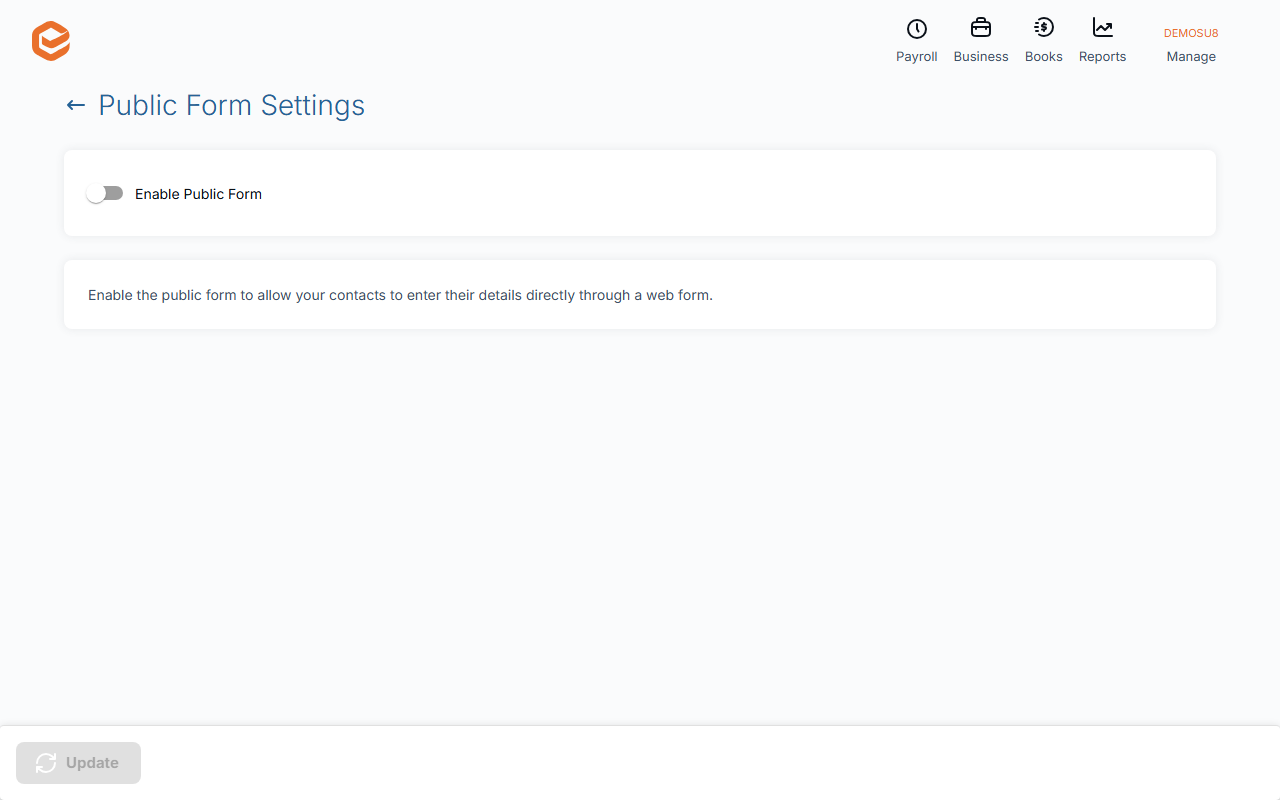
1. Switch the form on
Open Public Form Settings and turn on Enable Public Form.
2. Set it up (General tab)
Write the header people see (your business name is not added for you). Optionally enter a page to send them to when they are done, and your privacy policy or a link to it, with the text of the tick box they must accept.
3. Choose the fields (Fields tab)
For each field choose Show, Required or Hide, change its Label and Description if you like, and drag rows to change the order. Click Update.
Set the fields up after the General tab: saving the General tab again can put the fields back to their defaults.
4. Put the link on your website
Copy public form link to clipboard copies your form's address (on the Exacc hub, ending in /cnt/ and your file number). Put it behind a button on your website or in an email. It stays the same if you switch the form off and on.
5. Approve new sign-ups
People fill in the form, tick your privacy text and pass the reCAPTCHA check; they get a "Your signup with …" confirmation email. Their contact appears in Business › Contacts under Pending Activation. Check it, then Activate it (see Find and manage contacts).
Suppliers
The public form is for customers and leads. There is no screen yet to set up a supplier sign-up form.
Related guides
Checked against Exacc on 4 October 2026. Machine-readable version