For one pay event, open its PayDay Super tab. For a period, open Payroll › Pay Super, Add New Superannuation Pay Event and choose the dates. Then Submit to SuperChoice with Use Direct Debit or Use Direct Credit, confirmed with an SMS code, or Download SAFF File.
Before you start
- Registration with SuperChoice: Register with SuperChoice on Pay Super.
- Each employee's fund and member number.
1. Collect the super
With each pay run (PayDay Super): open the approved pay event and its PayDay Super tab.
For a period: open Payroll › Pay Super (Superannuation Payment Events), click Add New Superannuation Pay Event, give it a name and dates. Exacc collects the super of every approved pay event paid in those dates.
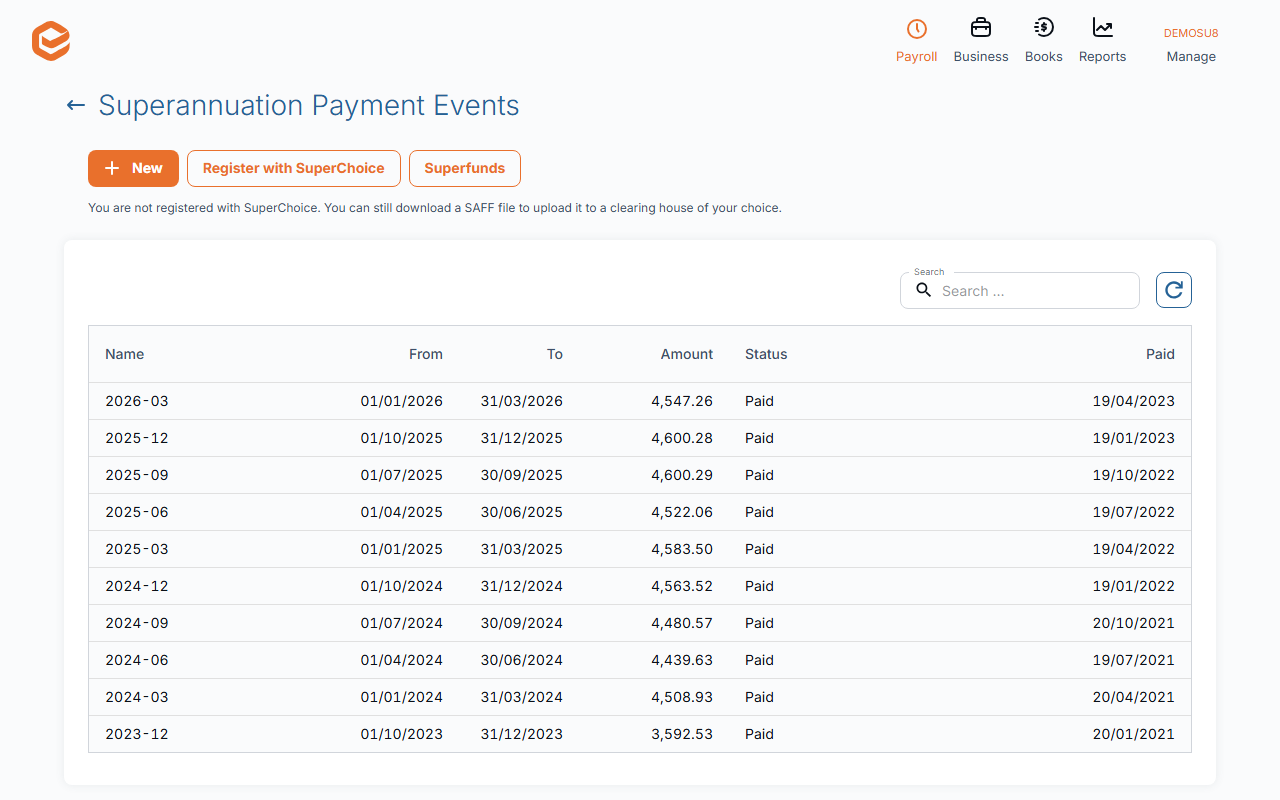
2. Submit to SuperChoice
In Submit your Contributions and make payment choose Use Direct Debit (SuperChoice takes the money from your account) or Use Direct Credit (you pay SuperChoice: Exacc shows the account, BSB, amount and reference). Click Get Code, enter the SMS code and Submit to SuperChoice.
Exacc checks each employee's fund (USI, or SMSF ABN and ESA), TFN, date of birth and member number first.
3. Record the payment
Add Payment Transaction records the payment in your books (Create Journal, Mark as Paid). The status shows Lodged on … by … and SuperChoice's latest status.
Paying another way
Download SAFF File gives the standard super file to upload to another clearing house or your bank.
Do not collect the same super twice
A date-range event also picks up pay events you already paid through PayDay Super. Use one method per pay event.
Related guides
Checked against Exacc on 9 October 2026. Machine-readable version