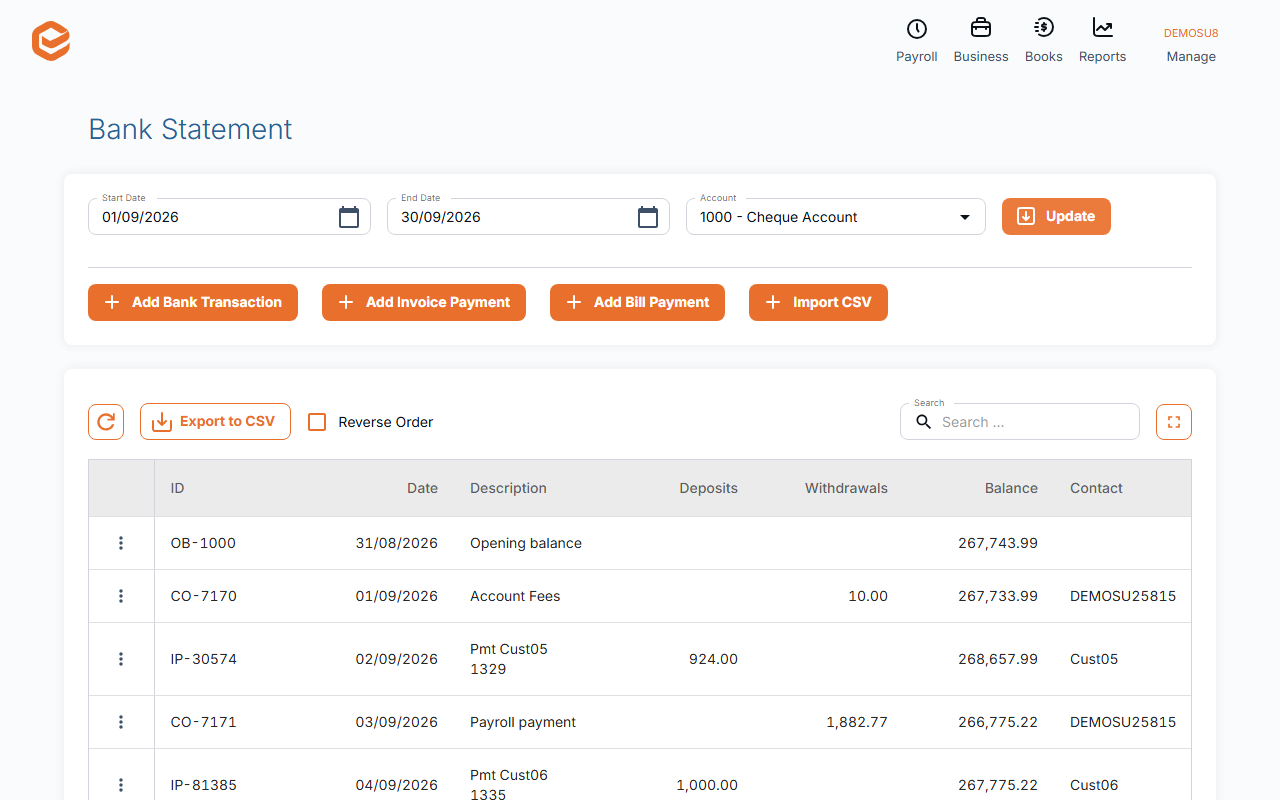
Code every transaction in Process feeds, then open Books › + Bank Statement, set the dates and Account, click Update, and compare the Balance on the last day with your bank's balance. If they differ, look for transactions missing, entered twice or dated differently.
1. Code everything first
In Process feeds, deal with every transaction up to the date you are checking (see Code your bank transactions).
2. Open the bank statement
Open Books › + Bank Statement, set the Start Date and End Date, choose the Account and click Update. You see the Opening balance, then each transaction with Deposits, Withdrawals and the running Balance. Reverse Order shows the newest first and Export to CSV downloads it.
3. Compare with your bank
The Balance on the last day should equal your bank's closing balance for that day. For credit cards and loans, compare what you owe.
4. Find a difference
Look for a transaction in the bank but not in Exacc (still to code, or disregarded by mistake), one entered twice (a manual entry and a feed line), or a different date or amount. Each row's menu has Open record, Add Bank Transaction, Add Invoice Payment and Add Bill Payment to fix it.
Bank feeds history
Bank Feeds History lists exactly what the bank sent for an account and dates, with the bank's own balance and whether each line was matched. Mark as End of Day Balance records the bank's balance for a day. Get CSV exports it.
Then lock the period
When the balances agree and the period is finished, lock it (see Lock a finished period).
Related guides
- Code your bank transactions (process feeds)
- Lock a finished period
- Record money spent or received
- Connect your bank (bank feeds)
Checked against Exacc on 9 October 2026. Machine-readable version