Open Business › Purchases › Authorise and Pay, set Up to due date, the Description on your bank statement and the bank account, tick the bills to pay, click Pay Bills and Get ABA file. Upload the file to your bank, then come back and click Mark bills as paid so Exacc records the payments.
Before you start
- Your paying account set as Bill payments account in Manage › Business Details › Banking. Exacc works out the bank's ABA codes from its BSB.
- Each supplier's BSB and account number on their contact. A supplier without them cannot be paid by ABA file ("has no banking details").
1. Choose which bills to pay
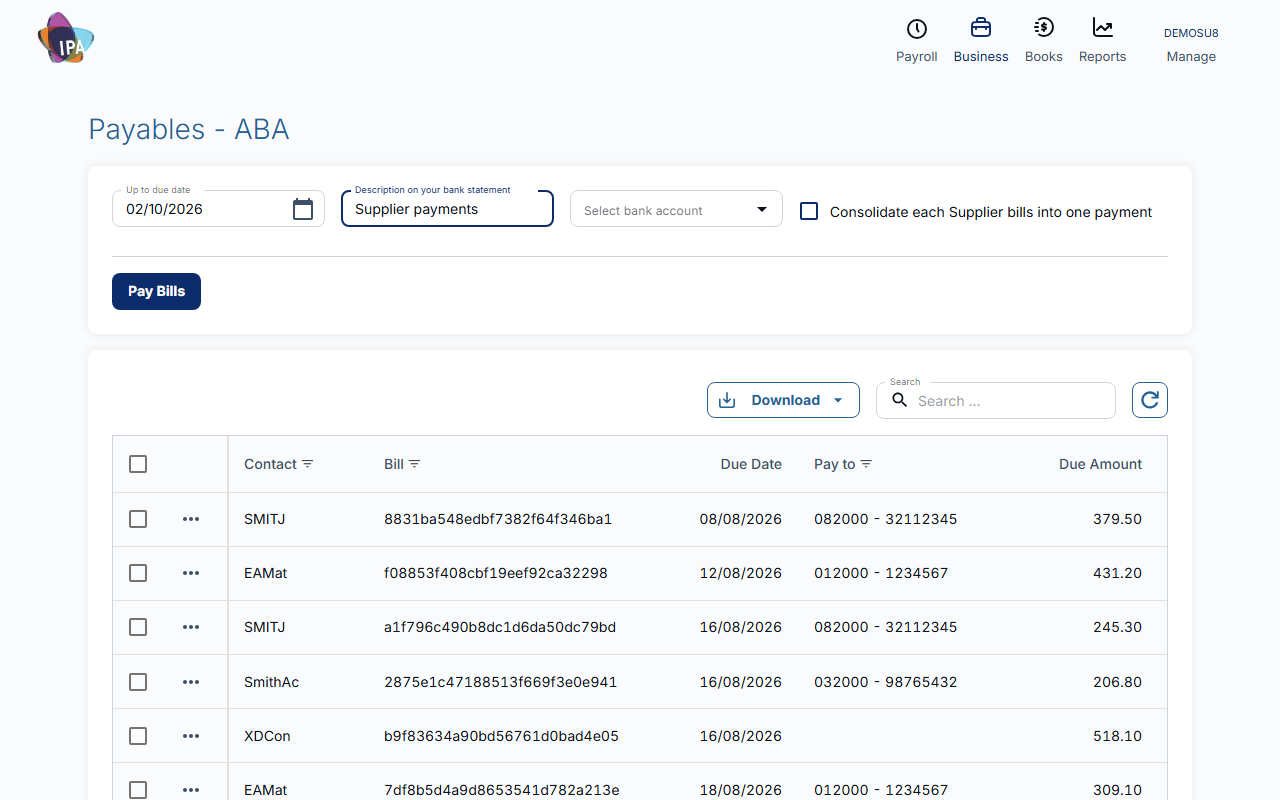
Open Business › Purchases › Authorise and Pay (the page is called Payables - ABA). It lists finalised bills with something still due, up to the Up to due date you set, with each supplier's BSB and account under Pay to.
Tick the bills to pay. Pay is the amount for each (the amount due; you can pay less) and Reference is what the supplier sees, the bill number by default.
2. Set the payment details
- Description on your bank statement (required) - how the batch shows on your statement.
- Select bank account (required) - the account Exacc records the payments against. Choose your Bill payments account: the file itself always pays from that one.
- Consolidate each Supplier bills into one payment - one bank transfer per supplier instead of one per bill.
3. Get the ABA file and upload it to your bank
Click Pay Bills, then Get ABA file in Create ABA file. Exacc downloads ABA_Payment_<date>.aba. Upload it in your internet banking as a batch or bulk payment file.
4. Record the payments in Exacc
Once your bank has accepted the file, click Mark bills as paid. Exacc records one payment per supplier, dated today, and the bills show as paid. Tick Send remittance advice e-mails first to email each supplier what you paid.
Nothing is recorded until you click Mark bills as paid, so do it after the bank accepts the file, not before.
Reconciling the bank feed
Exacc records one payment per supplier even when the file has one line per bill. With Consolidate ticked the two match; without it, match the supplier's lines on your statement to that one payment.
Related guides
- Record a bill payment
- Find, edit or delete bills
- Update your business details
- See what you owe suppliers (payables summary)
Checked against Exacc on 2 October 2026. Machine-readable version