Save the journal or bank transaction, click Files, then + New File, add a Description and drop the file in. All your files are listed under Your files. On the mobile app, take a photo or record an audio note in Files.
1. Attach a file to a transaction
Open the general journal or bank transaction and save it first (Exacc says "You need to save the journal before you can upload files"). Click Files, then + New File, enter a Description and drag the file in, or click to choose it.
Use PDF, Word, Excel, PNG, JPG or CSV files of up to 3 MB. GIF, SVG and text files are not accepted.
2. See all your files
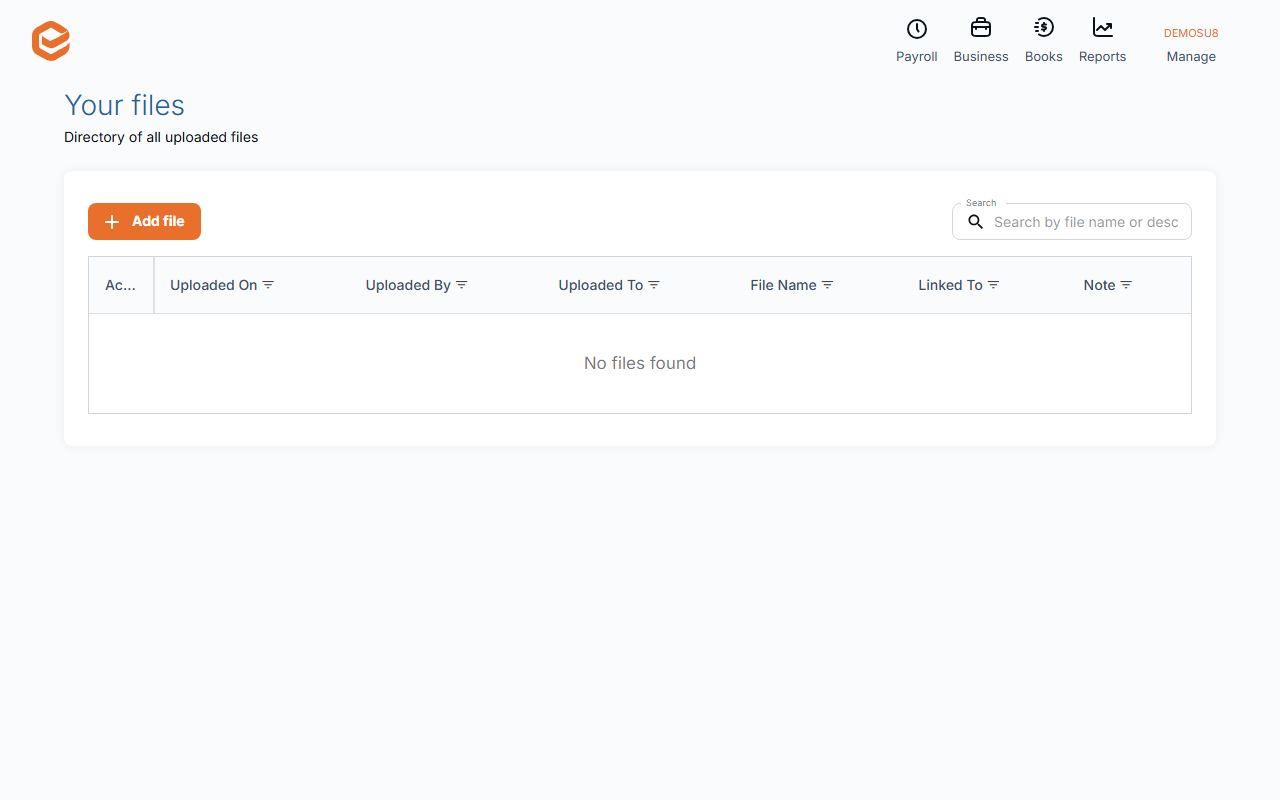
Your files lists every file with when and by whom it was uploaded and what it is linked to. View Source opens the transaction, Download saves the file and Edit description changes its note. Add file uploads a file that is not linked to anything yet.
3. Capture receipts on the mobile app
In the mobile app open Files: choose a file, take a photo with Add Picture, or record an audio note of up to 2 minutes. Files you add this way are not linked to a transaction (up to 10 MB; up to 3 MB when added to a record).
Linking a loose file later
A file uploaded without a transaction cannot be linked to one afterwards yet. Download it and attach it to the transaction with Files.
Related guides
Checked against Exacc on 9 October 2026. Machine-readable version