Open Books › + General Journal, set the Date, add a line for each account with a Debit or Credit amount and its Tax code, and click Save & Post once debits equal credits. Save as Draft keeps an unbalanced journal for later.
1. Open General Journal
Open Books › + General Journal. A new journal is dated today.
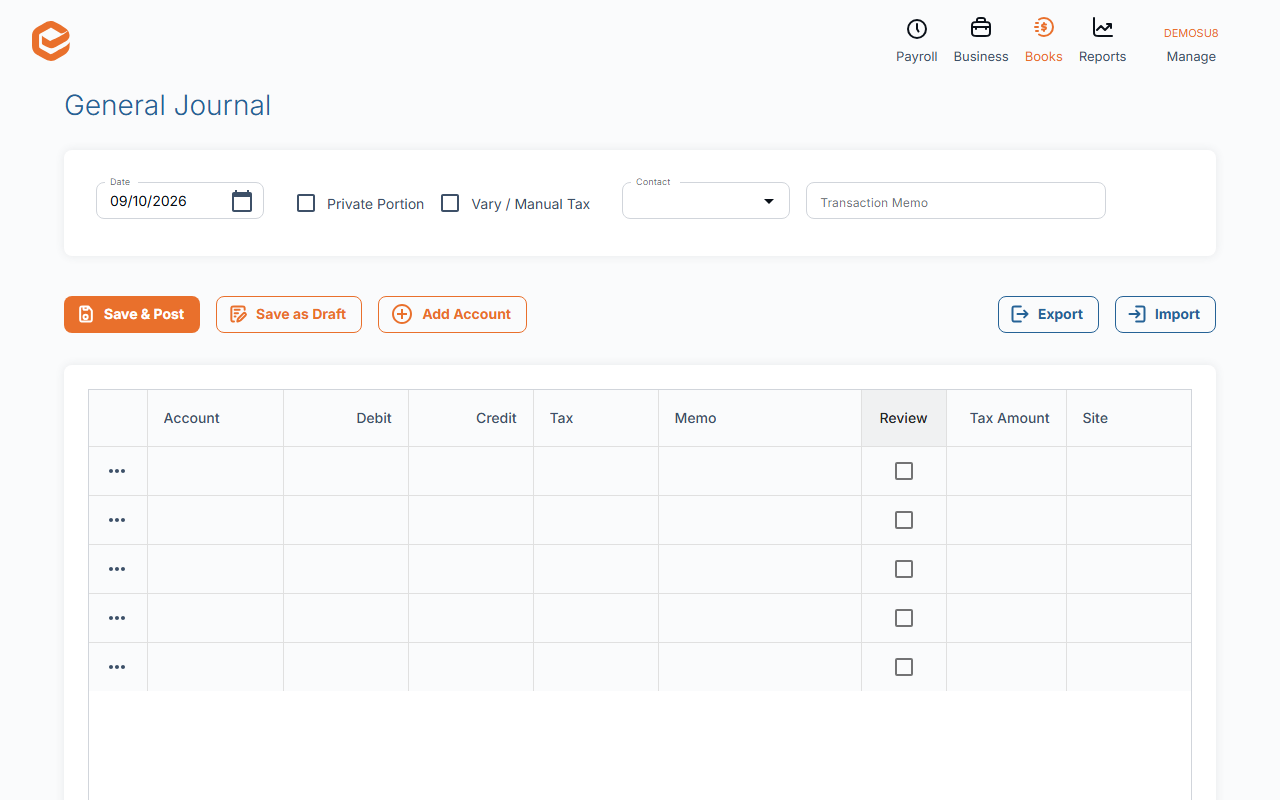
2. Fill in the header
- Date (required) - must be after your Accounts Lock date.
- Contact - optional; the customer or supplier the journal relates to.
- Transaction Memo - what the journal is for.
- Private Portion - a percentage of every line that is private (not a business expense).
- Vary / Manual Tax - lets you type the GST amount on a line instead of having it calculated.
3. Add the lines
Each line has an Account and either a Debit or a Credit (not both). Choosing an account fills in its default Tax code; on an empty line it also fills in the amount that balances the journal.
Amounts include GST: Exacc works out the GST part from the tax code. Tick Tax Var on a line to type its Tax Amount yourself. Priv % (0–99) marks part of a line as private. Memo, Review and Site are optional.
The footer shows what is still Out (DR or CR) until the journal balances.
4. Save
Save & Post needs debits to equal credits ("Debit and Credit must be equal to save and post"). Save as Draft saves it as it is, balanced or not. Exacc then offers Create another or Continue editing.
After saving
Files attaches documents to the journal, Duplicate copies it, and Delete removes it after you confirm. There is no reverse button: to undo a posted journal, enter one with the debits and credits swapped, or delete it.
Importing the lines from a spreadsheet
Import on the journal reads a CSV file with the columns Account, Debit, Credit and Tax. Avoid commas inside values.
Related guides
Checked against Exacc on 9 October 2026. Machine-readable version