Go to my.exacc.au/register, enter your name, email, Australian mobile and a password, then confirm a code sent to your email and another sent by SMS. Finally, link an authenticator app for sign-in. You land on your dashboard, ready to create your first business file.
Before you start
- An email address you can open now.
- An Australian mobile number (starting 04) that can receive SMS.
- An authenticator app on your phone: Microsoft Authenticator or Google Authenticator. You can install one during sign-up.
1. Fill in "Create Your Account"
Open the sign-up page and complete the form. Everything except "How did you hear about us?" is required.
- First Name, Last Name (required) - as you want them on your account.
- Email Address (required) - this becomes your login.
- Australian Mobile Phone (required) - type it without the +61, e.g. 0412 345 678. It is used for verification and account recovery.
- Password (required) - at least 10 characters with an uppercase letter, a lowercase letter, a digit and a special character such as ! @ # $ % & * ?. No spaces.
- How did you hear about us? - optional.
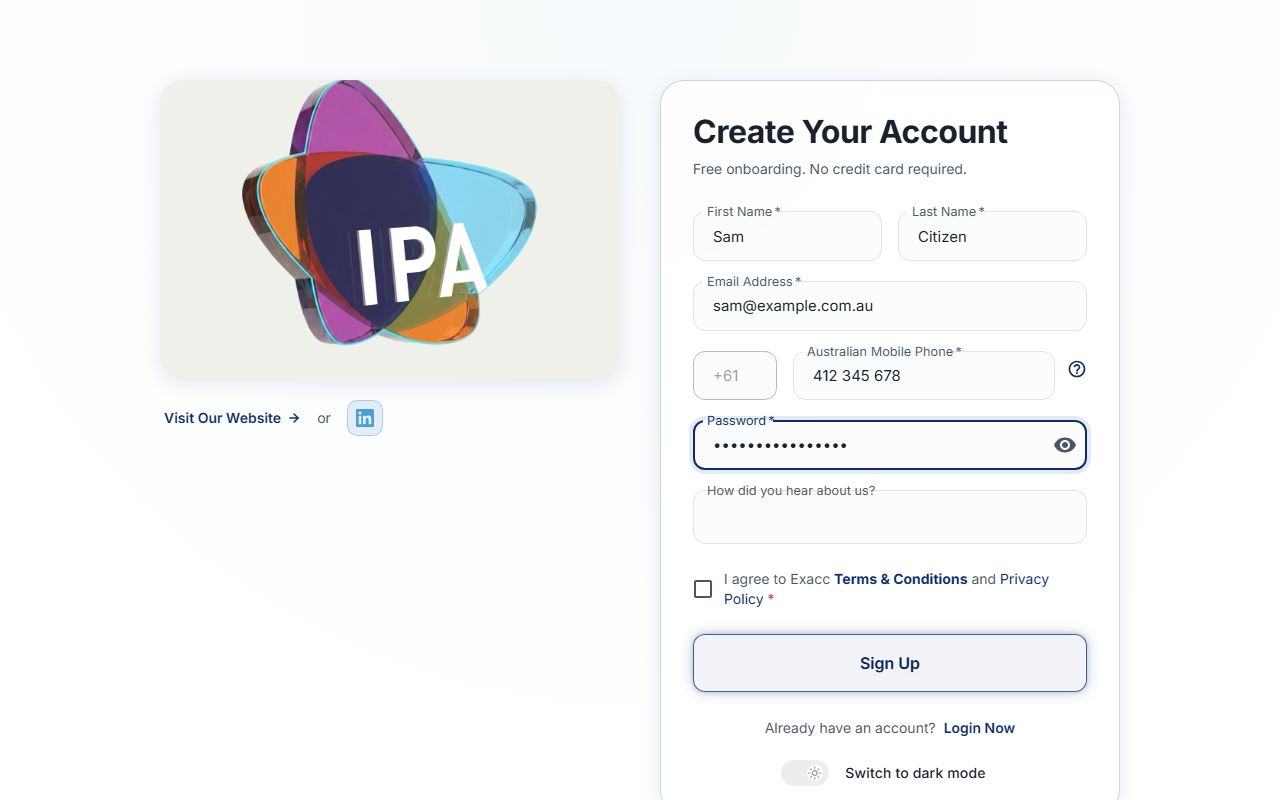
2. Accept the terms and click Sign Up
Tick I agree to Exacc Terms & Conditions and Privacy Policy, then click Sign Up. If a field is wrong, the message appears under it.
If Exacc says a user with that email already exists, you already have an account: use Login Now instead, or reset your password from the login page.
3. Enter the code from your email
Exacc emails you a 6-digit code. Type it into the box and click Verify.
No email? Check your spam folder and add [email protected] to your safe senders, then click Send E-Mail Again. Typed the wrong address? Use Edit E-mail Address.
4. Enter the code from the SMS
Exacc now texts a code to your mobile. Enter it in Verification Code and click the button under it (it is labelled Sign Up).
No SMS? Click Resend the SMS. To fix the number use Edit Phone Number; on that screen the number must include +61, e.g. +61412345678.
5. Set up two-factor sign-in (2FA)
On Set up your 2FA, open your authenticator app, add an account and scan the QR code. If you cannot scan it, click Copy Hash and paste the code into the app instead.
Type the code the app shows into 2FA Code and click Save & Next. If Exacc says the code is incorrect, wait for the app to show a new one and try again.
No authenticator app yet? Open the I don't have authenticator app tab for store links.
6. You are in
You land on Welcome to Exacc with Your Business Files. A new account has none yet: choose Add New Business to set up your own, or New Demo to explore Exacc with sample data first.
Signing in next time
Go to my.exacc.au, enter your email and password, then the 6-digit code from your authenticator app. Tick Remember Me on your own device. If your phone is not to hand, Get 2FA code via SMS sends the code by text (it can take a few seconds to arrive).
Invited by someone?
If a business invited you, open the link in their invitation email. Your details are filled in for you and the email cannot be changed; the rest of the steps are the same. The invitation then shows on your dashboard to accept.
Questions
Does it cost anything to sign up?
No. Onboarding is free and no credit card is needed to create an account.
Can I skip the authenticator app?
Exacc protects every account with two-factor sign-in, so you will be asked to set it up. You can get a code by SMS at sign-in if your phone app is not available.
I use a non-Australian mobile number.
Sign-up currently needs an Australian mobile number (+61). Contact Exacc support if you do not have one.
Related guides
Checked against Exacc on 29 September 2026. Machine-readable version