Line items are the products and services you sell or buy often: pick one on an invoice or bill line and its account, tax code, price and description fill in. Manage them in Manage › Configuration › Invoice + Bill Line Items. An invoice template is a whole saved invoice, used to set up recurring invoices.
1. Add a line item
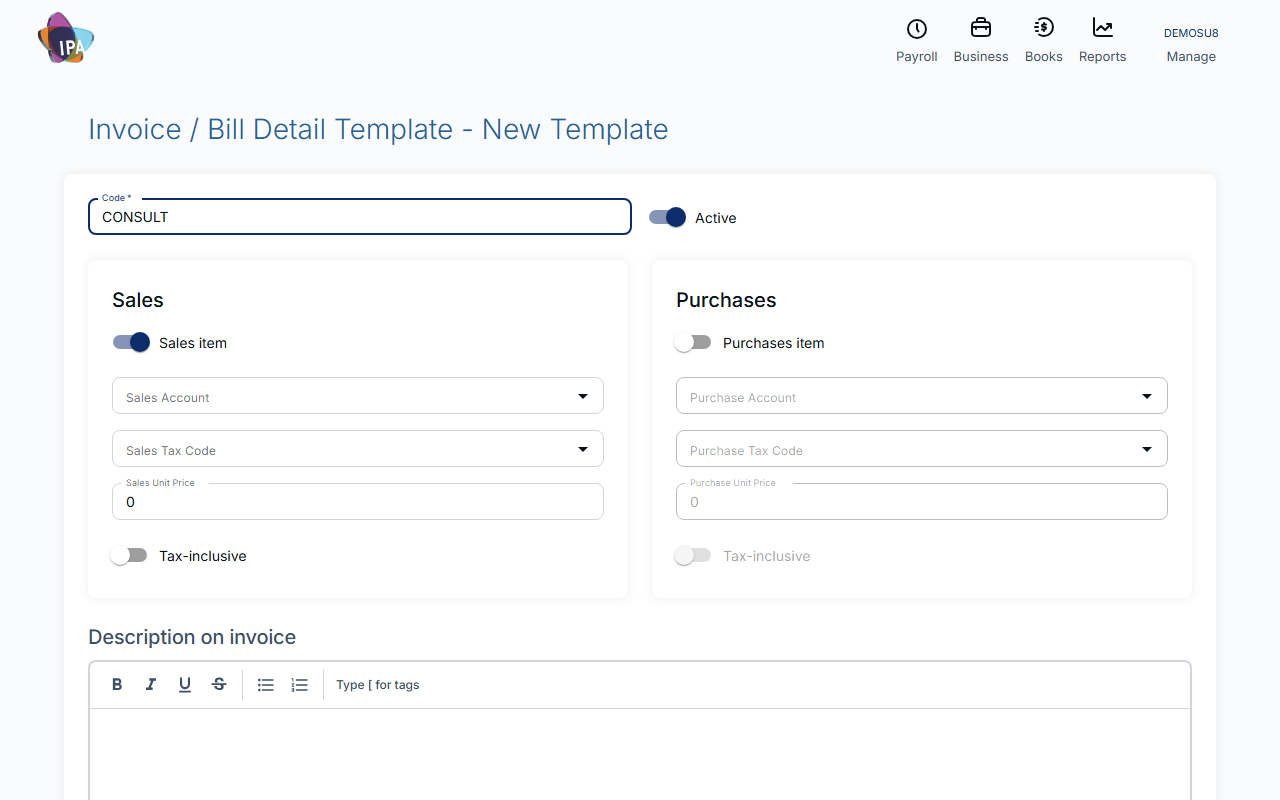
Open Manage › Configuration › Invoice + Bill Line Items (Invoice / Bill Detail Templates) and click Add New Template.
- Code (required) - the short name you pick on a line, e.g. CONSULT.
- Sales item - tick to use it on invoices, then set Sales Account, Sales Tax Code, Sales Unit Price and whether the price is Tax-inclusive.
- Purchases item - tick to use it on bills, with its own purchase account, tax code and price.
- Description on invoice (required) - at least 4 characters. Insert a date tag to show last, this or next month, e.g. "Bookkeeping for [Date:ThisMonth-MMMM_yyyy]".
- Private note, Active - a note for yourself; untick Active to retire the item.
2. Use it on an invoice
On an invoice or quote line, open the Template button and pick the code. Account, tax code, unit price and description fill in and quantity resets to 1; you can still change any of them.
3. Save a whole invoice as a template
In Manage Invoices click New › Template. Fill it in like an invoice (customer, lines, payment terms, sales person) and click Save as Template. Templates have no number and are not sent.
Find them in Manage Invoices under More Filters › Type › Templates. Their main use is Recurring Invoice.
Discounts
Exacc has no discount field. Add a line with a negative amount, coded to your discounts account with the same tax code as the discounted line, so GST is reduced too. The invoice total must stay above zero.
Related guides
Checked against Exacc on 29 September 2026. Machine-readable version