Save the invoice as a template first, then open Business › Sales › Recurring Invoice, pick the template, set how often and from when, and click Save. Each time it is due, Exacc issues a finalised invoice and, if ticked, emails it to the customer. You get a summary email of what was issued.
Before you start
- An invoice template for the customer (see Save invoice templates and line items). It sets the customer, lines, payment terms and sales person.
- The customer's email on their contact, if the invoices should be emailed.
1. Pick the template
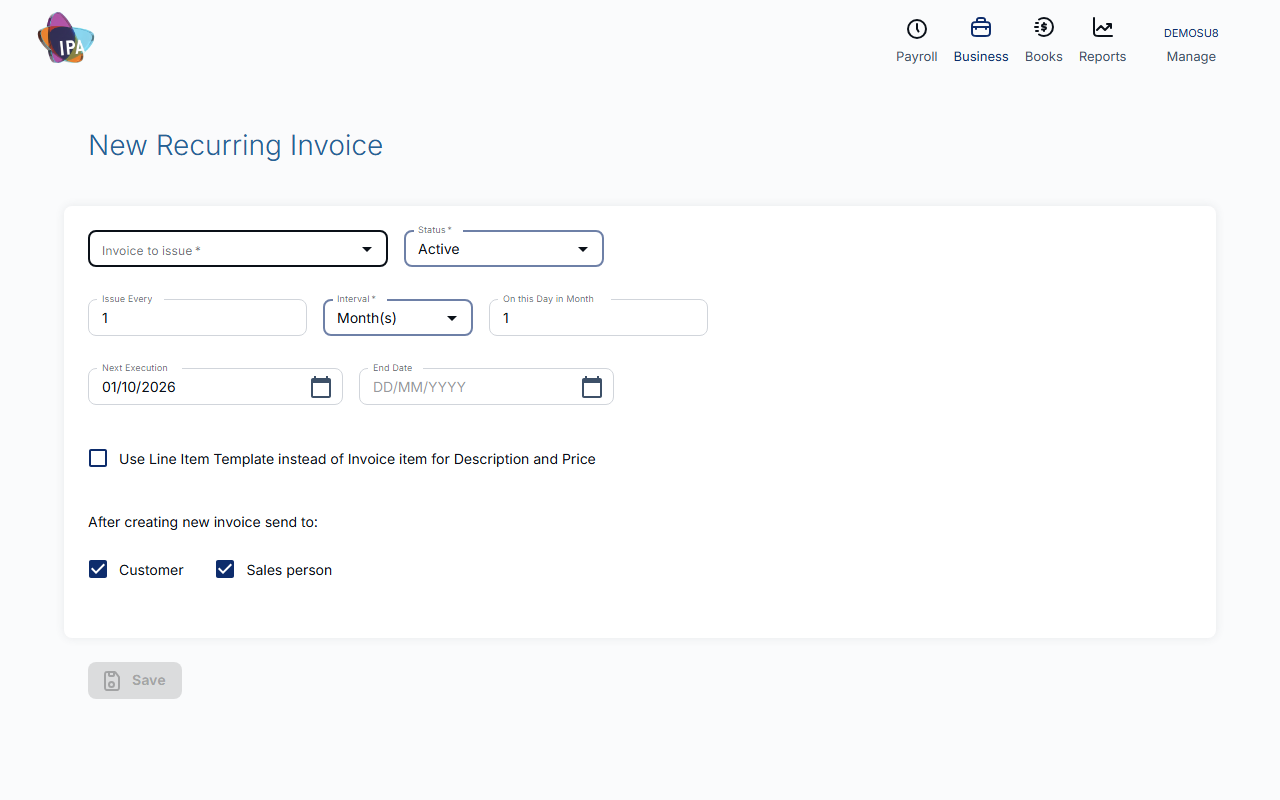
Open Business › Sales › Recurring Invoice. In Invoice to issue choose the template (shown as customer code, amount and order ref).
2. Set the schedule
- Issue Every and Interval (required) - e.g. every 1 month, every 2 weeks, every 1 year.
- On this Day in Month - for monthly and yearly schedules.
- Next Execution (required) - the date of the first invoice.
- End Date - leave empty to keep going until you stop it.
- Use Line Item Template instead of Invoice item for Description and Price - tick to take each line's price and description fresh from its saved line item every time, so price changes flow through.
- After creating new invoice send to: Customer - email each new invoice to the customer.
3. Save it and keep the link
Click Save. The schedule opens at its own address; bookmark it. To find schedules later, use Reports › All reports › Recurring Invoices.
What happens each time
Once a day Exacc issues every invoice that is due. The invoice is finalised straight away, dated the scheduled day, numbered in sequence, with the due date from the payment terms. Date tags in the description (last, this or next month) are filled in for that date.
If emailing is on, the customer gets the invoice PDF; with no email address the invoice is still issued. A report of what was issued goes to your business email.
Inactive customers are skipped, and demo files never run recurring invoices.
Pausing or stopping
Open the schedule and click Deactivate then Update, set an End Date, or Delete it.
Related guides
Checked against Exacc on 29 September 2026. Machine-readable version