An employee opens Manage › My Details › Leave Request, picks the Leave Type and dates. A manager opens Payroll › Manage Payroll › Leave Requests › Pending requests, checks the days and sets Leave Status to approved or declined. Approved days are paid in the pay event covering them.
1. Request leave (employee)
In Manage › My Details click Leave Request (My Leave Request), choose the Leave Type, the start and end dates and save ("Your request has been created"). It waits for approval.
2. Enter leave (manager)
In Payroll › Manage Payroll › Leave Requests › New: Select Employee, Leave Type (their Accrued Balance shows), Start Date and End Date. Check the hours for each day; mark weekends and public holidays as Not a Working Day or Public Holiday. Save.
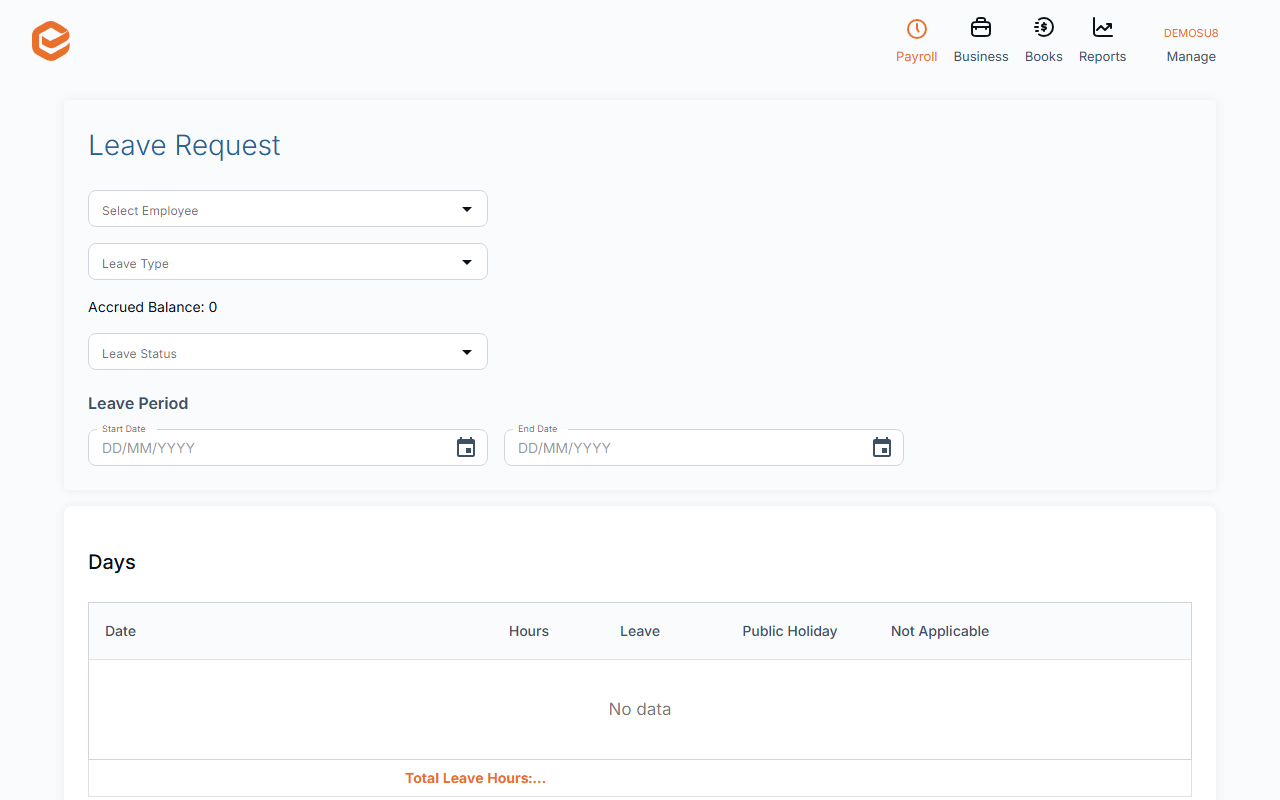
3. Approve or decline
Leave Requests › Pending requests lists what is waiting. Open one and set Leave Status, then Update. Administrators, payroll managers and the manager of the employee's site or department can approve. Exacc does not email the employee; tell them.
4. It is paid in the pay event
Approved days dated in a pay event's period are added to it as leave. Check the pay event before approving it.
Reports
Reports › Payroll has Pending Leave Requests, Leave Requests History and Leave History (everything that changed leave balances).
Related guides
Checked against Exacc on 9 October 2026. Machine-readable version