Open Reports › Profit & Loss, set the Start Date and End Date, choose whether to Compare this period with earlier periods or years, and click Show Report. Click an amount to see the transactions behind it. To Excel and PDF export it.
1. Choose the period
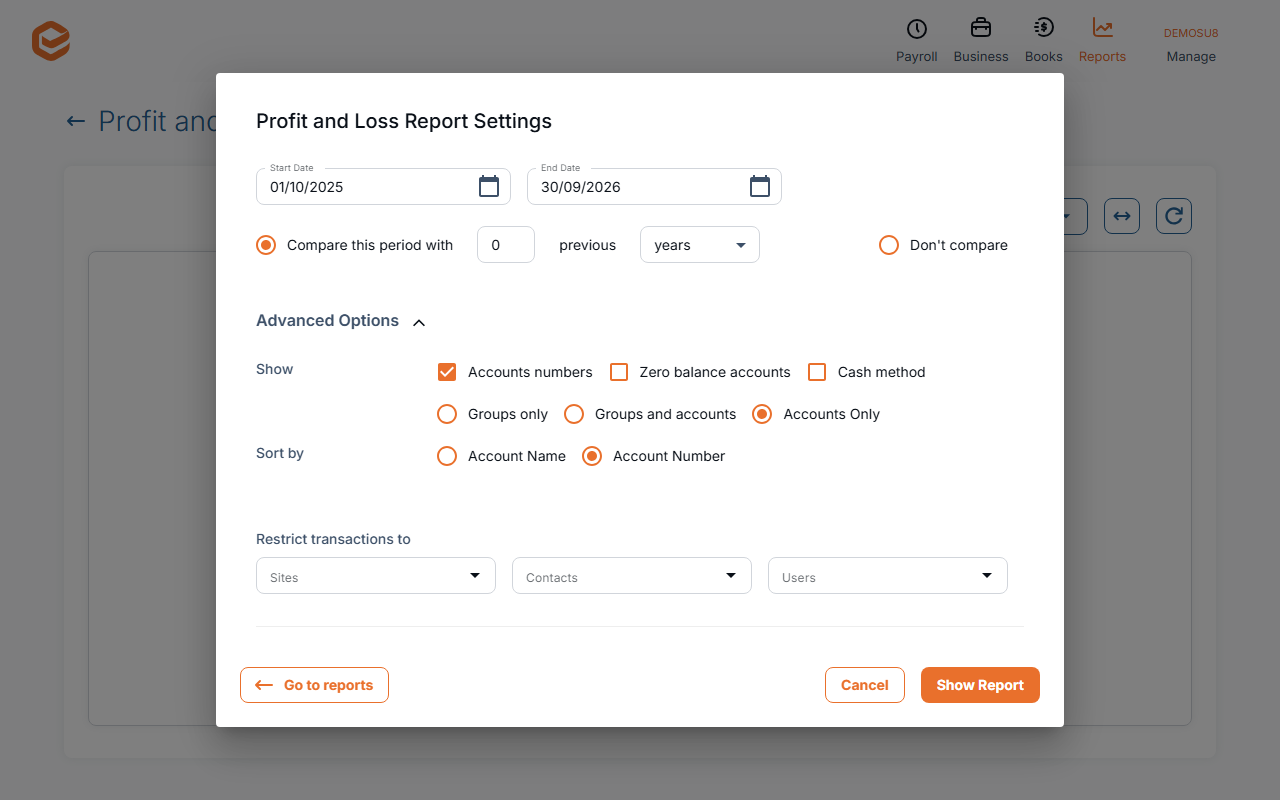
Open Reports › Profit & Loss. In Profit and Loss Report Settings (or Update on the report) set:
- Start Date and End Date (required) - the period to report.
- Compare this period with - up to 23 previous periods or years, or Don't compare. Comparing periods needs whole calendar months.
- Show - under Advanced Options: Accounts numbers, Zero balance accounts, Cash method, and Groups only, Groups and accounts or Accounts Only.
- Sort by - Account Name or Account Number.
- Restrict transactions to - chosen Sites, Contacts or Users.
2. Read it
Click Show Report. You see Income, Cost of Sales, Gross Profit, Expenses, Profit / -(Loss) from ordinary activities, Other Income, Other Expenses and Net Profit / -(Loss), one column per period. + adds another earlier period. Only finalised records count; Exacc warns if drafts fall in the period.
3. Drill down
Click an amount to open the General Ledger for that account and period. Right-click for Open in new tab or Copy amount.
4. Export
To Excel downloads a CSV file. PDF (when one or two periods are shown) opens Download to PDF.
By site, contact or user
Profit & Loss by Groups (in the Accounting tab) splits one period into columns per site, contact or user, side by side.
Cash method and drill-down
After a cash-method report, clicking an amount opens the General Ledger on the accruals basis, so its totals can differ. Use Open in new tab to keep the cash method.
Related guides
- Balance Sheet report
- General Ledger and journals reports
- Filter a report
- Export a report to Excel or PDF
Checked against Exacc on 9 October 2026. Machine-readable version