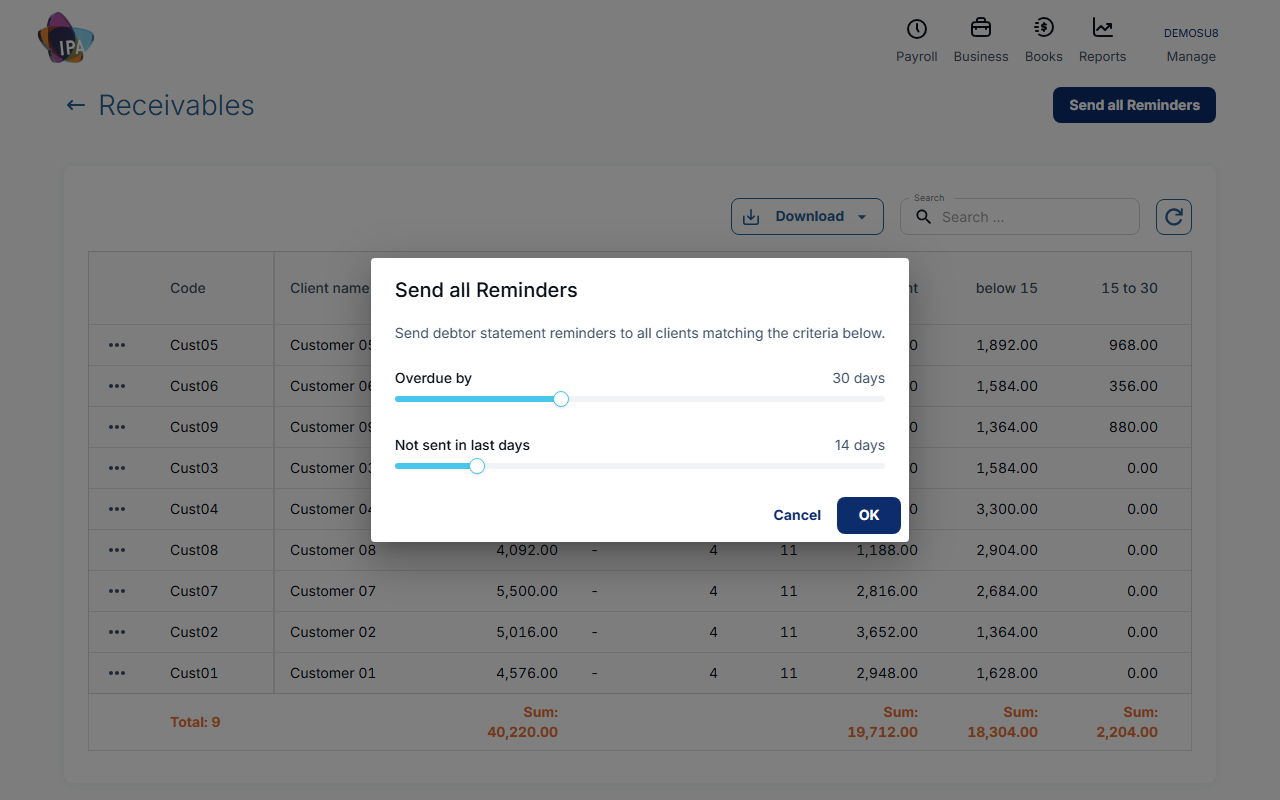
A reminder in Exacc is a statement: a PDF of the customer's open invoices with your bank details, emailed to them. In Business › Sales › Receivables, use E-mail Statement on one customer, or Send all Reminders to send to everyone overdue by a set number of days who has not had one recently.
Before you start
- The customer's email on their contact.
- Your business name and email, and an Income account (for the bank details on the statement), in Business Details.
1. One customer, now
In Receivables open the ⋯ menu on the customer and choose E-mail Statement, then Yes. It is sent straight away. Click refresh to see today in Last Reminder.
To check it first, choose Statement PDF to download it.
2. Everyone who is overdue
Click Send all Reminders. Set Overdue by (e.g. 30 days) and Not sent in last days (e.g. 14, at least 1) and click OK.
Exacc sends the statements within a few minutes and emails you a report of what went. Each statement lists the invoices that are overdue by at least the days you chose. You can do this once a day per business file.
What the customer receives
An email from your business name, replying to you, with the statement PDF: your details and bank account, their details, and each open invoice with its date, amount, due date and days overdue.
Automatic reminders
Exacc does not send reminders by itself. Send them from Receivables when you want them to go.
On the mobile app
In Invoices › Debtors tap Send Reminders: Overdue Only (by overdue days and days since the last one) or Manual Selection. On a customer, Send Statement sends just theirs. They go out within a few minutes.
Related guides
Checked against Exacc on 29 September 2026. Machine-readable version