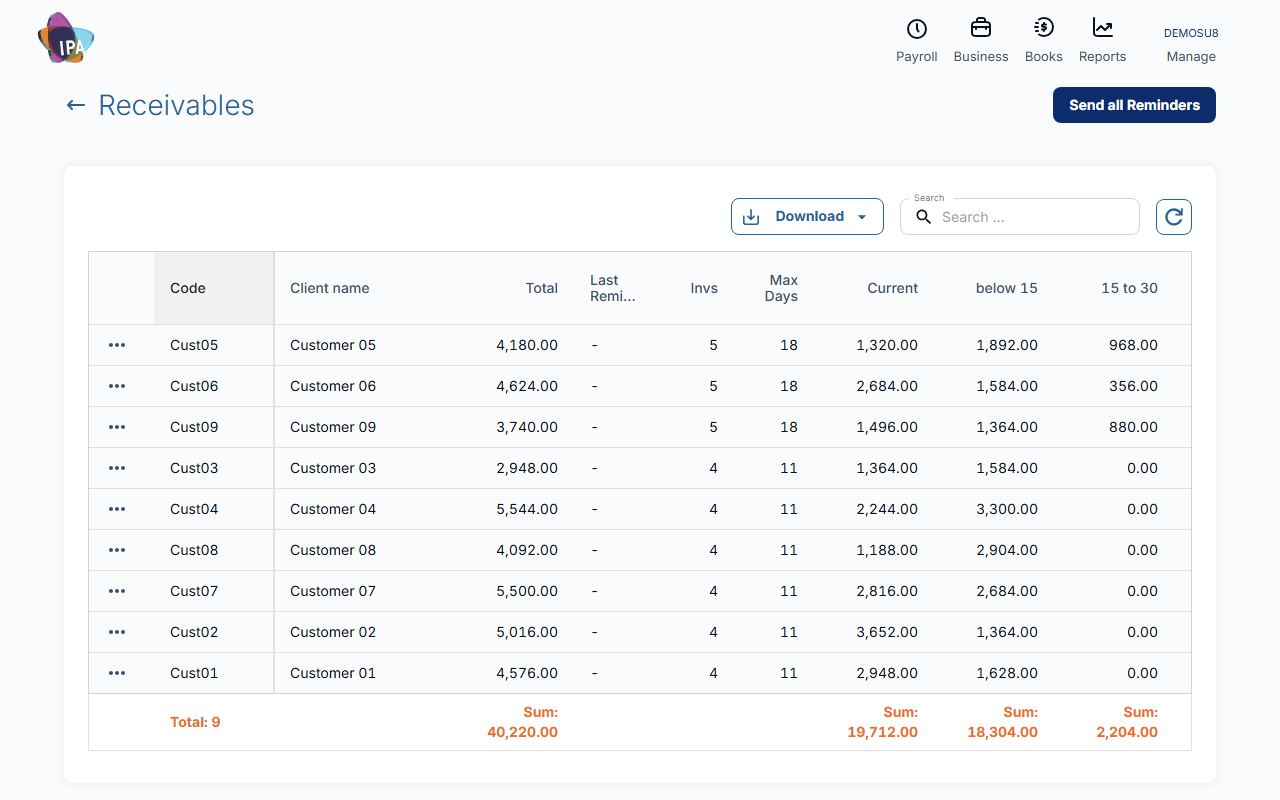
Business › Sales › Receivables lists every customer with money owing: the total, how many invoices, the most days overdue, the amount in each age group, and when they were last sent a reminder. From a row you can email or download a statement, add a payment, or open their details.
1. Open Receivables
Open Business › Sales › Receivables. Each row is a customer: Code, Client name, Total, Last Reminder, Invs (open invoices and credit notes), Max Days overdue, Current (not yet due) and the overdue age groups. The footer totals each column.
2. Search and export
Use the search box to find a customer, and the Excel button to download the list.
3. Act on a customer
Open the ⋯ menu on a row:
- E-mail Statement - emails their statement now (see Send statements and payment reminders).
- Statement PDF - downloads the statement.
- Add Payment - records a payment for them.
- Client details - opens their contact.
- Debtor Notes - their activity log, including statements sent.
Changing the age groups
The groups come from General Settings › Invoicing › Group 1 to Group 4 - max days (14, 30, 60 and 90 days if blank). Instalments of a payment plan are aged by their own due dates.
Reports
Reports › All reports › Sales has Receivables Summary (per customer, by days overdue) and Receivables - details (outstanding invoices at a chosen date).
On the mobile app
In the Invoices tab tap Debtors. Search or filter to overdue customers, tap one for their details, or use Send Reminders.
Related guides
Checked against Exacc on 29 September 2026. Machine-readable version