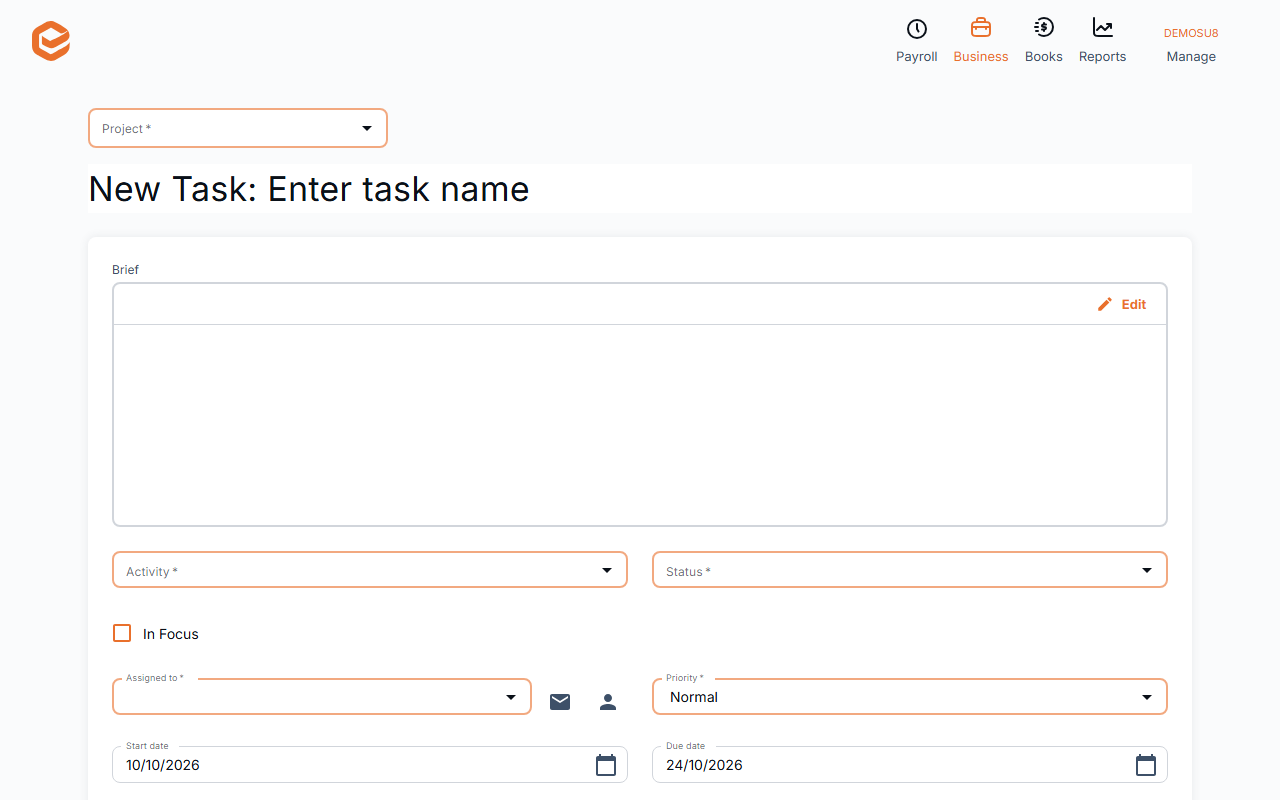
Open Business › + Task (or New Task on a project), choose the Project, name the task and pick the Activity, Status and Assigned to, then set priority, dates and Time Units assigned. Add Timesheet records time against it.
1. Fill in the task
Open Business › + Task:
- Project (required) - the project it belongs to.
- Task name and Brief (required) - what needs doing.
- Activity (required) - the activity type time on it is recorded as.
- Status and In Focus (required) - where it is up to; In Focus flags it on the boards.
- Assigned to (required) - who does it (Assign to me for yourself).
- Priority, Start date, Due date - a due date after the project's asks whether to move the project's due date.
- Time Units assigned, Progress %, Weight - time allowed, how far along it is, and its share of the project.
2. Record time against it
Add Timesheet opens a timesheet entry linked to the task (see Enter your timesheet).
A quick first task
Add default task creates a task with the project's name, dates, status and assignee, using your default activity type (set one first: otherwise "Please select default activity type!").
Notifications
Exacc does not email people when a task is assigned to them. Use the email button next to Assigned to to tell them.
Related guides
Checked against Exacc on 10 October 2026. Machine-readable version