Open Payroll › Enter your Timesheet. For a quick entry fill in Description, Client, Activity Type and Time Units and click Fast Entry; Add Full Entry adds start and end times, site, task, charge and a note. On the mobile app use the Timesheet tab.
Before you start
- Activity types set up (see Set up activity types).
- The time unit in General Settings (e.g. 6 minutes).
1. Quick entry
Open Payroll › Enter your Timesheet. Fill in Description, Client, Activity Type and Time Units, and click Fast Entry. Quick entries are always saved for you, whoever is chosen under User.
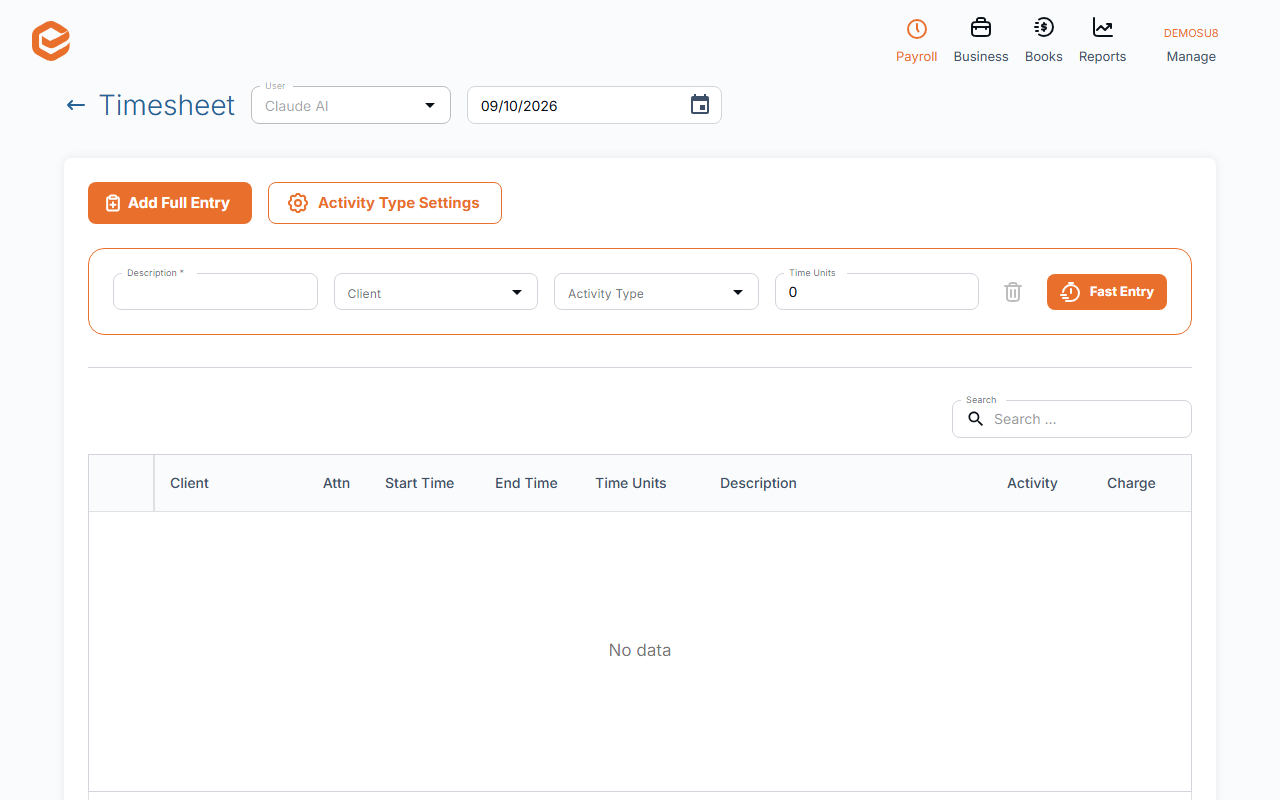
2. Full entry
Add Full Entry:
- Client, Description, Activity Type (required) - who the work was for, what it was and what kind.
- Start Time and End Time, or Time Units / Hours (required) - one or the other ("Either provide start/end time or non-zero time units").
- Site and Task - optional, for reporting and projects.
- Chargeable, Charge, Hourly Rate - whether it can be invoiced and for how much; Chargeable follows the client's setting.
- Mark for attention and Note - flag it for review.
3. Save
Save or Save & New. Click a row to change it; Delete in its menu removes it straight away.
What timesheets feed
Chargeable time can be invoiced with Invoice from timesheets; once invoiced, an entry cannot be changed or deleted. Employees set to Use Timesheet to create Payroll are paid from their timesheets in the next pay event, through the activity type's Payroll Item.
On the mobile app
In the Timesheet tab tap +: Description, Client, Activity Type, Time, and under More details the site, task, charge and note. Tap Create Timesheet.
Related guides
Checked against Exacc on 9 October 2026. Machine-readable version