Open Business › Purchases › + Bill, choose the Supplier, add a line for each item with its Account Number, Qty, Unit Price and Tax Code, type the supplier's number in Bill No, check Payment Terms, then click Save & Post. Save as Draft keeps it out of your accounts until you finish it.
Before you start
- The supplier as a contact (or add one from the bill with New Supplier).
- Payment terms set up under Manage (the bill takes the first one in the list until you change it).
1. Open New Bill and choose the supplier
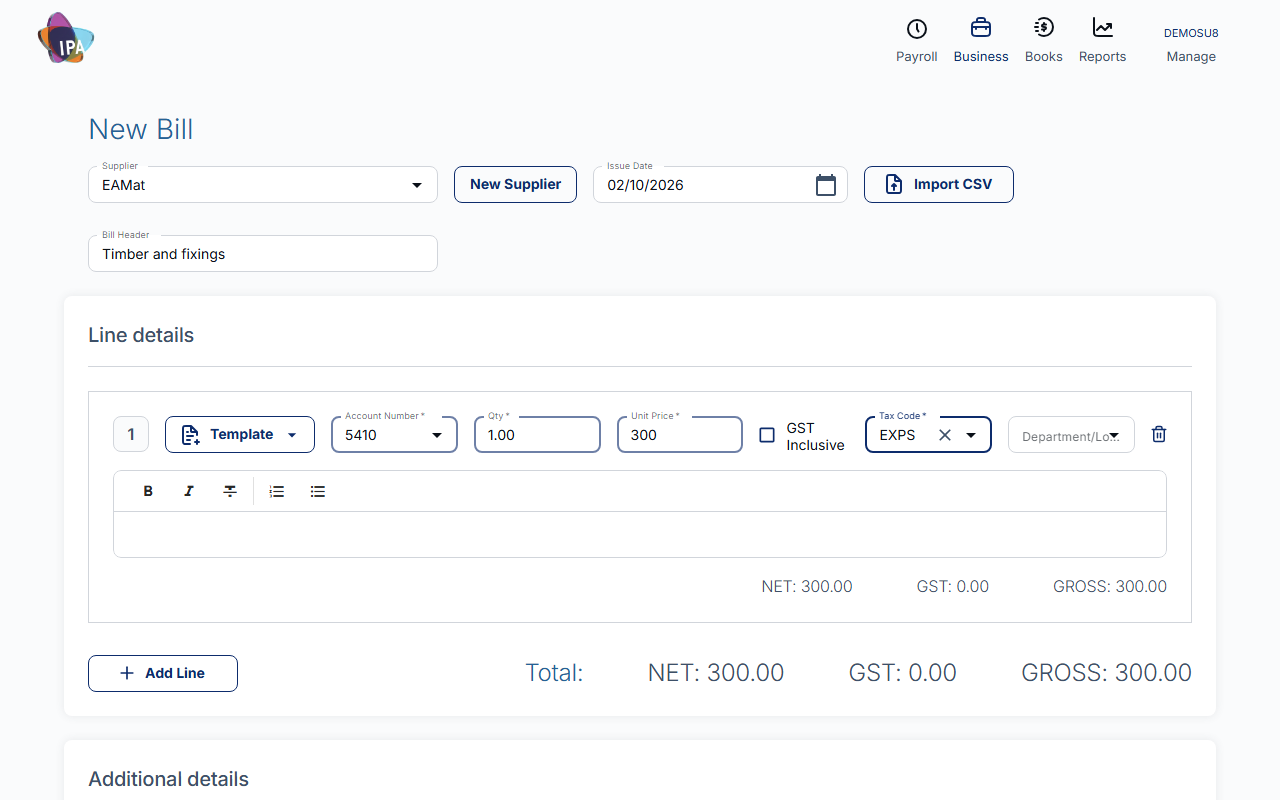
Open Business › Purchases › + Bill. Choose the Supplier; only active suppliers are listed. New Supplier adds one without leaving the bill.
Issue Date is the date on the supplier's bill (today by default). Bill Header is an optional title.
2. Add the lines
Each line needs an account and a tax code. If the supplier has defaults, they fill in for you.
Template fills the description (and the account and tax code if they are empty) from your saved line items; it does not fill the price.
Tick GST Inclusive when the price you type already includes GST. Add Line adds another row; the totals underneath show NET, GST and GROSS.
- Account Number (required) - the expense or asset account the cost goes to.
- Qty (required) - more than 0.
- Unit Price (required) - per unit, excluding GST unless GST Inclusive is ticked.
- Tax Code (required) - e.g. GST on purchases. A business not registered for GST always gets no-tax.
- Department/Location - optional, for reporting by site.
3. Fill in the additional details
- Bill No - the supplier's invoice number. Exacc does not number bills; it warns if this supplier already has a bill with the same number.
- Payment Terms (required) - sets the due date from the issue date.
- Payment Due Date - calculated from the terms; you can change it.
- Order Reference - optional, e.g. your purchase order number.
- Purchase by (required) - the person who bought it; you by default.
- Private Note - for your team only.
4. Save as a draft or post it
Save & Post finalises the bill: it counts in your accounts, reports and what you owe, and opens the bill. If Bill No is empty Exacc asks first (Go back and Add or Save without Bill Number).
Save as Draft saves it without counting it anywhere, so you can finish it later from Manage Bills.
Remember the supplier's account and tax code
When a line uses a different account or tax code from the supplier's defaults, Exacc asks Do you want to assign defaults for this supplier? Yes saves them for next time, Not now asks again next time, and Never for this Supplier stops asking.
Importing bills from a CSV file
Import CSV (on a new bill) reads a bills export in Xero's format: ContactName, InvoiceNumber, InvoiceDate and Total are required. Discounts in the file are not imported.
Accounts lock date
A bill dated on or before your Accounts Lock date cannot be saved or changed; Exacc says "This file is locked."
Related guides
- Find, edit or delete bills
- Record a bill payment
- Pay bills with an ABA file
- Save invoice templates and line items
Checked against Exacc on 2 October 2026. Machine-readable version