Open Business › Purchases › Manage Bills, filter by date, Bill No, Status, Purchased by or Supplier and click Apply Filters. Click a posted bill to open it: Edit changes it, Attachments holds the supplier's PDF, and Other Actions › Delete removes it if it has no payments.
1. Find the bill
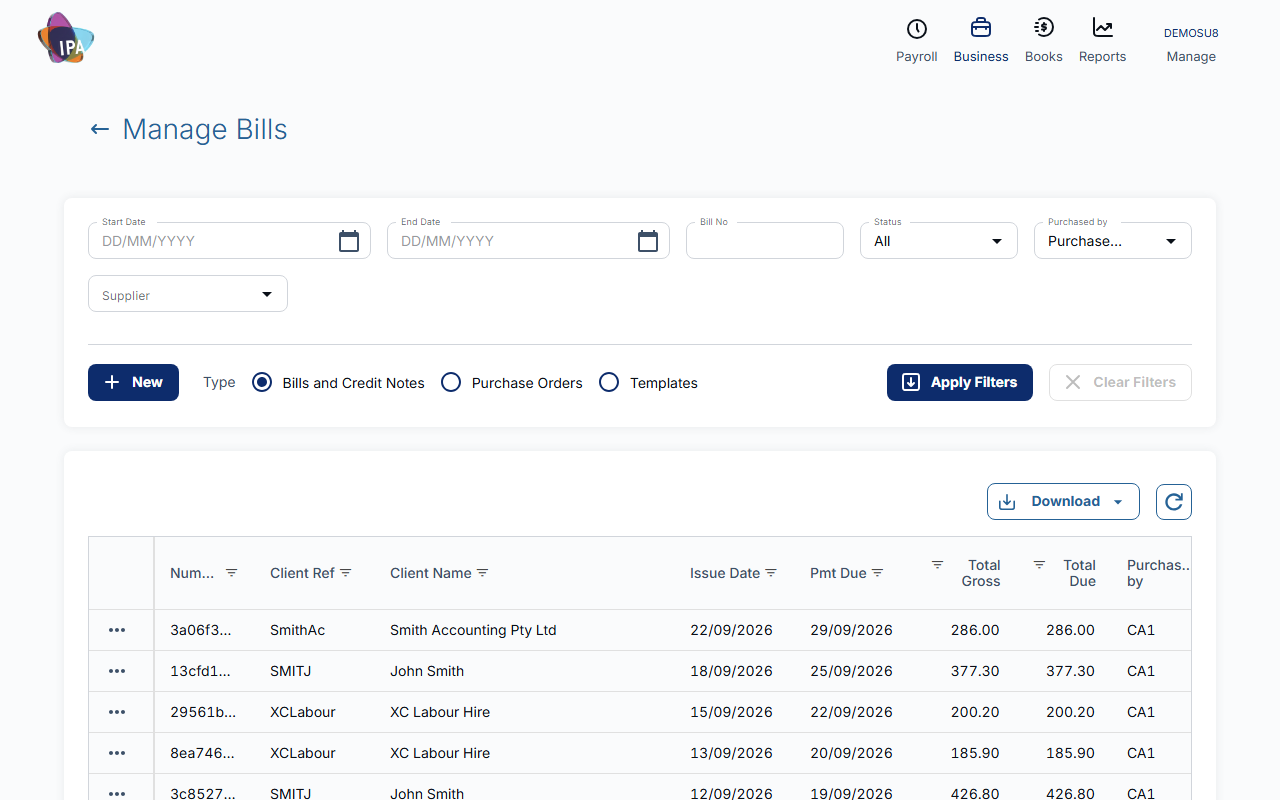
Open Business › Purchases › Manage Bills. Set any of Start Date, End Date, Bill No, Status (All, Draft or Finalised), Purchased by and Supplier, then click Apply Filters. Type switches between Bills and Credit Notes, Purchase Orders and Templates.
The list shows each bill's number, supplier, issue and due dates, Total Gross and Total Due (what is still unpaid). Download exports the list to CSV.
2. Open it
Click a row. A posted bill opens its summary: what is due and by when, the purchase person, a quick Payment section and a Private Comment. A draft opens straight in the edit form.
The … menu on a row has Go to contact and Create Payment.
3. Change it
On the summary click Edit, make the changes and click Update & Finalize. Bills dated on or before your Accounts Lock date cannot be changed.
4. Attach the supplier's document
Attachments opens Bill Files: upload the PDF or photo of the supplier's bill with a short Description.
5. Delete it
Other Actions › Delete removes the bill after you confirm. A bill with payments cannot be deleted: delete its payments first (see Record a bill payment).
Copying a bill
Duplicate on the bill is not working yet. For now, enter the repeat bill with + Bill; a line item template saves retyping the description.
History and activities
Other Actions also has See Activities (who changed what) and Show Payment History.
Related guides
- Enter a supplier bill
- Record a bill payment
- Pay bills with an ABA file
- See what you owe suppliers (payables summary)
Checked against Exacc on 2 October 2026. Machine-readable version