Open Business › Trust Account › Manage Refunds, tick the jobs to pay, click Create ABA File and choose what to pay (fees, other payees, remainders). Download ABA file, upload it to your bank, then click Confirm as Paid (optionally emailing each client their statement).
Before you start
- Each client's bank account for the remainder (Update Bank Account on their row).
1. Choose the jobs
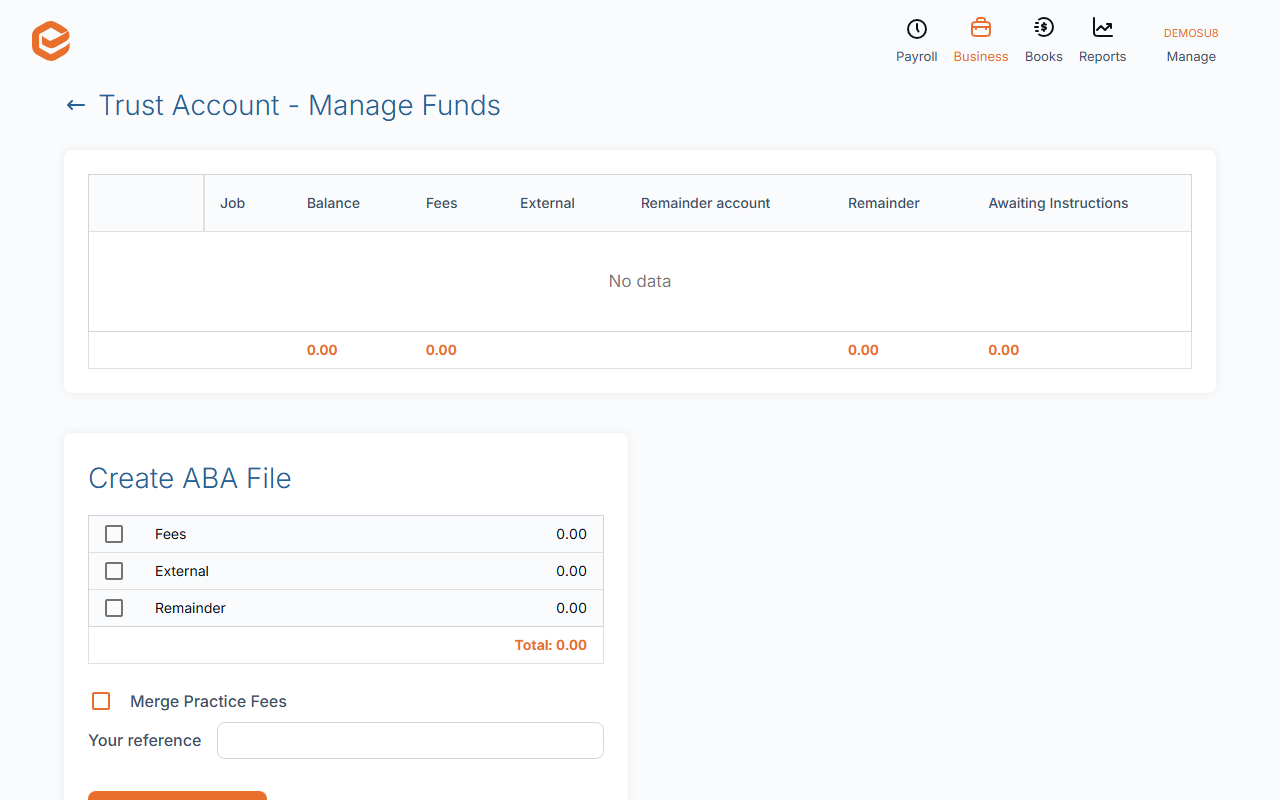
Open Manage Refunds (Trust Account - Manage Funds). Each job shows its Balance, Fees, payments to others (External), the Remainder account and Remainder. Tick the jobs to pay; check every amount before you go on.
2. Create the ABA file
Click Create ABA File, choose Fees, External and Remainder, tick Merge Practice Fees to pay your fees as one line, enter Your reference and click Download ABA file. Upload it to your bank as a batch payment.
3. Confirm it was paid
Once the bank has made the payments, click Confirm as Paid. Tick Send E-mails with Statements to Clients to email each client their statement. The jobs are finalised, and fees taken from refunds are recorded as payments of the client's invoices.
Cancel Payment
Cancel Payment is only for a file your bank did not process. Never use it after Confirm as Paid: it would put the money back on the jobs as if it had not been paid.
One payout at a time
Create one ABA file, upload it and confirm it before starting the next, and only in one browser tab.
Related guides
Checked against Exacc on 10 October 2026. Machine-readable version