Open Business › Trust Account and click New Job (or Job from Template). Choose the Contact, name the job and add Instructions: the expected deposit, your practice fee, any other payee and the remainder to the client. Download the Authority form for the client to sign.
1. Create the job
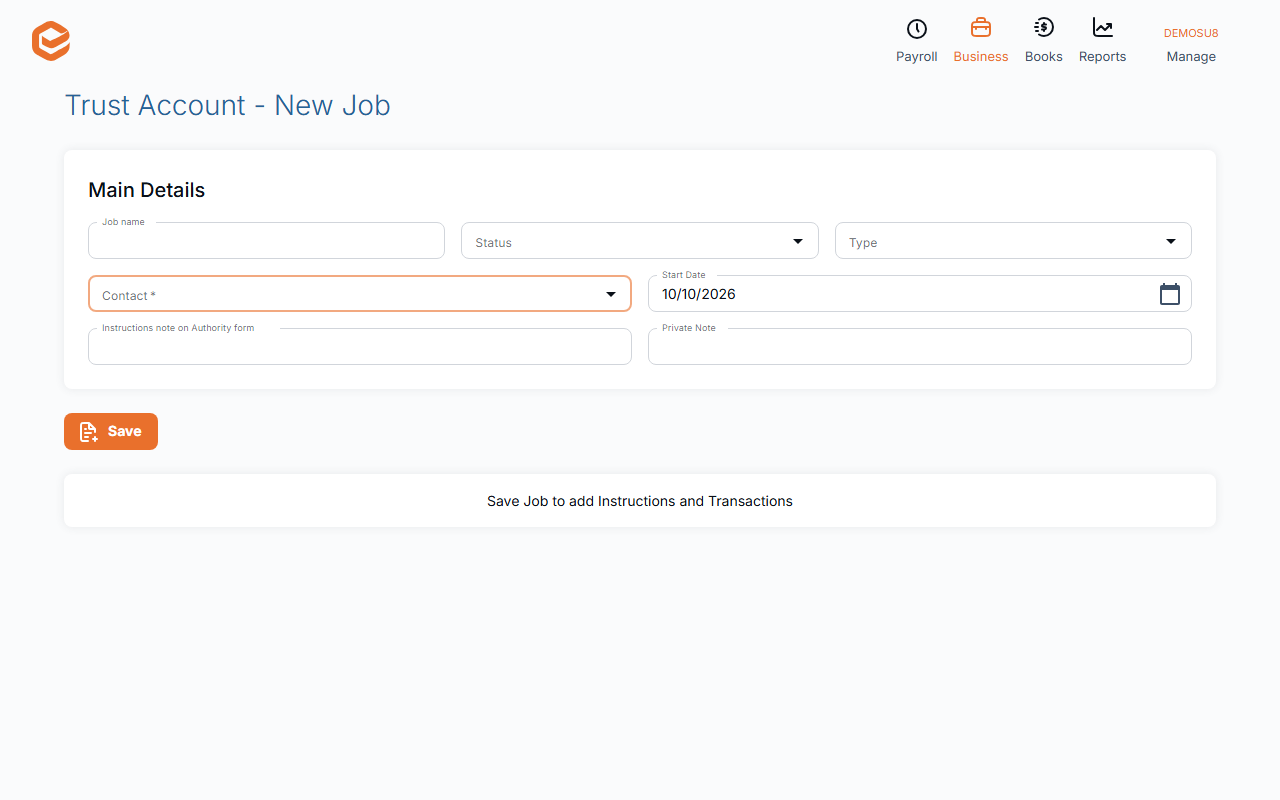
Click New Job:
- Job name and Contact (required) - what it is for, and the client.
- Status and Type (required) - a new job is awaiting money (or a template).
- Start Date - when the job starts.
- Instructions note on Authority form, Private Note, Footer Note - text for the client's authority, for you, and for the statement footer.
2. Add the instructions
Under Instructions say how the money is to be paid: the deposit expected, your practice fee (a fixed amount, your unpaid invoices, or a percentage), an amount to another payee, and the remainder to the client's own bank account.
Download Authority gives the client the form to sign.
3. Save time with templates
Save a job as a template, then use Job from Template (Select Template, Select Client, Expected deposit, Practice Fee). Refunds that arrive for a client with no open job use your default template.
Transactions on a job
Transactions lists deposits and payouts. A manual entry can be voided; refunds imported from the ATO cannot. Transfer to another Job moves money between jobs, for example a refund matched to the wrong one.
Check fee instructions
Fee and payee instructions are being corrected in Exacc. Check the amounts on Manage Refunds before you create a payout file, and ask us if a fee will not save.
Related guides
- Bring ATO refunds into the trust account
- Pay out trust refunds (ABA file)
- Trust account transactions and reports
Checked against Exacc on 10 October 2026. Machine-readable version