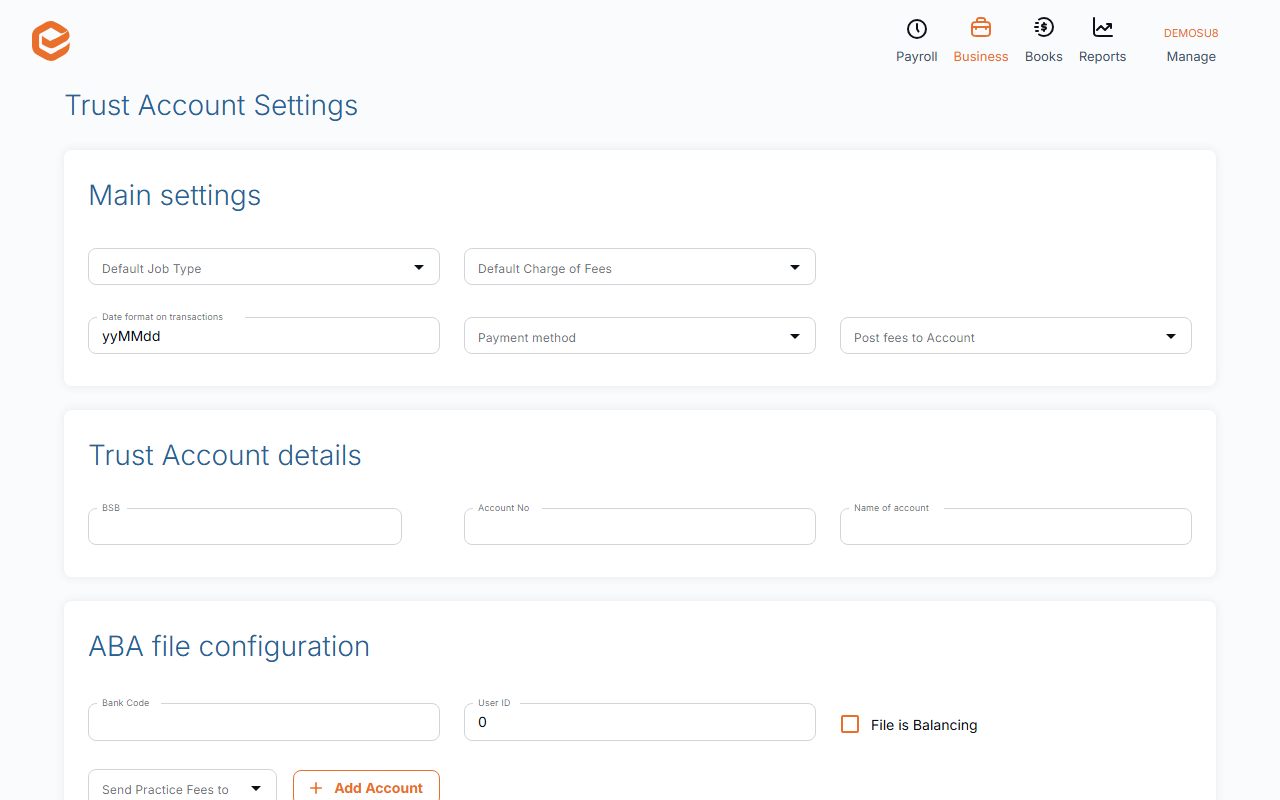
Open Business › Trust Account › Settings. Enter the trust account's BSB, Account No and Name of account (the ABA settings fill in from the BSB), the default job type and fee, the Payment method and Post fees to Account, and save. One trust account per business file.
Before you start
- Full access to the business file (only full-access users can change the bank details).
- To request refund reports from the ATO: the practice's tax agent number (TAN / RAN), agent type and SSID on your subscriber record, and the file linked to the ATO.
1. Trust Account details
Open Business › Trust Account and click Settings. Under Trust Account details enter the BSB, Account No and Name of account. When you leave the BSB, Exacc fills in the ABA settings ("Bank ABA settings loaded successfully!").
2. ABA file configuration
Check Bank Code (3 letters) and User ID (6 digits) from your bank, and File is Balancing if your bank wants a balancing line. These are used for payout files.
3. Main settings
- Default Job Type and Default Charge of Fees (required) - how new jobs and fees are set up.
- Date format on transactions (required) - how dates print on statements, e.g. dd/mm/yyyy.
- Payment method and Post fees to Account - how fees paid out of trust are recorded against the client's invoices.
One trust account
Each business file has one trust account. There are no trust account structures or separate ledgers by account type.
Related guides
- Bring ATO refunds into the trust account
- Trust account jobs
- Pay out trust refunds (ABA file)
- Link Exacc to the ATO
Checked against Exacc on 10 October 2026. Machine-readable version