Open Reports › Accounting › Financial Report, choose the period, tick the options (previous period, reporting entity, audited), enter the names for the declaration and the compilation report, and click Generate PDF. You get one PDF with a cover page, Profit & Loss, Balance Sheet, notes, the declaration and the compilation report.
Before you start
- The year's transactions coded and checked: the report is built from your Profit & Loss and Balance Sheet.
- The right Legal Form on Business Details › Main Info: it decides the declaration (proprietor, partners, directors, trustees) and, for an SMSF, adds member statements.
1. Open the report
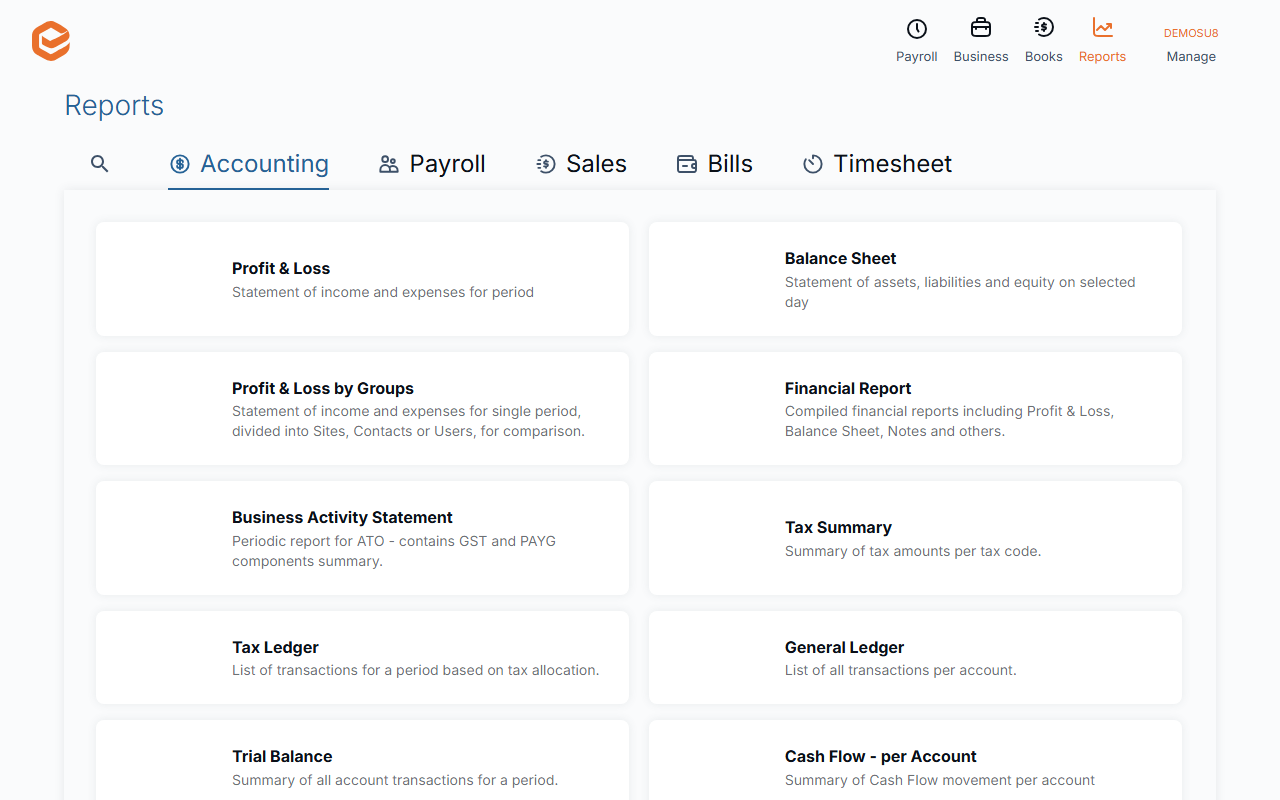
Open Reports, stay on the Accounting tab and click Financial Report.
2. Choose the period and options
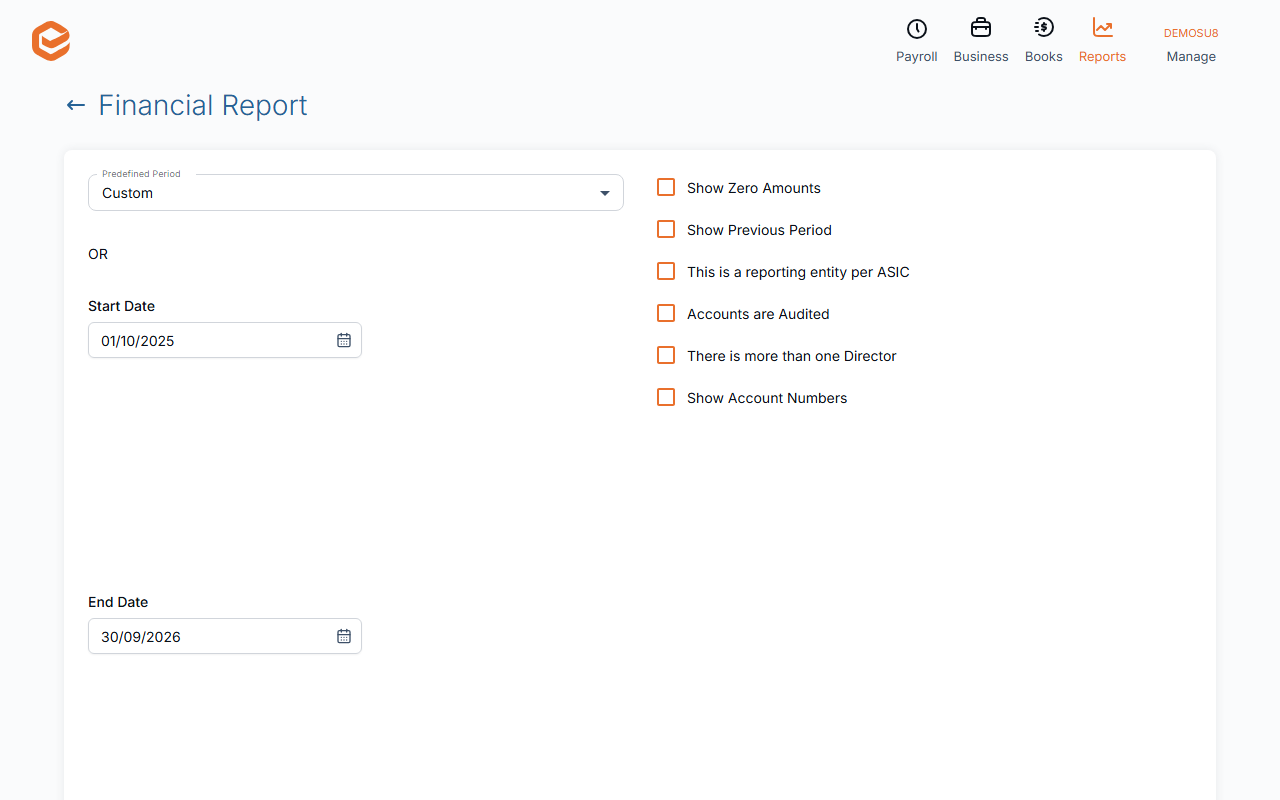
Choose a Predefined Period (for example Previous Financial Year) or a Start Date and End Date, then tick what applies:
- Show Previous Period - adds comparative figures for the period before.
- This is a reporting entity per ASIC - titles it Financial Report; unticked it is a Special Purpose Financial Report.
- Accounts are Audited - unticked, every page says the statements are unaudited and must be read with the compilation report.
- There is more than one Director (Trustee, Signatory) - makes the declaration plural.
- Corporate Trustee - for trusts and SMSFs with a company as trustee: the declaration is by its directors.
- Show Zero Amounts and Show Account Numbers - how the statements are laid out.
3. Names and footer
Enter Signature 1 and Signature 2 (the names on the declaration), the Compilation Signatory (the accountant who compiled it, two lines) and the Cover page footer. The signatory names are remembered for next time.
4. Generate the PDF
Click Generate PDF. "Financial Report.pdf" downloads: cover page, Profit & Loss, Balance Sheet, Notes to Financial Statements, the declaration and the Compilation Report.
Self-managed super funds
For an SMSF the PDF also has a statement for each member. Click Member Statement, choose the End Date (the same as the report's end date) and the Member, and enter each member's balances (Tax-free, Taxable - taxed, Preserved, Restricted non-preserved, Unrestricted non-preserved). They save as you type. Members are the fund's active sites.
What you cannot change
The notes are a standard set (name, ABN and period are filled in); there is no notes editor. The report is a PDF only: no preview and no email from this screen.
Related guides
- Profit & Loss report
- Balance Sheet report
- Trial Balance report
- Lock a finished period
- Update your business details
- Find a report
Checked against Exacc on 10 October 2026. Machine-readable version