Open Manage › Configuration › Payment Terms and click New. Enter a Name, the Add Days and Add Months after the invoice date, and tick Move to End of Month if the due date should be the last day of that month. Choose the term on invoices and bills, or set it as a customer's Default Payment Terms.
Before you start
- Permission to manage payment terms.
1. Open the list
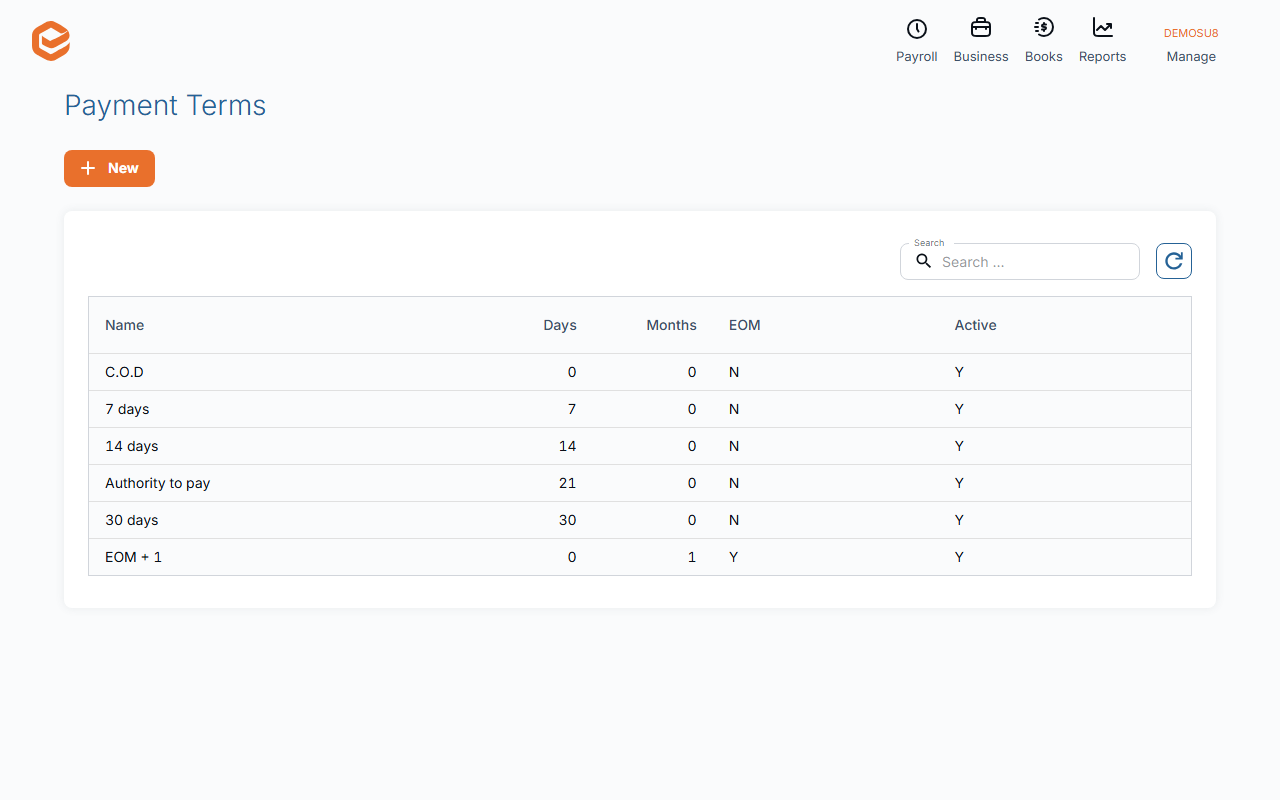
Open Manage › Configuration › Payment Terms. Each term shows its Name, Days, Months and EOM (end of month). Click a row to edit it.
2. Add a term
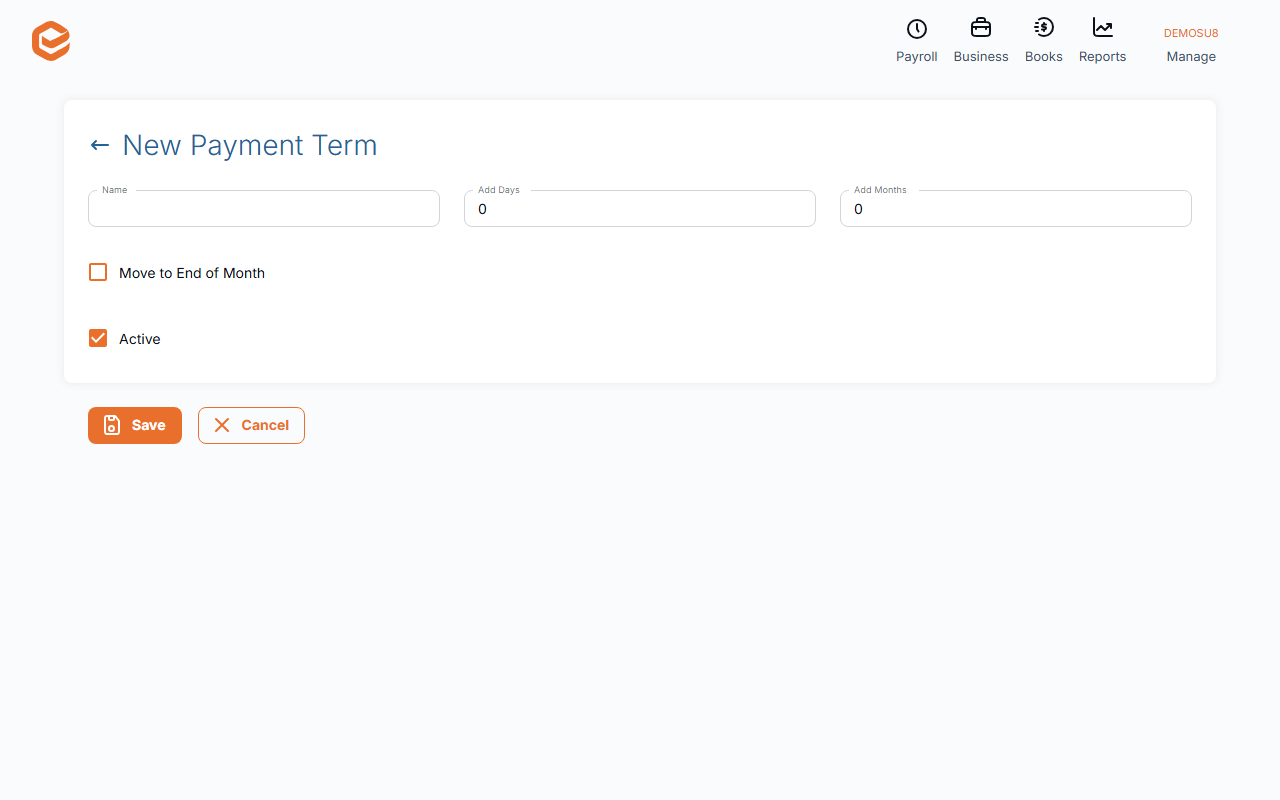
Click New (New Payment Term):
- Name (required) - what you pick on an invoice, e.g. 14 days or 30 days EOM.
- Add Days - days after the invoice or bill date (0 or more).
- Add Months - months after the date (0 or more).
- Move to End of Month - after adding the days and months, move the due date to the last day of that month.
- Active - ticked for new terms.
3. Save and use it
Click Save. On a new invoice, Payment Terms is filled in from the customer's Default Payment Terms (or the Default Payment Terms in Settings) and sets the due date; you can choose another term. Set a customer's default on the contact.
Examples
For an invoice dated 10 March:
- 14 days (Add Days 14): due 24 March.
- End of next month (Add Months 1, Move to End of Month): due 30 April.
- Due on receipt (nothing added): due 10 March.
Bills, deleting and deactivating
A new bill starts with the first term in the list; choose the supplier's terms on the bill.
A term that is a contact's default, or is used on an invoice, quote or bill, cannot be deleted. An inactive term drops out of the list.
Related guides
- Create and send an invoice
- Enter a supplier bill
- Find and manage contacts
- Payment methods
- General settings
Checked against Exacc on 10 October 2026. Machine-readable version